
DIGI WR21-M52A-DE1-TB TransPort WR21 Cellular Router User Guide


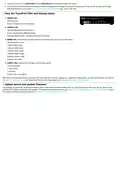


c. Connect one end of the Ethernet cable to the LAN 0 port on the unit and the other
end to a LAN port on a PC.
d. Connect the power supply. Depending on model, the unit either comes with an AC
power supply or DC power cord with one of the following plug types.
Barrel plug-type variants: Connect the barrel plug end of the power supply to
the power connector on the unit, and plug the other end into a wall outlet. The
barrel plug end of the power supply has a twist-lock connector. Once you have
plugged in the connector, rotate it 90 degrees to secure it in place.
Note International units come with interchangeable power supply adapters.
Terminal block variants: Remove the pluggable connector from the unit and
screw down a proper power source to its terminals.
Next, reconnect the pluggable connector to the unit, following the pin-out
diagram.
e. When the unit is powered-up, the POWER LED illuminates and the unit initiates a
series of diagnostic self-tests. During this process one or more of the other
indicators flashes to show that the unit is busy. When the flashing stops,the unit
has completed its self-test diagnostic and is ready to be configured.
Note Position the Digi TransPort WR21 on a flat, level surface or via wall-mount, rackmount, or DIN rail mounting brackets in a location with
adequate ventilation. The unit is designed for indoor use. Do not expose the unit to extreme heat or cold, strong magnetic fields, or liquids.
3 Get started with the Digi mobile app
Take advantage of the Digi Remote Manager subscription bundled with your WR21 purchase.
Use the Digi Remote Manager mobile app to quickly set up your WR21.
Here's how:
a. Download the Digi Remote Manager mobile app from the App Store (iPhone) or Google Play (Android).
b. Click Log in or Sign Up and then click Sign up to create a new account.
c. You'll receive an email with login instructions.
d. From the Digi Remote Manager mobile app, click Log in and log into your new account.
e. From the menu, select Install a device with a QR or bar code and scan the installation QR code on the label.
f. Follow the prompts to complete your WR21 registration.
4 Run the Getting Started Wizard
If your PC is configured to automatically get an IP address, it can obtain the IP address from the device. Otherwise, make sure your PC can
connect to the network 192.168.1.0 (255.255.255.0).
1. Enter 192.168.1.1 into the address bar of the web browser. The first page of the Getting Started Wizard appears.
2. Enter login credentials.
a. Enter 192.168.1.1 into the address bar of the web browser. The first page of the Getting Started Wizard appears.
b. Enter login credentials:
n User name: admin
n Password: The default password is printed on the device label.
n If a device that was manufactured prior to release 8.0.0.3 has been upgraded to the current release:
l
If the device was upgraded using the Web UI Update Firmware, the router retains the existing default user accounts. For
example, after upgrading from release 7.1.2.2 to the current release, the default user account name remains username,
and the default password is password.
o
After upgrading using the Web UI Update Firmware, if you then factory reset the device, the user name will be admin,
and the default password will be default.
l
If the device was upgraded using Flashwriter, the user name is admin, and the default password is default.
n If a device that was manufactured with release 8.x is downgraded to a release prior to 8.0.0.3:
l
If the device was downgraded using the Web UI Update Firmware, the user name is admin, and the default password is
default.
l
If the device was downgraded using Flashwriter, the admin account is longer be present. Instead, the default account
user name is username, and the default password is password.
o
After downgrading with Flashwriter, if you then upgrade to 8.0.0.3 or greater using the Web UI Update Firmware, the
router will retain the username/password account and not include an admin account. If you then factory default the
router, the admin account with the preprogrammed unique password will return.
o
After downgrading with Flashwriter, if you then upgrade to 8.0.0.3 or greater using Flashwriter, the admin account with
the preprogrammed unique password will again be present and the username/password account will be removed.
c. To run the wizard, click Get Started or click Skip Wizard to manually configure the device.
d. The Getting Started Wizard prompts you to enter your Digi Remote Manager username and password. If you do not already have a

| General | Details |
|---|---|
| Name | DIGI WR21-M52A-DE1-TB TransPort WR21 Cellular Router User Guide |
| Make | DIGI |
| Language | English |
| Filetype | PDF (Download) |
| File size | 0.13 MB |
 (1 votes, average: 5.00 out of 5)
 Loading...
If you have any questions regarding DIGI WR21-M52A-DE1-TB TransPort WR21 Cellular Router User Guide, please ask here and describe the problem in detail.

DIGI EX50 5G Cellular Router Instruction Manual


NETGEAR BE9200 WiFi 7 Router Instruction Manual

LINKSYS FGW5500 5G WiFi 6 Router User Guide

WESTMANN GigaSpire BLAST U6 Router User Guide

STARLINK Mini Kit Dish With Router User Guide

LINKSYS EA7500 AC1900 Max Stream Wifi Router User Guide

TP-Link AC1200 Wireless Mu-Mimo Gigabit Router User Manual

REYEE RG-E6 WiFi 6 Router Installation Guide

UBIQUITI NETWORKS 2.4GHz Air Router User Guide

Digital Alert Systems R232 Multi Port RF Router Installation Guide

Spectrum IP6442B WiFi 6E Router User Manual