
JuniPer Cloud-Ready SSR1500 Session Router User Guide


3
Mist AI App QR Scan
You can download the Mist AI App from the Mac App Store or from Google Play Store.
1. Open the Mist AI app and log in using your account credenꢀals. If you do not have an account, see Create a Mist
Account and Organizaꢀon.
2. Select your organizaꢀon.
3. Tap Claim Devices to Org.
4. Scan the QR code. The app automaꢀcally claims the device and adds it into your organizaꢀon's inventory.
5. On the Organizaꢀon screen, tap Device Inventory → Routers → Unassigned.
Review the MAC address.
Onboarding Complete!
Fantasꢀc, the SSR1500 is in your inventory! To provision the SSR1500, see "Step 2: Up and Running" on page 5.
Enter the Mist Claim Code
Claiming mulꢀple devices—When you purchase mulꢀple devices, we provide you with an acꢀvaꢀon code along with
your PO informaꢀon. Make a note of this code.
Claiming a single device—Locate the QR code on your device and make a note of the alphanumeric claim code directly
above it.
1. Open the Juniper Mist™ Cloud portal and log in to your account. If you do not have an account, see Create a Mist
Account and Organizaꢀon.

| General | Details |
|---|---|
| Name | JuniPer Cloud-Ready SSR1500 Session Router User Guide |
| Make | JUNIPer |
| Language | English |
| Filetype | PDF (Download) |
| File size | 0.18 MB |
 (1 votes, average: 5.00 out of 5)
 Loading...
If you have any questions regarding JuniPer Cloud-Ready SSR1500 Session Router User Guide, please ask here and describe the problem in detail.

JUNIPER SSR1300 Session Router User Guide

JUNIPER SSR1400 Session Router User Guide

JUniPer MX304 Universal Router User Guide

JUNIPer SSR120 Session Router User Guide

JUNIPer SSR120 Session Smart Router User Guide

JUNIPER SSR1400 Session Smart Router User Guide

JUNIPER SSR1300 Session Smart Router User Guide

JuniPer Cloud-Ready SSR1500 Session Smart Router User Guide

JuniPer ACX7024 Cloud Metro Router User Guide

Juniper ACX7509 Cloud Metro Router User Guide

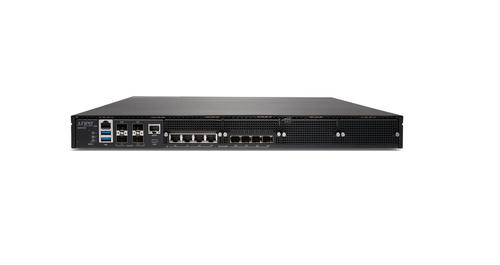
Juniper NETWORKS SSR1300 Smart Router User Guide

triton TMNRTR Electric Router Instruction Manual

NETGEAR RS100 Nighthawk Dual Band WiFi 7 Router User Guide

ASUS ROG Rapture GT-BE98 Pro BE30000 Quad Band Gaming Router User Guide

TP-Link TL-WR845N Wireless N Router Installation Guide

Antena Gear TX54 5G Cellular Router User Guide
POYNTING EPOYNT-4 Outdoor LTE-5G Antenna and Router Enclosure User Guide

dahua N300 Wireless Router User Guide

TANGERINE NetComm CF40 Wi-Fi 6 Router User Guide

ZTE MF937 4G Mobile WiFi Router User Guide