
LUTRON L-BDG2 Bridge WiFi Router User Guide
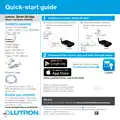


Quick-start guide
Lutron® Smart Bridge
Please read before installing
Install the Lutron® Smart Bridge
1
A. Connect the Smart Bridge to your
Wi-Fi router using the Ethernet
cable.
B. Connect the power cord to the
Smart Bridge and plug it into an
outlet.
Contents supplied:
Lutron® Smart Bridge*
(L-BDG, BDG-1 or L-BDGPRO)
5 V- 300 mA
Outlet
Power
cord
Smart
Bridge
Ethernet
cable
Power Supply
(T-5DC-USB)
Smart
Bridge
Router
Router
Input: 100–240 V~
50/60 Hz 100 mA
Output: 5 V- 550 mA
Download the Lutron® app and walk through setup
2
Search for “Lutron Caseta”
TM
Ethernet Cable
Lutron
Apple is a trademark of Apple Inc.,
* Connected to a Class 2, LPS, or
SELV, limited energy (<15 W) power
source only.
registered in the U.S. and other countries.
App Store is a service mark of Apple Inc.,
registered in the U.S. and other countries.
Accessory
Setup Code
Double your warranty
Love LutronR products? Have ideas
for making them better? Tell us what
you think and we’ll extend your
warranty by 1 year.
Warranty
For warranty information, please visit www.casetawireless.com/warranty
)Lutron and Lutron are registered trademarks and
is a trademark of
TM
Lutron
Lutron Electronics Co., Inc. Google and the Google logo are registered trademarks of
Google Inc., used with permission.
©2014–2015 Lutron Electronics Co., Inc.


| General | Details |
|---|---|
| Name | LUTRON L-BDG2 Bridge WiFi Router User Guide |
| Make | Lutron |
| Language | English |
| Filetype | PDF (Download) |
| File size | 0.26 MB |
 (1 votes, average: 5.00 out of 5)
 Loading...
If you have any questions regarding LUTRON L-BDG2 Bridge WiFi Router User Guide, please ask here and describe the problem in detail.


Bytelogistic SR600 Mesh Wifi Router User Manual

RV WI-FI 2024 V3 DishyDock Router User Manual

U Speed T262-T21D AX1500 Dual Band Wi-Fi 6 Router Installation Guide

devolo 3600 5G LTE Wi-Fi 6 Router User Manual

Tenda N300 WiFi VDSL/ADSL Modem Router V300 Installation Guide

ASUS RT-AC67P Dual Band AC Wi-Fi Router User Guide

MOXA EDR-8010-2GSFP Secure Router Installation Guide

D-Link M30 AQUILA PRO AI AX3000 Wi-Fi 6 Mesh Router User Manual

NETGEAR R6700AX 4 Stream WiFi 6 Router Instructions

Digital Alert Systems R232 Multi Port RF Router Installation Guide