
Milesight UR75 UltraSeries Router User Guide








5. Network Configuration
This chapter explains how to connect UR75 to network via WAN connection, Wi-Fi or cellular.
5.1 Ethernet WAN Configuration
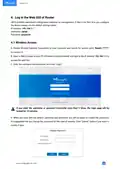
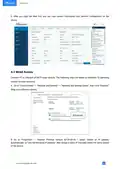
A. Go to “Network” → “Interface” → “WAN” to select connection type and configure WAN parameters,
click “Save & Apply” button to make the changes take effect.
B. Connect WAN port to another network devices like modem.
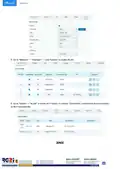
C. Go to “Network” → “Interface” → “Link Failover” to rise the WAN priority to 1.
D. Open your preferred browser on PC, then type any available web address into address bar and see if it
is able to visit Internet via UR75 router.
5.2 Cellular Connection Configuration
Take inserting SIM card into SIM1 slot as an example; please refer to the following detailed operations.
A. Go to “Network” → “Interface” → “Cellular” → “Cellular Setting” to configure APN, PIN code or other
16

| General | Details |
|---|---|
| Name | Milesight UR75 UltraSeries Router User Guide |
| Make | Milesight |
| Language | English |
| Filetype | PDF (Download) |
| File size | 0.43 MB |
 (1 votes, average: 5.00 out of 5)
 Loading...
Milesight UR35 Dual SIM Router User Guide

Milesight Lite Cellular Router User Guide

Milesight UF51 5G CPE Router User Guide

Milesight Routers Installation Guide

Milesight UR32S CCTV Router Owner’s Manual


Cudy LT500 Outdoor Router Installation Guide

ASUS RT-AX82U V2 AX5400 Dual Band WiFi Router User Guide

Chosen Selective EL988 CS Dual Band Global Mifi Router User Manual
Ubiquiti UMR-Ultra Mobile Router Installation Guide

toob Wifi Router User Guide

TP-Link Archer AX55 Pro AX3000 Multi-Gigabit Wi-Fi 6 Router Installation Guide

STRONG 4G LTE Wi-Fi Router Installation Guide

ZYXEL EX5601 Hyperhub Router User Guide

BEC 7000 R26-W Gigabit LTE Outdoor Router with Hotspot User Guide

TP-Link NX200 5G CPE Router Installation Guide