
Raymarine YachtSense Link 4G Marine Cloud Router Instruction Manual


Deutsch (DE)
Français (FR)
Español (ES)
Suomi (FI)
Vorsicht: Stellen Sie sicher,
dass die Montageschablone
in der korrekten Größe
ausgedruckt wird
Attention : Veillez à ce que le
gabarit de pose soit imprimé à
l'échelle
Precaución: Asegúrese de que
la plantilla de montaje está a
escala real
Huomautus: Varmista että
sapluunan mittakaava vastaa
todellisuutta
Mounting template
printing instructions
Avant de
la surface de montage,
Antes de
la
de montaje,
Ennen asennuspintojen työstöä
on varmistettava, että sapluunan
mittakaava vastaa sapluunaan painettuja
mittamerkintöjä.
que le gabarit imprimé correspond
aux mesures indiquées dans le document
de gabarit.
asegúrese de que la plantilla impresa se
ajusta a las medidas que se indican en el
documento.
Bevor Sie die
bearbeiten, sollten Sie sich vergewissern,
dass die gedruckte Vorlage den im
Vorlagendokument angegebenen
Abmessungen entspricht.
English (EN)
Caution: Ensure mounting
template is printed
true-to-scale
d'Adobe Acrobat pour
utiliser les paramètres d'impression
recommandés par Raymarine
Cómo
usar la
Adobe Acrobat para
de impresión
recomendada por Raymarine
Adobe Acrobatin asetuksien
määrittäminen vastaamaan Raymarinen
suosittelevia tulostusasetuksia
Acrobat Reader auf die von Raymarine
empfohlenen Druckeinstellungen
Il est nécessaire de
Adobe Acrobat
Adobe Acrobat se debe
correctamente para
Adobe Acrobat on
oikein jotta
correctement pour être sûr que les gabarits de pose
s'impriment à l'échelle.
asegurar que las plantillas de montaje mantienen su
escala real.
asennussapluunat tulostuisivat oikeaan kokoon.
Before modifying mounting surface, ensure
actual printed template matches the
measurements provided in the template
document.
Adobe Acrobat Reader muss korrekt
sein,
Asennussapluunan ollessa auki Acrobat Reader
-sovelluksessa:
damit Montageschablonen in der richtigen Größe
ausgedruckt werden.
Le document du gabarit de pose étant ouvert dans
Acrobat Reader :
Con el documento de la plantilla de montaje abierto
en Acrobat Reader:
1. Valitse File [Tiedosto]→-ominaisuudet.
2. Kirjoita muistiin sivukoko [Page Size].
3. Valitse File [Tiedosto]→Print [Tulosta].
Näyttöön tulee tulostuksen syöttöikkuna.
4. Valitse Ominaisuudet.
Bei in Acrobat Reader geöffneter Montageschablone:
1. Wählen Sie Datei→Eigenschaften.
2. Notieren Sie die Seitengröße.
1. Sélectionnez Fichier→Propriétés.
2. Prenez note du format de la page.
3. Sélectionnez Fichier→Imprimer.
La boîte de dialogue d'impression s’af
4. Sélectionnez Propriétés.
1. Seleccione File (Archivo) →Properties
(Propiedades).
Adobe Acrobat to use
Raymarine recommended print settings
2. Anote el valor de Page Size (Tamaño de la página).
3. Seleccione File (Archivo) →Print (Imprimir).
Aparece el cuadro de diálogo de impresión.
4. Seleccione Properties (Propiedades).
3. Wählen Sie Datei→Drucken.
Adobe Acrobat must be
correctly to ensure
Das Dialogfeld „Drucken“ wird angezeigt.
4. Wählen Sie Eigenschaften.
mounting templates print true-to-scale.
5. Varmista, että paperikooksi on määritetty vaiheessa
1 tunnistettua paperikokoa vastaava kokoasetus.
5.
que la taille du papier est
valeur que le format de page
à la même
à l'étape 1.
With the mounting template document open in Acrobat
Reader:
5. Asegúrese de que el tamaño del papel tiene las
mismas dimensiones que el tamaño de la página
del paso 1.
5. Stellen Sie sicher, dass das Papierformat auf
die gleichen Abmessungen wie die in Schritt 1
Seitengröße eingerichtet ist.
6. Palaa takaisin tulostusasetuksien ikkunaan
valitsemalla OK.
6. Cliquez sur OK pour revenir au dialogue des
paramètres d'impression.
1. Select File→Properties.
7. Varmista, että "Size Options [Kokoasetukset]"- ja
"Page Scaling [Sivun skaalaus]"-asetukset ovat
"Actual Size [Todellinen koko]" sekä "None [Ei
mitään]".
2. Make a note of the Page Size.
3. Select File→Print.
6. Haga clic en OK para volver al diálogo de
de la impresión.
6. Klicken Sie auf „OK“, um zum Dialogfeld „Drucken“
zurückzukehren.
7.
que les options "Options de taille" et "Mise
à l'échelle" (selon les cas) sont à "Taille
réelle" ou "Aucune".
7. Asegúrese de que "Size Options (Opciones de
tamaño)" y "Page Scaling (Escala de página)"
(según corresponda) son "Actual Size (Tamaño
real)" o "None (Ninguno)".
7. Stellen Sie sicher, dass die Optionen
„Größenoptionen“ oder „Seitenanpassung“
(wie zutreffend) auf „Originalgröße“ bzw. „Keine“
eingerichtet sind.
The print dialog is displayed.
8.
que l'option "Rotation auto. et centrage des
pages" ou "Portrait/paysage automatique" (selon les
cas) n'est PAS cochée.
4. Select Properties.
8. Varmista, että "Auto-Rotate and Center
[Auto-kierräja keskitä]" tai "Auto portrait /
landscape [Auto pysty/vaakakuva]" -vaihtoehto
(tapauskohtaisesti) EI ole valittuna.
5. Ensure the paper size is set to the same dimensions
as the page size
in Step 1.
8. Asegúrese de que la opción "Auto-Rotate and
Center (Rotar automáticamente y centrar)" o " Auto
portrait/landscape (Vertical/horizontal automático)"
(según corresponda) NO están marcadas.
8. Stellen Sie sicher, dass die Optionen „Automatisch
drehen und zentrieren“ oder „Automatisches
Hoch-/Querformat“ (wie zutreffend) DEAKTIVIERT
sind.
9. Sélectionnez l'orientation appropriée pour
correspondre à l'orientation du gabarit ("portrait" ou
"paysage", la plupart des gabarits étant en mode
paysage).
6. Click OK to return to the print settings dialog.
9. Valitse soveltuva suuntaus joka vastaa sapluunan
suuntausta.
7. Ensure "Size Options" and "Page Scaling" options
(as appropriate) are set to "Actual Size" or "None".
9. Seleccione la orientación apropiada para la plantilla
("vertical" u "horizontal"; la mayoría de las plantillas
son en horizontal).
9. Wählen Sie die Ausrichtungsoption, die der
Ausrichtung des Schablonendokuments entspricht
(Hochformat oder Querformat, wobei die meisten
Schablonen auf Querformat eingerichtet sind).
8. Ensure the "Auto-Rotate and Center" or "Auto
portrait / landscape" option (as appropriate) is NOT
ticked.
9. Select the relevant orientation to match the template
document orientation ("portrait" or "landscape"; most
templates are landscape).
Italiano (IT)
Nederlands (NL)
Svenska (SV)
Ελληνικά (EL)
Attenzione: Controllare che
la dima di montaggio sia
stampata su scala reale.
Let op: Zorg ervoor dat de
montagemal op juiste grootte
wordt afgedrukt
Observera! Kontrollera att
monteringsmallen är skalenligt
utskriven.
Προσοχή: Βεβαιωθείτε ότι το
πρότυπο τοποθέτησης έχει
εκτυπωθεί σε πραγματική
κλίμακα
Voordat u aanpassingen doet aan het
montageoppervlak dient u ervoor te zorgen
dat de afgedrukte mal overeenkomst met
de afmetingen in het document.
Prima di
la
di
Innan du
monteringsytan
montaggio, controllare che la dima
stampata corrisponda con le dimensioni
indicate nella dima del documento.
kontrollerar du att aktuell mallutskrift
överensstämmer med mätningarna i
malldokumentet.
Πριν τροποποιήσετε την επιφάνεια
τοποθέτησης, βεβαιωθείτε ότι το πρότυπο
που έχετε εκτυπώσει αντιστοιχεί στις
μετρήσεις που παρέχονται στο έγγραφο.
Adobe Acrobat
om de aanbevolen Raymarine-
afdrukinstellingen te gebruiken
Adobe Acrobat per usare le
impostazioni di stampa raccomandate
da Raymarine
Adobe Acrobat att använda
skrivarinställningarna som Raymarine
rekommenderar
Διαμόρφωση του Adobe Acrobat για
χρήση των συνιστώμενων ρυθμίσεων
εκτύπωσης της Raymarine
Το Adobe Acrobat πρέπει να διαμορφωθεί σωστά
προκειμένου να διασφαλιστεί η εκτύπωση των
προτύπων στη σωστή κλίμακα.
Adobe Acrobat moet correct worden
zodat montagemallen op de juiste schaal worden
afgedrukt.
Per assicurasi che le dime di montaggio vengano
stampate con le misure corrette Adobe Acrobat deve
essere
Adobe Acrobat måste vara korrekt
för att
säkerställa att monteringsmallarna skrivs ut skalenligt.
Med öppet monteringsmalldokument i Acrobat Reader:
1. Välj File→Properties (Filegenskaper).
2. Anteckna sidstorleken.
Doe het volgende wanneer het document met de
montagemal is geopend in Acrobat Reader:
Quando è aperto il documento con la dima di montaggio
in Acrobat Reader:
Αφού ανοίξετε το έγγραφο με το πρότυπο τοποθέτησης
στο Acrobat Reader:
1. Selecteer Bestand→ Eigenschappen.
2. Noteer de paginagrootte.
1. Selezionare File→ Proprietà.
1. Επιλέξτε File (Αρχείο)→Properties (Ιδιότητες).
2. Σημειώστε το μέγεθος της σελίδας.
3. Välj File→Print (Filutskrift).
2. Prendere nota della dimensione di pagina
3. Selezionare File→ Stampa.
Dialogrutan för utskrift öppnas.
3. Selecteer Bestand→ Afdrukken.
Het dialoogvenster "Afdrukken" wordt weergegeven.
4. Selecteer Eigenschappen.
3. Επιλέξτε File (Αρχείο)→Print (Εκτύπωση).
Θα εμφανιστεί το παράθυρο διαλόγου εκτύπωσης.
4. Επιλέξτε Properties (Ιδιότητες).
4. Välj Properties (Egenskaper).
Viene visualizzata la
di dialogo Stampa.
5. Kontrollera att papperstorleken är inställd på samma
mått som sidstorleken i Steg 1.
4. Selezionare Proprietà.
5. V
che la dimensione Carta sia impostata
5. Zorg ervoor dat de paginagrootte is ingesteld op
dezelfde afmetingen als de paginagrootte die u in
stap 1 hebt genoteerd.
5. Βεβαιωθείτε ότι το μέγεθος χαρτιού έχει οριστεί στις
ίδιες διαστάσεις με το μέγεθος της σελίδας που
σημειώσατε στο Βήμα 1.
6. Klicka på OK för att återgå till dialogrutan för
utskriftsinställningar.
sulle stesse dimensioni della pagina
punto 1.
nel
7. Kontrollera att alternativen "Size Options"
(Storleksalternativ) och "Page Scaling" (Sidskala)
(vid behov) är inställda på "Actual Size" (Aktuell
storlek) eller "None" (Ingen).
6. Cliccare su OK per ritornare alla
Stampa.
di dialogo
6. Klik op OK om terug te keren naar het dialoogvenster
Afdrukinstellingen.
6. Κάντε κλικ στο κουμπί ΟΚ για να επιστρέψετε στο
παράθυρο διαλόγου με τις ρυθμίσεις εκτύπωσης.
7. Zorg ervoor dat "Grootteopties" en opties voor
"Paginaformaat wijzigen" (welke van toepassing)
zijn ingesteld op "Werkelijke grootte" of "Geen".
7. Βεβαιωθείτε ότι οι επιλογές "Size Options" (Επιλογές
μεγέθους) και "Page Scaling" (Κλιμάκωση σελίδας)
(ό,τι ισχύει) έχουν οριστεί στις ρυθμίσεις "Actual
Size" (Πραγματικό μέγεθος) ή "None" (Καμία).
7. V
che "Dimensioni pagina" e
See page 3
for template
"Ridimensionamento pagina" (come appropriato)
siano impostate su "Dimensione reale" oppure
"Nessuno".
8. Kontrollera att alternativet "Auto-Rotate and Center"
(Auto-rotera och -centrera) eller "Auto portrait /
landscape" (Stående/liggande auto-utskrift) (vid
behov) INTE är förbockat.
8. Zorg ervoor dat de optie "Automatisch draaien en
centreren" of "Automatisch staand/liggend" (welke
van toepassing) NIET is geselecteerd.
8. Βεβαιωθείτε ότι η επιλογή "Auto-Rotate and Center"
(Αυτόματη περιστροφή και κεντράρισμα) ή "Auto
portrait / landscape" (Αυτόματος κατακόρυφος
/ οριζόντιος προσανατολισμός) ΔΕΝ είναι
ενεργοποιημένη.
8. Controllare che l'opzione "Ruota automaticamente e
centra" o "Orientamento auto" (come appropriato)
NON abbia il segno di spunta.
9. Välj relevant orientering som stämmer med
malldokumentets orientering ("stående" eller
9. Selecteer de juiste afdrukstand overeenkomstig de
afdrukstand van het document met de mal ("staand"
of "liggend", de meeste mallen zijn liggend).
9. Selezionare il corretto orientamento in modo che
corrisponda quello del documento ("Verticale"
o "Orizzontale"; gran parte delle dime hanno
orientamento orizzontale).
"liggande". De
mallarna är liggande utskrift).
9. Επιλέξτε τον κατάλληλο προσανατολισμό, ανάλογα
με τον προσανατολισμό του εγγράφου του
προτύπου. ("portrait" (κατακόρυφος) ή "landscape"
(οριζόντιος). Τα περισσότερα πρότυπα έχουν
οριζόντιο προσανατολισμό.)


| General | Details |
|---|---|
| Name | Raymarine YachtSense Link 4G Marine Cloud Router Instruction Manual |
| Make | Raymarine |
| Language | English |
| Filetype | PDF (Download) |
| File size | 0.49 MB |
 (1 votes, average: 5.00 out of 5)
 Loading...
If you have any questions regarding Raymarine YachtSense Link 4G Marine Cloud Router Instruction Manual, please ask here and describe the problem in detail.


ASUS ROG Rapture GT-BE98 Pro BE30000 Quad Band Gaming Router User Guide

Netcomm NF18MESH Upgraded WiFi Router User Guide

D-Link AX4800 Mesh Wi-Fi 6 Router Installation Guide

NETGEAR RAX36 Nighthawk WiFi 6 Router User Guide

LANCOM VPN 1793VAW Router Installation Guide
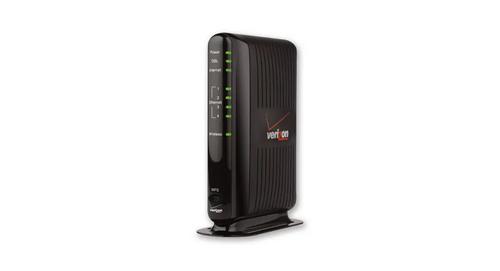
Verizon GT784 Gateway Router User Guide

TP-Link AX3000 Wi-Fi 6 Air Router Installation Guide

Datto DSE641T 2×2 WiFi 6 Router User Guide

HNK AX3000 Dual Band Wi-Fi 6 Router User Guide

EE HH10E Smart 4G Hub 2 WiFi Router User Guide