
ASUS GT-BE19000 WiFi 7 Tri Band Gaming Router User Guide


E23490
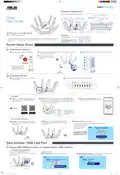
Hardware Explanations
Note: The USB port is available for (UE) LTE USB Dongle.
6GHz/5GHz/2.4GHz
WiFi LEDs
10GE LAN LED
2.5GE/1GE LAN LED
WPS LED
10GE/2.5GE WAN
(Internet) LED
Power switch
Power (DCIN)
port
USB 3.0 port 2.5GE WAN/LAN1 port
Reset button
Power LED
Quick
Start Guide
USB 2.0 port
10GE WAN/LAN1 port
2.5GE LAN2-4 ports
1GE LAN5 port
10GE LAN6 port
WPS button
LED button
ROG Rapture GT-BE19000
WiFi 7 Tri-band Gaming Router
Specifications:
DC Power adapter
DC Output: +19.5V with max 3.33A current
+12V with max 5A current
* If no 6GHz SSID is displayed, please check whether your OS and client device are fully licensed to support the newly
released 6GHz band. You can check with your OS and client device provider for Wi-Fi 6E / Wi-Fi 7 driver release
schedule.
Operating Temperature 0~40oC
Storage
Storage
0~70oC
Operating Humidity 50~90%
20~90%
Router Setup Steps
Prepare your Modem
1
01
2
3
4
Unplug the power of cable / DSL modem.
Connect your modem to the 10GE WAN port at the back side of the router
with the network cable provided.
Check the modem LED lights to ensure the connection is active.
Power on the modem. Plug
modem to the power outlet and
power on.
Unplug
If you are using DSL for internet,
you will need your username /
password from your Internet
service provider (ISP) to properly
configure your router.
Modem back
Modem front
Modem back
Install your Router
1
02
2
Plug the adapter into the DCIN port, and press
the Power switch.
The Power LED will light up when the hardware is ready.
– Via app
3
4
[App] On your iOS or Android mobile device, go
to the app store, search for ASUS Router, and
download the app.
[App] On your iOS or Android mobile device, tap Settings > Wi-Fi,
connect to the default network SSID shown on the product label on
the back side of the router. Or scan the code on the product label to
connect the default network SSID.
5
[App] Launch ASUS Router App and follow
the instructions to complete the setup.
ꢀꢁꢂꢃꢄꢅꢁ
ꢆꢇꢈꢃꢉꢊꢋꢌꢍꢁꢎꢌꢁꢍꢊꢏꢁꢍꢇꢐ
ꢀꢁꢂꢃꢄꢅꢆꢇꢀꢈꢉꢁꢇꢊꢋꢋꢌꢍꢎꢏ
*
XX refers to the last two
digits of 2.4GHz MAC
address. You can find it
on the label on the back
of your router.
ꢐꢋꢑꢋ_ꢒꢒ
ꢏꢑꢒꢓꢑ
– Or via web browser
[Wireless] Connect to the network with default SSID
shown on the product label on the back side of your
router “ASUS_XX”.
4
3
[Wired / Wireless] Open a web browser.
[Wired] Connect your PC to a LAN (LAN2~6) port
at the back side of the router using an additional
network cable.
You will be redirected to the ASUS Setup Wizard. If not, navigate to
Follow the instructions to
complete the setup.
ꢀꢁꢂꢃꢄꢅꢁꢆꢇꢄꢆꢈꢉꢊꢋꢌꢍꢎꢏꢏꢏꢆ
ꢐꢑꢁꢒꢇꢁꢆꢒꢆꢓꢁꢔꢆꢓꢁꢇꢔꢄꢑꢕ
ꢖꢗꢒꢘꢃꢁꢖꢆꢙꢁꢇꢇꢚꢘꢛꢜ
Gain Another 10GE LAN Port
Set up 2.5GE WAN connection to release another 10GE LAN Port
01
– Under factory defaults
Connect to the 2.5GE WAN port
Login and Connect
Connect the modem to the 2.5GE WAN port with a
network cable.
1
2
[ASUS Setup Wizard] Select “Manual Setting”.
[ASUS Setup Wizard] Select “2.5G WAN”, then follow the instructions to
complete the setup of SSID and login information.
ꢌꢍꢃꢎꢏꢃꢉꢐꢍꢑꢒꢉꢋꢁꢉꢂꢆꢃꢉꢇꢎꢓꢍꢃꢉꢂꢊꢉꢔꢕ ꢉꢐꢊꢄꢂꢖꢉꢗꢘꢏꢂꢃꢙꢉꢚꢋꢍꢍꢉꢛꢃꢂꢃꢇꢂꢉꢘꢊꢑꢄ
ꢀꢁꢂꢃꢄꢅꢆꢆꢇꢈꢉꢊꢅꢆꢃꢋꢌꢍꢇ
ꢀꢁꢂꢃꢄꢁꢃꢂ
ꢀꢁꢂꢃꢄꢁꢃꢂ
ꢁꢃꢂꢚꢊꢄꢈꢉꢏꢃꢂꢂꢋꢁꢒꢉꢎꢑꢂꢊꢙꢎꢂꢋꢇꢎꢍꢍꢘꢖ
ꢅꢆꢃꢇꢈꢉꢅꢊꢁꢁꢃꢇꢂꢋꢊꢁ
ꢄꢅꢆꢆꢇꢈꢉꢊꢅꢆꢃꢉꢌꢍꢇ
ꢎꢏꢐꢃꢀꢁꢂ
ꢑꢒꢓꢐꢃꢀꢁꢂ
ꢜꢎꢁꢑꢎꢍꢉꢗꢃꢂꢂꢋꢁꢒ
ꢌꢄꢃꢝꢋꢊꢑꢏ
ꢀꢁꢂꢃꢄꢅ_ꢆꢇꢈꢉꢀꢊꢄꢅꢅꢅ_ꢋꢌꢍꢈꢎꢏꢐꢍ_ꢑꢒꢆ_ꢓꢁꢔꢕꢌꢖꢖꢗꢗꢗꢊ
ꢁꢅꢁꢃꢘꢃꢘꢙꢗꢗꢗꢄꢚꢅꢄꢚꢅꢁ


| General | Details |
|---|---|
| Name | ASUS GT-BE19000 WiFi 7 Tri Band Gaming Router User Guide |
| Make | Asus |
| Language | English |
| Filetype | PDF (Download) |
| File size | 0.52 MB |
 (1 votes, average: 5.00 out of 5)
 Loading...
If you have any questions regarding ASUS GT-BE19000 WiFi 7 Tri Band Gaming Router User Guide, please ask here and describe the problem in detail.

ASUS RT-AC86U AC2900 WiFi Gaming Router User Guide

ASUS AC1750 WiFi Dual Band Wireless Internet Router User Guide

ASUS TUF-AX5400 Dual Band WiFi 6 Router User Guide

ASUS ET12 ZenWiFi Pro AXE11000 Tri Band Router User Guide

ASUS RT-AX82U V2 AX5400 Dual Band WiFi Router User Guide

ASUS TUF-AX4200 Dual Band WiFi Router User Guide

ASUS RT-N10U 150 mbps Wireless Router Instructions

ASUS RT-BE96U Tri Band WiFi Router User Guide

ASUS GT-AX6000 Dual Band WiFi 6 Extendable Gaming Router User Guide

ASUS RT-BE88U Dual Band WiFi Router User Guide


Tenda F3 300Mbps Wireless Router User Guide

MobileMark TX54-A106 LTE Advanced Cellular Router User Manual

JuniPer ACX7024 Cloud Metro Router User Guide

ExpressVPN AXG1800 Wi-Fi 6 VPN Router User Manual

Shenzhen Xinfengweiye Technology U850 4G Wireless Router User Manual

cradlepoint R2100 Series 5G Ruggedized Router User Guide

Spectrum RAC2V1S WiFi 5 Wave 2 Router User Guide

CISCO cBR Series Converged Broadband Router User Guide

UfiSpace S9600-32X 100G Aggregation Router Installation Guide

MOXA TN-4900 Series Gigabit Security Router Owner’s Manual