
×
- 1. Wireless Ac1750 Dual Band (Gigabit Router)
- 2. Copyright Information (Product Warranty → Disclaimer → Specifications And Information → Trademarks And Copyrights)
- 3. Getting To Know Your Wireless Router (Package Contents → Your Wireless Router → Setup Requirements → Router Setup → Getting Started → Configuring The General Settings)
- 4. Using Aicloud 2.0 (Configuring The Advanced Settings → Wireless → Lan → Wan → Vpn Server → Firewall)
- 5. Administration (Utilities → Troubleshooting → Firmware Upgrade → Device Discovery → Firmware Restoration → Frequently Asked Questions (faqs))
- 6. Getting To Know Your Wireless Router (Welcome! → Package Contents)
- 7. Your Wireless Router (Usb 3.0 Port → Lan Led → Wan Led → 4ghz Led / 5ghz Led)
- 8. Power Led (Power (dc-in) Port → Power Button → Usb 2.0 Port → Reset Button → Wan (internet) Port → Lan 1 ~ 4 Ports)
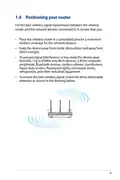
- 9. Positioning Your Router
- 10. Setup (Requirements)
- 11. Router Setup (Important → Wired Connection)
- 12. Using The Bundled Network Cable, Connect Your Computer To Your Wireless Routers Lan Port.
- 13. Insert (Install → Setting Up The Wireless Security Settings)
- 14. Getting Started (Logging Into The Web Gui → Top Command Buttons → Information Banner → Qis → Navigation Panel)
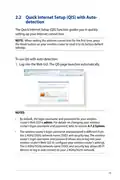
- 15. Quick Internet Setup (qis) With Auto-detection (Note → To Use Qis With Auto-detection → Notes)
- 16. The Wireless Router Automatically Detects If Your Isp Connection Type Is Dynamic Ip, Pppoe, Pptp, L2tp, And Static Ip. Key In The Necessary …
- 17. For Static Ip (Notes → Assign The Wireless Network Name (ssid) And Security Key For Your 2.4ghz And 5 Ghz Wireless Connection. Click Apply When Done.)
- 18. Your Internet And Wireless Settings Are Displayed. Click Next To Continue.
- 19. Connecting To Your Wireless Network
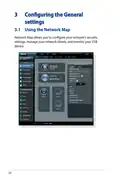
- 20. Configuring The General Settings (Using The Network Map)
- 21. Setting Up The Wireless Security Settings (4ghz Security Settings → Ghz Security Settings)
- 22. From The Security Level Dropdown List, Select The Encryption Method For Your Wireless Network.
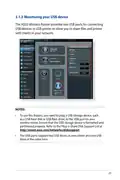
- 23. Monitoring Your Usb Device (The Asus Wireless Router Provides Two Usb Ports For Connecting Usb Devices Or Usb Printer To Allow You To Share Files And Printer With Clients In Your Network.)
- 24. Important (Using The Usb Application → Using Aicloud → Usb Disk Status → Using Servers Center)
- 25. Safely Removing The Usb Disk (Important → To Safely Remove The Usb Disk:)
- 26. Creating A Guest Network (Note)
- 27. Configure Additional Options (Enable Guest Network → Assign Wireless Name → Select Authentication Method → Select Encryption Method → Specify Access Time → Access Intranet Settings)
- 28. Using The Traffic Manager (Managing Qos (quality Of Service) Bandwidth)
- 29. On The User-defined Qos Rules Page, There Are Four Default Online Service Types Web Surf, Https And File Transfers. Select Your Preferred Ser…
- 30. User-defined Priority (Upload Bandwidth → Download Bandwidth → Set The Highest Priority Packet)
- 31. Monitoring (Traffic)
- 32. Setting Up Parental Control (To Use The Parental Control Function → Time Management)
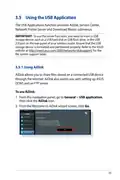
- 33. Using The Usb Application (Using Aidisk)
- 34. Select The Access Rights That You Want To Assign To The Clients (Create Your Domain Name Via The Asus Ddns Services → Click Finish To Complete The Setting → Access The Ftp Site That You Created)
- 35. Using Servers Center (Using Media Server)
- 36. General (Media Services And Servers → Enable Itunes Server? → Enable Dlna Media Server → Media Server Status → Media Server Path Setting → Using Network Place (samba) Share Service)
- 37. Follow The Steps Below To Add, Delete, Or Modify An Account. (To Create A New Account: → To Delete An Existing Account: → To Add A Folder:)
- 38. From The List Of Folders, Select The Type Of Access Permission That You Want To Assign For Specific Folders: (Using The Ftp Share Service → Important)
- 39. To Use Ftp Share Service: (Using Aidisk → Ftp Share Tab → Access Rights For Specific Folders → Allow Anonymous Login → Maximum Number Of Concurrent Connections → Accessing The Ftp Server)
- 40. G/4g Usb Modems (Setting Up 3g/4g Internet Access → Configuration Options)
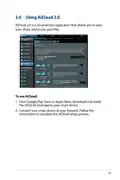
- 41. Using Aicloud 2.0 (To Use Aicloud)
- 42. Cloud Disk
- 43. You Can Now Start Accessing Cloud Disk Files On Devices Connected To The Network.
- 44. Smart Access (Ddns)
- 45. Aicloud Sync
- 46. Configuring The Advanced Settings (Wireless → General)
- 47. Hide Ssid (Wireless Mode Options → Operating Channel → Channel Bandwidth → Authentication Methods)
- 48. Wpa/wpa2 Personal/wpa Auto-personal (Wpa/wpa2 Enterprise/wpa Auto-enterprise → Radius With 802.1x → Wep Encryption Options)
- 49. Wps (To Enable Wps On Your Wireless Network:)
- 50. Wps Method (Set Up Wps Using The Routers Wps Button → Set Up Wps Using The Clients Pin Code)
- 51. Wireless Mac Filter (To Set Up The Wireless Mac Filter: → Mac Filter Mode)
- 52. Radius Setting (Authentication Mode → Advanced Settings → Server Ip Address → Connection Secret)
- 53. Professional Settings (Frequency → Enable Radio → Date To Enable Radio (weekdays) → Time Of Day To Enable Radio)
- 54. Date To Enable Radio (Time Of Day To Enable Radio → Set Ap Isolated → Multicast Rate (mbps) → Preamble Type → Rts Threshold → Dtim Interval)
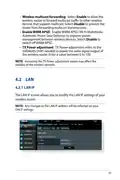
- 55. Wireless Multicast Forwarding (Enable Wmm Apsd → Tx Power Adjustment → Lan Ip)
- 56. To Modify The Lan Ip Settings: (Dhcp Server)
- 57. Domain Name (Ip Pool Starting Address → Ip Pool Ending Address → Lease Time → Dns And Server Settings → Enable Manual Assignment)
- 58. Route (To Configure The Lan Routing Table: → Note: We Recommend That You Do Not Change The Default Route Settings Unless You Have Advanced Knowledge Of Routing Tables.)
- 59. Iptv (Configuration Settings → Voip → Multicasting → Udp)
- 60. Wan (Internet Connection)
- 61. Enable Nat (Enable Upnp → Connect To Dns Server → Authentication → Host Name)
- 62. Mac Address
- 63. Port Trigger (To Set Up Port Trigger)
- 64. Trigger Port (Protocol → Incoming Port → Notes)
- 65. Virtual Server/port Forwarding (Setting Up Port Forwarding)
- 66. Configure (Enable Port Forwarding → Famous Server List → Famous Game List → Ftp Server Port → Service Name → Port Range)
- 67. Local Ip (Local Port → Protocol → Check Port Forwarding Configuration → Differences Between Port Trigger And Port Forwarding)
- 68. Dmz (Setting Up Dmz On A Network → To Set Up Dmz: → To Remove Dmz:)
- 69. Ddns Setup (Enable The Ddns Client → Server And Host Name)
- 70. Enable Wildcard (Nat Passthrough)
- 71. Ipv6 (To Set Up Ipv6)
- 72. Vpn Server (To Set Up Access To A Vpn Server → Advanced Vpn Server Settings)
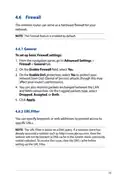
- 73. Firewall (General → Url Filter)
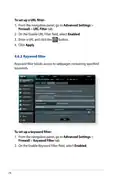
- 74. To Set Up A Url Filter: (Keyword Filter)
- 75. Enter A Word Or Phrase And Click The Add Button. (Network Services Filter)
- 76. To Set Up A Network Service Filter: (Advanced Settings → Firewall → Network Service Filter → Enable Network Services Filter → Filter Table Type → Specify The Day And Time → Specify A Network Service To Filter)
- 77. Administration (Operation Mode)
- 78. System (Change Router Login Password → Wps Button Behavior → Time Zone → Ntp Server → Enable Telnet → Authentication Method)
- 79. Firmware Upgrade (Restore/save/upload Setting)
- 80. System Log (To View Your System Log: → General Log → Dhcp Leases → Wireless Log → Port Forwarding → Routing Table)
- 81. Utilities (Device Discovery)
- 82. Firmware Restoration (Important → Note)
- 83. Setting Up Your Printer Server (Asus Ez Printer Sharing)
- 84. Note: Network Printer Utility Is Supported On Windows Xp, Windows Vista, And Windows 7 Only. To Install The Utility On Mac Os, Select Use Lp…
- 85. Asus Router (Follow The Windows Os Instructions To Install The Printer Driver.)
- 86. After The Printers Driver Installation Is Complete, Network Clients Can Now Use The Printer.
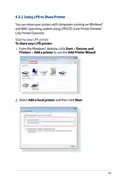
- 87. Using Lpr To Share Printer (Sharing Your Lpr Printer)
- 88. Create A New Port (Type Of Port → Tcp/ip Port → Hostname Or Ip Address)
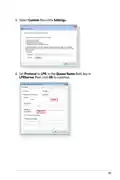
- 89. Select Custom Then Click Settings (Set Protocol To Lpr → Queue Name Field, Key In Lprserver Then Click Ok To Continue)
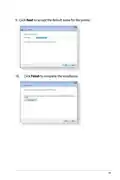
- 90. Click Next To Finish Setting Up The Standard Tcp/ip Port. (Install The Printer Driver From The Vendor-model List.)
- 91. Click Next To Accept The Default Name For The Printer. Click Finish To Complete The Installation.
- 92. Download Master (To Use Download Master → Add A Download Task → Select A Download Type)
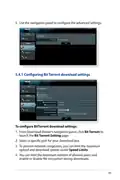
- 93. Use (Configuring Bit Torrent Download Settings → Speed Limits)
- 94. Nzb Settings
- 95. Troubleshooting (Basic Troubleshooting)
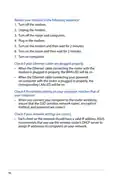
- 96. Restarting Your Network (Checking Ethernet Cable Connections → Verifying Wireless Settings → Checking Network Settings)
- 97. Some Cable Modem Service Providers Require You To Use The Mac Address Of The Computer Initially Registered On The Account.
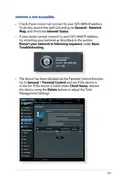
- 98. Frequently Asked Questions (faqs) (I Cannot Access The Router Gui Using A Web Browser → Notes:)
- 99. The Client Cannot Establish A Wireless Connection With The Router.
- 100. Ssid (Advanced Settings → Wireless → General → Control Channel → Administration → Restore/save/upload Setting)
- 101. Check If Your Router Can Connect To Your Isps Wan Ip Address (Restart Your Network In Following Sequence → Parental Control)
- 102. Setup A New Ssid And Encryption Key (Reset Your Router To The Default Settings → How To Restore The System To Its Default Settings → Firmware Upgrade Failed)
- 103. Cannot Access Web Gui (Before Configuring Your Wireless Router, Do The Steps Described In This Section For Your Host Computer And Network Clients.)
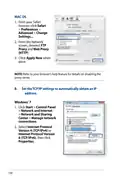
- 104. Mac Os (Windows 7)
- 105. To Obtain The Ipv4 Ip Settings Automatically, Tick Obtain An Ip Address Automatically. To Obtain The Ipv6 Ip Settings Automatically, Tick Ob…
- 106. Disable The Dial-up Connection, If Enabled. (Windows 7 → Click Start > Internet Explorer To Launch The Browser. → Click Tools > Internet Options > Connections Tab. → Tick Never Dial A Connection. → Click Ok When Done. → Note: Refer To Your Browser's Help Feature For Details On Disabling The Dial-up Connection.)
- 107. Appendices (Notices → Asus Recycling/takeback Services → Reach → Federal Communications Commission Statement)
- 108. This Equipment Generates, Uses And Can Radiate Radio Frequency Energy And, If Not Installed And Used In Accordance With The Instructions, Ma…
- 109. Safety Information (Declaration Of Conformity For R&tte Directive 1999/5/ec → Essential Requirements Article 3 → Protection Requirements For Health And Safety Article 3.1a → Protection Requirements For Electromagnetic Compatibility Article 3.1b → Effective Use Of The Radio Spectrum Article 3.2 → Ce Mark Warning)
- 110. Canada, Industry Canada (ic) Notices (Radio Frequency (rf) Exposure Information → This Device Has Been Certified For Use In Canada.)
- 111. Fcc Statement: (Ic Statement: → Indoor Use Requirement:)
- 112. The Maximum Antenna Gain Permitted For Devices In The Band 5725-5850 Mhz Shall Be Such That The Equipment Still Complies With The E.i.r.p. L… (Ic Radiation Exposure Statement: → This Radio Transmitter (ic: 3568a-rtachc00) Has Been Approved By Industry Canada To Operate With The Antenna Types Listed Below With The Maximum Permissible Gain And Required Antenna Impedance For Each Antenna Type Indicated.)
- 113. Antenna List (Gain → Connector Gain → Japan Statement)
- 114. Gnu General Public License (Licensing Information → Preamble)
- 115. General Public Licenses (Rights And Responsibilities → Copyright And License → No Warranty → Threats To Free Programs)
- 116. Terms & Conditions For Copying, Distribution, & Modification (License Applies To Any Program Or Other Work → Activities Other Than Copying, Distribution And Modification → You May Copy And Distribute Verbatim Copies Of The Programs Source Code)
- 117. You May Modify Your Copy Or Copies Of The Program Or Any Portion Of It, Thus Forming A Work Based On The Program, And Copy And Distribute Su…
- 118. You May Copy And Distribute The Program (or A Work Based On It, Under Section 2) In Object Code Or Executable Form Under The Terms Of Sectio…
- 119. You May Not Copy, Modify, Sublicense, Or Distribute The Program Except As Expressly Provided Under This License. Any Attempt Otherwise To Co…
- 120. License (Distribution Restrictions → Geographical Distribution Limitations → Integrity Of Free Software Distribution)
- 121. Versions Of The General Public License (Incorporate Parts Of The Program Into Other Free Programs → Preserving The Free Status Of All Derivatives)
- 122. No Warranty (End Of Terms And Conditions)
- 123. Authorised Distributors In Turkey
- 124. Asus Contact Information (Technical Support → Asus Computer International (america) → Asus Computer Gmbh (germany And Austria))
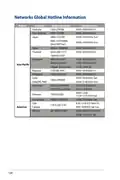
- 125. Networks Global Hotline Information (Region → Country → Hotline Number → Service Hours)
- 126. Networks Global Hotline Information (Region → Country → Hotline Numbers → Service Hours)
- 127. Networks Global Hotline Information (Hotline Numbers → Service Hours → Manufacturer → Authorised Representative In Europe)
×
ASUS AC1750 WiFi Dual Band Wireless Internet Router User Guide








































User Guide
Wireless AC1750 Dual Band
Gigabit Router


| General | Details |
|---|---|
| Name | ASUS AC1750 WiFi Dual Band Wireless Internet Router User Guide |
| Make | Asus |
| Language | English |
| Filetype | PDF (Download) |
| File size | 1.24 MB |
 (1 votes, average: 5.00 out of 5)
 Loading...
If you have any questions regarding ASUS AC1750 WiFi Dual Band Wireless Internet Router User Guide, please ask here and describe the problem in detail.

ASUS RT-AC86U AC2900 WiFi Gaming Router User Guide

ASUS TUF-AX5400 Dual Band WiFi 6 Router User Guide

ASUS ET12 ZenWiFi Pro AXE11000 Tri Band Router User Guide

ASUS RT-AX82U V2 AX5400 Dual Band WiFi Router User Guide

ASUS TUF-AX4200 Dual Band WiFi Router User Guide

ASUS RT-N10U 150 mbps Wireless Router Instructions

ASUS RT-BE96U Tri Band WiFi Router User Guide

ASUS GT-AX6000 Dual Band WiFi 6 Extendable Gaming Router User Guide

ASUS RT-BE88U Dual Band WiFi Router User Guide

ASUS RT-BE7200 Dual Band Wi-Fi Router User Guide


hyperoptic EX3301 Hyperhub Router Instruction Manual

ONEPLUS CTD05 Hub 5G Router User Guide

GearUp HYPEREV WH01 Wireless Router User Guide

ADTRAN 1200824G1 Netvanta 3458 Access Router User Guide

LANCOM SYSTEMS 1800EFW-5G Router Installation Guide

CONNECTIZE G6 AC2100 Dual Band Gigabit WiFi Router Installation Guide

CHIMA SAX3000 EasyMesh WiFi 6 Router Owner’s Manual

Infinite Clouds 110 Wireless Router User Manual

Ubiquiti UDR7 UniFi Dream Router User Guide

TELTONIKA Networks RUT955 Router Installation Guide
Table of Contents
- 1. Wireless Ac1750 Dual Band - Gigabit Router →
- 2. Copyright Information - Product Warranty →
- 3. Getting To Know Your Wireless Router - Package Contents →
- 4. Using Aicloud 2.0 - Configuring The Advanced Settings →
- 5. Administration - Utilities →
- 6. Getting To Know Your Wireless Router - Welcome! →
- 7. Your Wireless Router - Usb 3.0 Port →
- 8. Power Led - Power (dc-in) Port →
- 9. Positioning Your Router →
- 10. Setup - Requirements →
- 11. Router Setup - Important →
- 12. Using The Bundled Network Cable, Connect Your Computer To Yo... →
- 13. Insert - Install →
- 14. Getting Started - Logging Into The Web Gui →
- 15. Quick Internet Setup (qis) With Auto-detection - Note →
- 16. The Wireless Router Automatically Detects If Your Isp Connec... →
- 17. For Static Ip - Notes →
- 18. Your Internet And Wireless Settings Are Displayed. Click Nex... →
- 19. Connecting To Your Wireless Network →
- 20. Configuring The General Settings - Using The Network Map →
- 21. Setting Up The Wireless Security Settings - 4ghz Security Se... →
- 22. From The Security Level Dropdown List, Select The Encryption... →
- 23. Monitoring Your Usb Device - The Asus Wireless Router Provid... →
- 24. Important - Using The Usb Application →
- 25. Safely Removing The Usb Disk - Important →
- 26. Creating A Guest Network - Note →
- 27. Configure Additional Options - Enable Guest Network →
- 28. Using The Traffic Manager - Managing Qos (quality Of Service... →
- 29. On The User-defined Qos Rules Page, There Are Four Default On... →
- 30. User-defined Priority - Upload Bandwidth →
- 31. Monitoring - Traffic →
- 32. Setting Up Parental Control - To Use The Parental Control Fu... →
- 33. Using The Usb Application - Using Aidisk →
- 34. Select The Access Rights That You Want To Assign To The Clie... →
- 35. Using Servers Center - Using Media Server →
- 36. General - Media Services And Servers →
- 37. Follow The Steps Below To Add, Delete, Or Modify An Account.... →
- 38. From The List Of Folders, Select The Type Of Access Permissi... →
- 39. To Use Ftp Share Service: - Using Aidisk →
- 40. G/4g Usb Modems - Setting Up 3g/4g Internet Access →
- 41. Using Aicloud 2.0 - To Use Aicloud →
- 42. Cloud Disk →
- 43. You Can Now Start Accessing Cloud Disk Files On Devices Conn... →
- 44. Smart Access - Ddns →
- 45. Aicloud Sync →
- 46. Configuring The Advanced Settings - Wireless →
- 47. Hide Ssid - Wireless Mode Options →
- 48. Wpa/wpa2 Personal/wpa Auto-personal - Wpa/wpa2 Enterprise/wp... →
- 49. Wps - To Enable Wps On Your Wireless Network: →
- 50. Wps Method - Set Up Wps Using The Routers Wps Button →
- 51. Wireless Mac Filter - To Set Up The Wireless Mac Filter: →
- 52. Radius Setting - Authentication Mode →
- 53. Professional Settings - Frequency →
- 54. Date To Enable Radio - Time Of Day To Enable Radio →
- 55. Wireless Multicast Forwarding - Enable Wmm Apsd →
- 56. To Modify The Lan Ip Settings: - Dhcp Server →
- 57. Domain Name - Ip Pool Starting Address →
- 58. Route - To Configure The Lan Routing Table: →
- 59. Iptv - Configuration Settings →
- 60. Wan - Internet Connection →
- 61. Enable Nat - Enable Upnp →
- 62. Mac Address →
- 63. Port Trigger - To Set Up Port Trigger →
- 64. Trigger Port - Protocol →
- 65. Virtual Server/port Forwarding - Setting Up Port Forwarding →
- 66. Configure - Enable Port Forwarding →
- 67. Local Ip - Local Port →
- 68. Dmz - Setting Up Dmz On A Network →
- 69. Ddns Setup - Enable The Ddns Client →
- 70. Enable Wildcard - Nat Passthrough →
- 71. Ipv6 - To Set Up Ipv6 →
- 72. Vpn Server - To Set Up Access To A Vpn Server →
- 73. Firewall - General →
- 74. To Set Up A Url Filter: - Keyword Filter →
- 75. Enter A Word Or Phrase And Click The Add Button. - Network S... →
- 76. To Set Up A Network Service Filter: - Advanced Settings →
- 77. Administration - Operation Mode →
- 78. System - Change Router Login Password →
- 79. Firmware Upgrade - Restore/save/upload Setting →
- 80. System Log - To View Your System Log: →
- 81. Utilities - Device Discovery →
- 82. Firmware Restoration - Important →
- 83. Setting Up Your Printer Server - Asus Ez Printer Sharing →
- 84. Note: Network Printer Utility Is Supported On Windows Xp, Wi... →
- 85. Asus Router - Follow The Windows Os Instructions To Install ... →
- 86. After The Printers Driver Installation Is Complete, Network ... →
- 87. Using Lpr To Share Printer - Sharing Your Lpr Printer →
- 88. Create A New Port - Type Of Port →
- 89. Select Custom Then Click Settings - Set Protocol To Lpr →
- 90. Click Next To Finish Setting Up The Standard Tcp/ip Port. - ... →
- 91. Click Next To Accept The Default Name For The Printer. Click... →
- 92. Download Master - To Use Download Master →
- 93. Use - Configuring Bit Torrent Download Settings →
- 94. Nzb Settings →
- 95. Troubleshooting - Basic Troubleshooting →
- 96. Restarting Your Network - Checking Ethernet Cable Connection... →
- 97. Some Cable Modem Service Providers Require You To Use The Ma... →
- 98. Frequently Asked Questions (faqs) - I Cannot Access The Rout... →
- 99. The Client Cannot Establish A Wireless Connection With The R... →
- 100. Ssid - Advanced Settings →
- 101. Check If Your Router Can Connect To Your Isps Wan Ip Address... →
- 102. Setup A New Ssid And Encryption Key - Reset Your Router To T... →
- 103. Cannot Access Web Gui - Before Configuring Your Wireless Rou... →
- 104. Mac Os - Windows 7 →
- 105. To Obtain The Ipv4 Ip Settings Automatically, Tick Obtain An... →
- 106. Disable The Dial-up Connection, If Enabled. - Windows 7 →
- 107. Appendices - Notices →
- 108. This Equipment Generates, Uses And Can Radiate Radio Frequen... →
- 109. Safety Information - Declaration Of Conformity For R&tte Dir... →
- 110. Canada, Industry Canada (ic) Notices - Radio Frequency (rf) ... →
- 111. Fcc Statement: - Ic Statement: →
- 112. The Maximum Antenna Gain Permitted For Devices In The Band 5... →
- 113. Antenna List - Gain →
- 114. Gnu General Public License - Licensing Information →
- 115. General Public Licenses - Rights And Responsibilities →
- 116. Terms & Conditions For Copying, Distribution, & Modification... →
- 117. You May Modify Your Copy Or Copies Of The Program Or Any Por... →
- 118. You May Copy And Distribute The Program (or A Work Based On ... →
- 119. You May Not Copy, Modify, Sublicense, Or Distribute The Prog... →
- 120. License - Distribution Restrictions →
- 121. Versions Of The General Public License - Incorporate Parts O... →
- 122. No Warranty - End Of Terms And Conditions →
- 123. Authorised Distributors In Turkey →
- 124. Asus Contact Information - Technical Support →
- 125. Networks Global Hotline Information - Region →
- 126. Networks Global Hotline Information - Region →
- 127. Networks Global Hotline Information - Hotline Numbers →