
ASUS RT-AC86U AC2900 WiFi Gaming Router User Guide


4. On the Trigger Port List table, key in the following
information:
• Description: Enter a short name or description for the
service.
• Trigger Port: Specify a trigger port to open the incoming
port.
• Protocol: Select the protocol, TCP, or UDP.
• Incoming Port: Specify an incoming port to receive inbound
data from the Internet.
• Protocol: Select the protocol, TCP, or UDP.
5. Click the Add
to enter the port trigger information to the
list. Click the Delete
button to remove a port trigger entry
from the list.
6. When done, click Apply.
NOTES:
•
•
When connecting to an IRC server, a client PC makes an outgoing
connection using the trigger port range 66660-7000. The IRC server
responds by verifying the username and creating a new connection
to the client PC using an incoming port.
If Port Trigger is disabled, the router drops the connection because
it is unable to determine which PC is requesting for IRC access.
When Port Trigger is enabled, the router assigns an incoming port to
receive the inbound data. This incoming port closes once a specific
time period has elapsed because the router is unsure when the
application has been terminated.
•
•
Port triggering only allows one client in the network to use a
particular service and a specific incoming port at the same time.
You cannot use the same application to trigger a port in more than
one PC at the same time. The router will only forward the port back
to the last computer to send the router a request/trigger.
76

| General | Details |
|---|---|
| Name | ASUS RT-AC86U AC2900 WiFi Gaming Router User Guide |
| Make | Asus |
| Language | English |
| Filetype | PDF (Download) |
| File size | 1.24 MB |
 (1 votes, average: 5.00 out of 5)
 Loading...
If you have any questions regarding ASUS RT-AC86U AC2900 WiFi Gaming Router User Guide, please ask here and describe the problem in detail.

ASUS AC1750 WiFi Dual Band Wireless Internet Router User Guide

ASUS TUF-AX5400 Dual Band WiFi 6 Router User Guide

ASUS ET12 ZenWiFi Pro AXE11000 Tri Band Router User Guide

ASUS RT-AX82U V2 AX5400 Dual Band WiFi Router User Guide

ASUS TUF-AX4200 Dual Band WiFi Router User Guide

ASUS RT-N10U 150 mbps Wireless Router Instructions

ASUS RT-BE96U Tri Band WiFi Router User Guide

ASUS GT-AX6000 Dual Band WiFi 6 Extendable Gaming Router User Guide

ASUS RT-BE88U Dual Band WiFi Router User Guide

ASUS RT-BE7200 Dual Band Wi-Fi Router User Guide


ZTE U30 Air 5g Portable WiFi Mobile WiFi Router User Guide
ASUS RT-AX82U V2 AX5400 Dual Band WiFi Router User Guide

netis AC1200 Wireless Dual Band Router Installation Guide

LINOVISION IOT-R41 Mini 4G LTE Router User Manual

PIX-LINK LV-WR09 Wireless-N Repeater AP Router Installation Guide

ASUS ROG STRIX GS-AX3000 Dual-Band Gaming Router User Guide

POOLEX WIFI-LINK Outdoor Wifi Antenna and 4G Router Instruction Manual
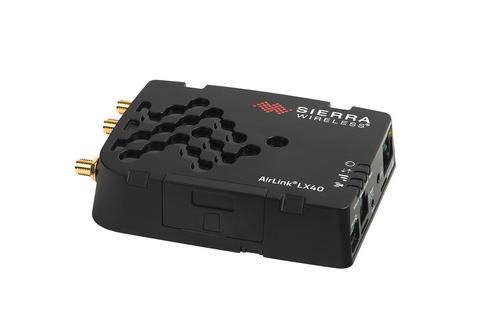
SIERRA WIRELESS AirLink LX40 Enterprise LTE Router User Guide

Ronix 7112 Electric Router User Guide

GRANDSTREAM GWN7062E Wi-Fi 6 Router Instruction Manual