
ASUS RT-ACRH18 Dual band AC WiFi Router User Guide
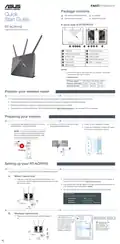


Package contents
RT-ACRH18 Wireless Router
Quick
Start Guide
AC adapter
Network cable (RJ-45)
Quick Start Guide
A quick look at RT-ACRH18
RT-ACRH18
Dual band AC WiFi Router
LAN LED
Power (DCIN) port
WAN (Internet) LED
2.4GHz LED
5GHz LED
Power switch
USB 3.0 port
WAN (Internet) port
LAN 1 ~ 4 ports
Power LED
WPS button
NOTES:
• Use only the adapter that came with your package. Using other
adapters may damage the device.
• Specifications:
DC Power adapter
Operating Temperature 0~40oC
Operating Humidity 50~90% Storage
DC Output: +12V with 2A current
Storage
0~70oC
20~90%
Position your wireless router
For optimal wireless transmission between the wireless router and connected wireless devices, ensure that you:
•
•
•
Place the wireless router in a centralized area for a maximum wireless coverage for the network devices.
Keep the wireless router away from metal obstructions and away from direct sunlight.
Always update to the latest firmware. Visit the ASUS website at http://www.asus.com to get the latest firmware updates.
Preparing your modem
1. Unplug the power cable/DSL modem. If it has a
battery backup, remove the battery.
2. Connect your modem to the router with
the bundled network cable.
3. Power on your cable/DSL modem.
4. Check your cable/DSL modem LED lights
to ensure the connection is active.
NOTE: If you are using DSL for Internet,
you will need your username/password
from your Internet Service Provider (ISP)
to properly configure the router.
Unplug
Setting up your RT-ACRH18
You can set up your RT-ACRH18 via wired or wireless connection.
A. Wired connection
1. Plug your router into a power outlet and power it on.
Connect the network cable from your computer to a LAN
port on your router.
2. The web GUI launches automatically when you open a web browser. If
3. Log into the Web GUI. By default, the login username and password for
your wireless router’s Web GUI is admin.
4. Set up a password for your router to prevent unauthorized access.
b
LAN
Laptop
Modem
Wall Power Outlet
Power
a
LINE
LAN
RESET
PWR
c
WAN
d
B. Wireless connection
1. Plug your router into a power outlet and power it
on.
2. Connect to the network
ASUS router
with SSID shown on
the product label on the
back side of the router.
For better network
Wi-Fi Name (SSID): ASUS_XX
*
XX refers to the last
two digits of the
MAC address. You
can find it on the
label on the back of
your RT-ACRH18.
security, change to
a unique SSID and
assign a password.
Smart phone
Modem
Wall Power Outlet
a
Power
Tablet
LINE
LAN
RESET
PWR
b
WAN
Laptop
c


| General | Details |
|---|---|
| Name | ASUS RT-ACRH18 Dual band AC WiFi Router User Guide |
| Make | Asus |
| Language | English |
| Filetype | PDF (Download) |
| File size | 0.38 MB |
 (1 votes, average: 5.00 out of 5)
 Loading...
If you have any questions regarding ASUS RT-ACRH18 Dual band AC WiFi Router User Guide, please ask here and describe the problem in detail.

ASUS RT-AC86U AC2900 WiFi Gaming Router User Guide

ASUS AC1750 WiFi Dual Band Wireless Internet Router User Guide

ASUS TUF-AX5400 Dual Band WiFi 6 Router User Guide

ASUS ET12 ZenWiFi Pro AXE11000 Tri Band Router User Guide

ASUS RT-AX82U V2 AX5400 Dual Band WiFi Router User Guide

ASUS TUF-AX4200 Dual Band WiFi Router User Guide

ASUS RT-N10U 150 mbps Wireless Router Instructions

ASUS RT-BE96U Tri Band WiFi Router User Guide

ASUS GT-AX6000 Dual Band WiFi 6 Extendable Gaming Router User Guide

ASUS RT-BE88U Dual Band WiFi Router User Guide


MERCUSYS MB112-4G 300Mbps Wireless N 4G LTE Router User Guide

RANGEXTD RJ45 WIFI Router User Guide

NEXXT Nyx1200-AC Plus Dual Band AC Wireless Router User Guide

NETGEAR Nighthawk Tri-Band WiFi 6 Router RAX200 User Guide

NETGEAR BE17000 Nighthawk WiFi 7 Tri-Band Router Owner’s Manual

TANGERINE NetComm CF40 Wi-Fi 6 Router User Guide

LUXUL ABR-5000 Epic 5 Gigabit Router User Guide
VEVOR XBJHGYCYSDS643WCHV0 60 Inches 152.4cm Router User Guide

porodo PD-4GCPMF-BK 4G/LTE Home and Outdoor Portable Router Instruction Manual

HUAWEI 31500DHA_01 5G CPE Pro 2 WiFi 6 Router User Guide