
ASUS ZenWiFi Pro XT12 AX11000 Tri Band Router User Manual


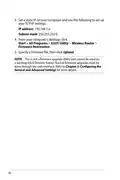


To configure the WAN connection settings:
1. From the navigation panel, go to Advanced Settings > WAN >
Internet Connection.
2. Configure the following settings below. When done, click
Apply.
•
WAN Connection Type: Choose your Internet Service
Provider type. The choices are Automatic IP, PPPoE, PPTP,
L2TP or fixed IP. Consult your ISP if the router is unable
to obtain a valid IP address or if you are unsure the WAN
connection type.
•
•
Enable WAN: Select Yes to allow the router Internet access.
Select No to disable Internet access.
Enable NAT: NAT (Network Address Translation) is a system
where one public IP (WAN IP) is used to provide Internet
access to network clients with a private IP address in a LAN.
The private IP address of each network client is saved in a NAT
table and is used to route incoming data packets.
•
Enable UPnP: UPnP (Universal Plug and Play) allows several
devices (such as routers, televisions, stereo systems, game
consoles, and cellular phone), to be controlled via an IP-based
network with or without a central control through a gateway.
UPnP connects PCs of all form factors, providing a seamless
network for remote configuration and data transfer. Using
UPnP, a new network device is discovered automatically.
Once connected to the network, devices can be remotely
configured to support P2P applications, interactive gaming,
video conferencing, and web or proxy servers. Unlike Port
forwarding, which involves manually configuring port
settings, UPnP automatically configures the router to accept
incoming connections and direct requests to a specific PC on
the local network.
•
Enable WAN Aggregation: WAN Aggregation combines two
network connections to increase your WAN speed up to
2 Gbps. Connect your router’s WAN port and LAN 4 port to
your modem’s LAN ports.
55

| General | Details |
|---|---|
| Name | ASUS ZenWiFi Pro XT12 AX11000 Tri Band Router User Manual |
| Make | Asus |
| Language | English |
| Filetype | PDF (Download) |
| File size | 0.9 MB |
 (1 votes, average: 5.00 out of 5)
 Loading...
If you have any questions regarding ASUS ZenWiFi Pro XT12 AX11000 Tri Band Router User Manual, please ask here and describe the problem in detail.

ASUS RT-AC86U AC2900 WiFi Gaming Router User Guide

ASUS AC1750 WiFi Dual Band Wireless Internet Router User Guide

ASUS TUF-AX5400 Dual Band WiFi 6 Router User Guide

ASUS ET12 ZenWiFi Pro AXE11000 Tri Band Router User Guide

ASUS RT-AX82U V2 AX5400 Dual Band WiFi Router User Guide

ASUS TUF-AX4200 Dual Band WiFi Router User Guide

ASUS RT-N10U 150 mbps Wireless Router Instructions

ASUS RT-BE96U Tri Band WiFi Router User Guide

ASUS GT-AX6000 Dual Band WiFi 6 Extendable Gaming Router User Guide

ASUS RT-BE88U Dual Band WiFi Router User Guide


ASUS RT-AC1300G PLUS Wireless AC1300 Dual Band Gigabit Router User Guide

GRANDSTREAM HT812 Analog FXS IP Gateway 2 Port + NAT Router User Guide

NETGEAR RAX5 Model AX1600 WiFi 6 Router User Guide

TRANSLITE GLOBAL TL-HWR-13 Dual Band Smart Wireless Router Owner’s Manual
Juniper NETWORKS PTX10003 Fixed Packet Transport Router User Guide
GL iNet GL-B2200 Tri-Band Wireless Gigabit Router User Manual

BUFFALO WZR2-G300N Wireless Router User Guide

TUBBUTEC TRS Bridge 4×4 TRS Midi Router User Guide

Imou AC1200 Dual Band WIFI Router User Guide

DrayTek Vigor2865 Series VDSL2 Gigabit Ethernet WAN Router Owner’s Manual