
CASTLENET EBM522U Mesh WiFi Router Installation Guide






EBM522U MeshWi-FiRouterQuickInstallation
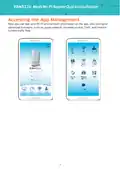
Accessing the Web Management
For easy-changing the default settings, a Web-based GUI is built-in for your access.
Use the following procedures to login to your EBM522U.
b.Then type the Username/Password: admin/admin, and press Enter.
Setting up your Mesh system
Download the router App to manage your Wi-Fi Mesh home network.
To find the app, scan the QR code on the right side or search for
CastleNet Mesh in the Google Play Store or the Apple App Store.
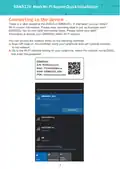
Launch the CastleNet Mesh app on your cell phone and follow the
instructions step by step.
a. Connect to the device by Wi-Fi, then open the App.
b.Enter your device login name and password.
Default login name and password is admin/admin.
c. Change your Wi-Fi default SSID and password, then restart theAPP.
a.
b.
c.
Logi
Wi-Fi
Welcom
LoginName
Password
Network Name(SSID)
Wi-Fi Mesh
Network Key(Password)
Assign network name and password
of Wi-Fi Mesh
Note:
1. Default login name and password is
admin/admin
1. Press''Next''afterinputnew settings.
2. Or,press''Next''withoutnew setting.
2.
Youcanchangepasswordlater.
Detecting Wi-FiMesh now
Pleasewait...
Next
Next
version 1.2.1
5


| General | Details |
|---|---|
| Name | CASTLENET EBM522U Mesh WiFi Router Installation Guide |
| Make | CastleNet |
| Language | English |
| Filetype | PDF (Download) |
| File size | 0.28 MB |
 (1 votes, average: 5.00 out of 5)
 Loading...
If you have any questions regarding CASTLENET EBM522U Mesh WiFi Router Installation Guide, please ask here and describe the problem in detail.

CASTLENET EBM522 Mesh Wi-Fi Router Installation Guide

CastleNet EBM562 Mesh WiFi Router Installation Guide

CASTLENET EBM552U Mesh Wi-Fi Router Installation Guide

CASTLENET EBM522C Mesh Wi-Fi Router Installation Guide


D-Link EXO AX AX1800 Wi-Fi Router User Guide

ATEL WB550 Apex 5G CPE Router Owner’s Manual

Tenda 4G05 Wi-Fi N300 4G LTE Router Installation Guide

ZYXEL NR5307 5G NR Router Owner’s Manual

TP-Link Archer AXE300 Quad-Band Wi-Fi 6E Router Installation Guide

NETGEAR MR6450 5G Mobiler Router Instruction Manual

Draytek Vigor167 Modem Router User Guide

ASUS TUF-AX5400 Dual Band WiFi 6 Router User Guide

TP-Link Archer NX600 5G CPE Router Installation Guide

GUBIA CPE 4G LTE Wireless Router User Manual