
Cudy X6 AX1800 Dual Band Gigabit Wi-Fi 6 Mesh Router Installation Guide


Turn on the modem and wait about 2 minutes for it to restart.
Schalten Sie das Modem ein und warten Sie etwa 2 Minuten, bis es neu gestartet wird.
Accendi il modem e attendi circa 2 minuti per il riavvio.
3
Quick Installation Guide
Encienda el módem y espere unos 2 minutos para que se reinicie.
Allumez le modem et attendez environ 2 minutes qu'il redémarre.
Włącz modem i poczekaj około 2 minut na jego ponowne uruchomienie.
English
Español
Deutsch
Français
Italiano
Polski
NEED TECH HELP?
Website:
Support
For technical support, the user
guide and more information, please
visit:
Email:
Driver & Manual:
Modem
LAN1
LAN2
LAN3
LAN4
INTERNET
WPS RESET
DC
810600155
Internet
Power Socket
If your internet connection is through an
Ethernet cable directly from the wall instead
of through a DSL/Cable/Satellite modem,
connect the Ethernet cable to the router’s
WAN port, and skip steps 1, 2 ,3.
Connect the power adapter to the router,
and wait 1 minute until the system LED
changes from flashing to solid on (red or
blue) , which means that the system startup
is completed.
Schließen Sie das Netzteil an den Router an und warten Sie 1 Minute,
bis die System-LED von blinkend auf dauerhaft leuchtet (rot oder blau).
Dies bedeutet, dass der Systemstart abgeschlossen ist.
Turn off the modem and remove the battery if
it has one.
Schalten Sie das Modem aus und entfernen Sie den Akku, falls
vorhanden.
Connect router’s INTERNET Port to DSL/Ca-
1
2
4
ble Modem/Ethernet.
Verbinden Sie den INTERNET-Port des Routers mit DSL / Kabelmo-
dem / Ethernet.
Collega la porta INTERNET del router a DSL / modem via cavo /
Ethernet.
Spegni il modem e rimuovi la batteria se ne ha una.
Apague el módem y retire la batería si tiene una.
Éteignez le modem et retirez la batterie s'il en a une.
Wyłącz modem i wyjmij baterię, jeśli jest w nią wyposażona.
Conecte el puerto INTERNET del enrutador a DSL / Cable Modem /
Ethernet.
Connectez le port INTERNET du routeur à DSL / modem câble /
Ethernet.
Collegare l'alimentatore al router e attendere 1 minuto fino a quando il
LED di sistema passa da lampeggiante a acceso fisso (rosso o blu), il
che significa che l'avvio del sistema è completato.
Conacke Trout's Internet Portett Tods/Cabul Modem/Ethenit.
Conecte el adaptador de alimentación al enrutador y espere 1 minuto
hasta que el LED del sistema cambie de parpadeante a encendido (rojo
o azul), lo que significa que el inicio del sistema se ha completado.
Connectez l'adaptateur secteur au routeur et attendez 1 minute
jusqu'à ce que le voyant du système passe de clignotant à fixe (rouge
ou bleu), ce qui signifie que le démarrage du système est terminé.
Podłącz zasilacz do routera i poczekaj 1 minutę, aż dioda LED systemu
zmieni się z na świecącą (czerwoną lub niebieską), co oznacza, że
uruchamianie systemu zostało zakończone.
LED and Button
English
Name
Status
Indication
Connect your computer to the router
(Wired or Wireless)
Launch a web browser and enter
the address bar. Use admin for password to
log in.
Then below popup will appear, please follow
step by step instructions to set up the internet
connections.
5
6
7
Red
Internet is not connected
Internet is connected
System is starting up
WPS is in progress
Software upgrading
Solid On
Blue
Red
System
LED
Wired
Flashing
Blue
Turn off the Wi-Fi on your computer and connect it to router’s LAN
port via an Ethernet cable.
Red-Purple-Blue
Quick Setup
Power adapter is not connected to the device.
The corresponding Ethernet port is connected.
The corresponding Ethernet port is not connected.
Press and hold 1 second to enable the WPS function.
Off
On
2
1
3
4
5
Wireless
Ethernet
LED
Mode
Timezone
WAN
Wireless
Summary
Off
Connect your device to the router’s Wi-Fi using the SSID (network
WPS
name) and Password printed on the bottom of the router.
Button
Opertion Mode
Wireless Router
Access Point
Press and hold 6 seconds to reset the router to its
factory default settings.
Reset
Exit
Next
English
admin
Log In
5GHz Wi-Fi: Cudy-XXXX-5G
2.4GHz Wi-Fi: Cudy-XXXX
Password: XXXXXXXX
Support
Note: If the pop-up window does not appear, please click Quick
For technical support the user guide and more information, please
Setup on the status page.
visit:
Enjoy the internet!
LED und Taste
Deutsch
Name
Status
Indikation
Dann erscheint das folgende Popup. Befol-
gen Sie die schrittweisen Anweisungen, um
die Internetverbindungen einzurichten.
Schließen Sie Ihren Computer an den
Router an (kabelgebunden oder kabellos).
Starten Sie einen Webbrowser und geben Sie
die Adressleiste ein. Verwenden Sie admin als
Passwort, um sich anzumelden.
5
6
7
Rot
Internet ist nicht verbunden
Internet ist verbunden
System startet
Fest an
Blau
Rot
System
LED
Verdrahtet
Blinkt
Blau
WPS ist in Bearbeitung
Software-Upgrade
Schalten Sie das WLAN Ihres Computers aus und verbinden Sie es
über ein Ethernet-Kabel mit dem LAN-Anschluss des Routers.
Rot-Lila-Blau
Quick Setup
Das Netzteil ist nicht an das Gerät angeschlossen.
Der entsprechende Ethernet-Port ist verbunden.
Der entsprechende Ethernet-Port ist nicht verbunden.
Off
On
Off
2
1
3
4
5
Ethernet
LED
Mode
Timezone
WAN
Wireless
Summary
Kabellos
Verbinden Sie Ihr Gerät über die SSID (Netzwerkname) und das
Kennwort auf der Unterseite des Routers mit dem WLAN des Routers.
Halten Sie 1 Sekunde lang gedrückt, um die
WPS-Funktion zu aktivieren.
WPS
Opertion Mode
Wireless Router
Access Point
Taste
Halten Sie diese Taste etwa 6 Sekunden lang
gedrückt, um den Router auf die werkseitigen
Standardeinstellungen zurückzusetzen.
Reset
Exit
Next
5GHz Wi-Fi: Cudy-XXXX-5G
2.4GHz Wi-Fi: Cudy-XXXX
Password: XXXXXXXX
English
admin
Log In
Unterstützung
Hinweis: Wenn das Popup-Fenster nicht angezeigt wird, klicken Sie
auf der Statusseite auf Schnelleinrichtung.
Für technischen Support, die Bedienungsanleitung und weitere
Informationen besuchen Sie bitte:
Genieße das Internet!
LED e pulsante
Italiano
Nome
Stato
Indicazione
Collega il tuo computer al router (cablato
o wireless)
Avviare un browser Web e inserire
barra degli indirizzi. Usa admin per la pass-
word per accedere.
Quindi verrà visualizzato il popup in basso,
seguire le istruzioni passo passo per impo-
stare le connessioni Internet.
5
6
7
Rosso
Blu
Internet non è connesso
Internet è connesso
Il sistema si sta avviando
WPS è in corso
Acceso fisso
Rosso
LED
sistema
Cablata
Lampeggiante Blu
Rosso-Viola-blu
Turn off the Wi-Fi on your computer and connect it to router’s LAN
port via an Ethernet cable.
Aggiornamento del software
Quick Setup
L'alimentatore non è collegato al dispositivo.
La porta Ethernet corrispondente è collegata.
La porta Ethernet corrispondente non è connessa.
Off
On
Off
2
1
3
4
5
Senza Fili
LED
Ethernet
Mode
Timezone
WAN
Wireless
Summary
Collega il tuo dispositivo al Wi-Fi del router utilizzando l'SSID (nome
Tenere premuto 1 secondo per abilitare la funzione
WPS.
della rete) e la password stampati nella parte inferiore del router.
WPS
Opertion Mode
Wireless Router
Access Point
Pulsante
Tenere premuto questo pulsante per circa 6
secondi per ripristinare le impostazioni predefinite
del router.
Reset
Exit
Next
5GHz Wi-Fi: Cudy-XXXX-5G
2.4GHz Wi-Fi: Cudy-XXXX
Password: XXXXXXXX
English
admin
Log In
Supporto
Nota: se la finestra pop-up non viene visualizzata, fare clic su Installazione
rapida nella pagina di stato.
Per supporto tecnico, la guida dell'utente e ulteriori informazioni,
visitare:
Goditi Internet!


| General | Details |
|---|---|
| Name | Cudy X6 AX1800 Dual Band Gigabit Wi-Fi 6 Mesh Router Installation Guide |
| Make | Cudy |
| Language | English |
| Filetype | PDF (Download) |
| File size | 0.5 MB |
 (1 votes, average: 5.00 out of 5)
 Loading...
If you have any questions regarding Cudy X6 AX1800 Dual Band Gigabit Wi-Fi 6 Mesh Router Installation Guide, please ask here and describe the problem in detail.

Cudy X6 AX1800 1800mbps Dual Band Wi-Fi 6 Router Installation Guide

Cudy WR1200 AC1200 Dual Band Wi-Fi Router Installation Guide

Cudy WR1200 Dual Band Wi-Fi Router Installation Guide

Cudy WR300 Multi Mode WiFi Router Installation Guide

Cudy TR3000 AX3000 2.5G Wi-Fi 6 Mini VPN Router Installation Guide

Cudy WR3000E Gigabit Mesh WiFi 6 Router Installation Guide

Cudy AC1200 4G LTE Wi-Fi Router Instruction Manual

Cudy LT450 4G LTE AC1200 Dual Band WiFi Router User Manual

Cudy WR1300 Gigabit Dual Band Wi-Fi Router Installation Guide

Cudy LT500 Wi-Fi 4G Router Installation Guide


xiaomi AX3000 Whole Home Mesh Wi-Fi Router Instruction Manual

TRUPER ROU-A3 Professional Router User Manual
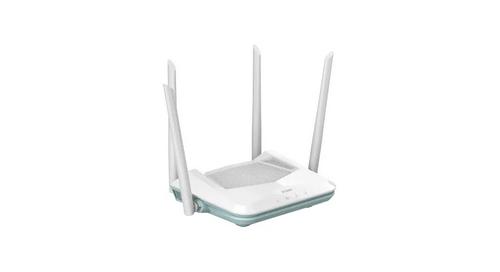
HIKVISION AX1500 Pro WiFi Router User Guide

caravansplus RV WI-FI Dishydock Router User Guide

ASUS TUF-AX5400 Dual Band WiFi 6 Router User Guide

Wi-Tek WI-R3 1200Mbps Dual-Band Wireless Mesh Router with PoE Passthrough Installation Guide

D-Link DBR-700 Router Installation Guide

LANCOM 1793VA VPN Router User Guide

REPUBLC OF GAMERS GT-BE98 Quad Band Gaming Router User Guide

Juniper NETWORKS ACX Series Paragon Automation Router User Guide