
Home > DRAGONGLASS > Dragonglass DGR7 1200M Wireless Router Installation Guide
Dragonglass DGR7 1200M Wireless Router Installation Guide
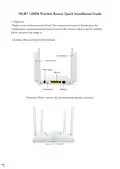


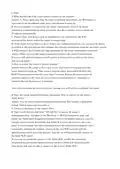


3. Indicator Lights & Button Function Explanation
1,Indicator lights
a,During the system startup process:
The POWER LED light is constantly on
b,After the system has started successfully:
INTERNET LED light on: The device has started normally and is connected to the
internet. It blinks during data transmission.
2,RESET Button
a,Press and hold for more than 5 seconds to restore factory settings.
4. Preparation
1,Connect the broadband cable to the WAN port of the router, ensure that it is properly
powered on. The indicator light will first be constantly blue, This indicates that the system
is starting up and establishing a network connection. Once successfully connected, the
indicator light will turn blue and remain constant, while it will blink during data
transmission.
2,Connect your mobile phone to the router’s WiFi network. The default WiFi network
name is “@DRAGONGLASS-XXXX-2.4G or @DRAGONGLASS-XXXX-5G” (where
XXXX denotes the last four digits of the MAC address)
5. Phone Setting
1,Open the browser and enter the default login address '192.168.10.1'. after entering the
information, click the “Start Setup” button to access the device setup wizard on the first
login and you need to set a user login password.
Note: If the router cannot access the Internet, your phone will prompt
Router-XXXX cannot access the Internet. Allow WLAN Assistant to switch to a
better network?' Click 'Disallow' or 'No' to continue with the router setup process.
Otherwise, the router setup will not be completed.
2. Enter the ‘Setup Wizard - WiFi’ page, as shown in Figure 3-4 below. You can modify the
WiFi name and WiFi password according to the prompts on the page. After configuring,
click the ‘Next’ button to enter the ‘Setup Wizard - Network’ page, as shown in Figure 3
below.Choose the correct internet connection type and configuration parameters based on
the broadband information provided by the service provider. After configuring, click the
‘Next’ button to enter the ‘Setup Wizard - Summary’ page. The page will display the
configured WiFi and network settings, as shown in Figure 4 below.After verifying the
information is correct, click the ‘Apply’ button to apply the configuration. A dialog box
saying ‘Setup Wizard Saved Successfully’ will pop up, indicating that the settings have been
saved. Close the browser to complete the setup.

| General | Details |
|---|---|
| Name | Dragonglass DGR7 1200M Wireless Router Installation Guide |
| Make | DRAGONGLASS |
| Language | English |
| Filetype | PDF (Download) |
| File size | 0.07 MB |
 (1 votes, average: 5.00 out of 5)
 Loading...
If you have any questions regarding Dragonglass DGR7 1200M Wireless Router Installation Guide, please ask here and describe the problem in detail.


Mercury Netgear D7000 Fibre Modem Router User Guide

TP-Link EC223-G5 Aginet AC1200 MU-MIMO Wi-Fi Router User Manual

TP-Link T120200-2B1 Gigabit VPN Router Instructions

NETGEAR XR1000v2 Nighthawk WiFi 6 Pro Gaming Router User Guide

COWMANAGER WIB2000 Coordinator Router User Manual

cradlepoint PepWave MAX BR1 Pro 5G Mobile Router User Guide

CHEECENT QX210 Cellular Router User Guide

TUBBUTEC TRS Bridge 4×4 TRS Midi Router User Guide

trend T18S-DS 18V Cordless 1-4 Inch Router Instructions

ASUS ZenWiFi BD4 Dual Band Wi-Fi Router User Guide