
eero SN10001 Outdoor 7 PoE Mesh Wi-Fi Router Installation Guide


243mm
243mm
81mm
81mm
81mm
SYSTEM REQUIREMENTS
Mounting on stucco, fiber cement, or wood:
Mounting on vinyl siding:
CONTENTS AND OPTIONAL ACCESSORIES
eero SN10001
installation guide
03
Mount the bracket.
eero SN10001 is meant to extend your existing eero
network. If you do not have an eero system, learn more at
eero.com
1. Insert vinyl siding clips at a joint between siding panels.
1. Use the mounting bracket to mark the position of the
mounting screws and a level to make sure they are at the
same height. Make sure the eero logo on the mounting
bracket is right side up.
eero SN10001
2. Secure the bracket to the clips with the included screws.
The combination of the clips and the brackets will pinch
the siding material. Tighten the clip screws to maximize
retention force. Make sure the eero logo on the mounting
bracket is right side up.
30W Outdoor PoE+ power adapter, 18.6 ft.
(may be sold separately)
For your safety, the eero device’s longevity, and to
maintain your warranty, follow these guidelines prior
to drilling holes:
eero SN10001 can be powered via a PoE+ switch or
injector with a CAT5e (or better) Ethernet cable, or via the
30W Outdoor PoE+ power adapter.
2. For stucco: Drill pilot holes; then insert the anchors. Pilot
holes should be 9/64 in. size for the provided 30 mm
anchors and #8 screws. Use the screws to attach the
bracket to the anchors.
Mounting bracket
M22 connector
INTRODUCTION
3. Use the leveling screws to bring the back of the mounting
bracket vertical. Hand-tighten at least 1/2 turn beyond
the point where the bracket is approximately level.
• The device must be installed with ports facing
downward for it to function properly and to
prevent water accumulation and ingress. This is
required for proper installation and failure to do
so will void the warranty.
This guide takes you through setup and installation of the
eero SN10001 to extend your eero network outside.
Because eero SN10001 is designed to operate outdoors,
it’s essential to follow the instructions and warnings in this
guide to avoid harm to you or damage to your device
or property.
3. For wood or fiber cement: Use the screws to attach the
bracket to your surface.
You will need the eero app. If you do
not have the app, scan the QR code to
download it and follow the instructions to
set up your network.
Vinyl
siding
Wood or
fiber
cement
Concrete,
brick, or
cement
Pole
or post
Stucco
Included Accessories
• Check for hidden wires/pipes before drilling holes to
avoid damage during installation.
Note: Fiber cement panels and shingles often have a
downward slope. The SN10001 will operate properly at an
angle. Alternatively, the retaining screws can be backed
off, and the leveling screws in the bracket can be used to
adjust the up/down angle. If the leveling screws are not
used, they may be removed.
Two leveling screws
• Do not use a flat Ethernet cable, as the M22
connector will not seal correctly around the cable.
Installation instructions covered in this guide:
Two vinyl siding clips
with screws
• In environments with frequent electrical surges,
grounding the 30W Outdoor PoE+ power adapter
is recommended. Ground wire is not included.
TOOLS REQUIRED FOR INSTALLATION
• Phillips screwdriver
Determine how you are connecting your eero
1
Two stainless screws,
#8 (15 x 30 mm)
SN10001 to your network.
• Pencil or marker
Stucco
Wood
Check for clearance above and below your
2
desired location.
Two drywall
anchors (30 mm)
• Power drill and drill bit (9/64 in. when using anchors;
7/64 in. when not using anchors)—as needed
CAUTION: When mounting this device in elevated
locations, use precautions to ensure that
the device does not fall and harm bystanders or
damage property.
Mounting on a pole:
1. Insert the BAND-IT™ or stainless steel hose clamp
(not included in the kit) through the slot on the back
of the mounting bracket.
• Level—as needed
3
Mount the bracket.
Not included accessories
• Ladder or step stool—as needed
BAND-IT™ straps, zip ties, or
stainless steel hose clamp
2. Ensure the eero logo on the mounting bracket is right
side up and tighten the clamp around the pole.
Scan the QR code
to watch the
installation video.
Need help?
Brick anchors
If you require further support during the installation
process, reach out to eero Customer Support by email
+1-877-659-2347.
Zip ties, P-clips, outdoor
adhesive cable clips,
grounding wire, and vinyl
clips without fasteners
As needed
eero.com/setup
01
02
03
07
08
09
Connect the device to the mounting bracket.
Using a wired connection to your existing eero network?
Connect the 30W Outdoor PoE+ power adapter or
Ethernet cable.
WARRANTY, SAFETY, AND LEGAL
01
02
READ ALL SAFETY INFORMATION BEFORE USING THE DEVICE. FAILURE TO FOLLOW
THESE SAFETY INSTRUCTIONS COULD RESULT IN FIRE, ELECTRIC SHOCK, OR OTHER
INJURY OR DAMAGE.
Before mounting your eero SN10001, make sure the CAT5e
(or better) Ethernet cable being used to power the eero and
connect to your eero network is rated for outdoor use and is
long enough to reach your desired location.
1. Place the eero SN10001 on the mounting bracket,
making sure the eero logo is right side up.
1. If you are using the outdoor 30W Outdoor PoE+ power
adapter, go to step 2 below. If you are using an Ethernet
cable, insert the Ethernet cable through the M22
connector as shown.
CHOKING HAZARD: Small parts contained in your device and its accessories may
present a choking hazard to small children.
Determine how you are
connecting to your network.
Check for clearance above and
below your desired location.
Your device and adapter can withstand outdoor use and contact with water under certain
conditions. However, your device is not intended for underwater use and may experience
temporary effects from exposure to water. Do not intentionally immerse your device in
water. Do not spill any food, oil, lotion, or other abrasive substances on your device. Do not
expose your device to pressurized water, high-velocity water, or extremely humid conditions
(such as a steam room). Do not expose your device to saltwater or other conductive liquids.
To protect against electric shock, do not place cord, plug, or device in water or other liquids.
If your device gets wet from immersion in water or high-pressure water, carefully disconnect
all cables without getting your hands wet and wait for them to dry completely before
powering it on again. Do not attempt to dry your device with an external heat source,
such as a microwave oven or a hair dryer. To avoid risk of electric shock, do not touch your
device or any wires connected to your device during a lightning storm while your device is
powered. If your device appears to be damaged, discontinue use immediately.
To power your device, use only a Power-over-Ethernet+ (PoE+) switch or injector and a
CAT5e (or better) Ethernet cable, or an eero 30W Outdoor PoE+ power adapter (model
number C510011). Plug your power adapter into a power source that is easily accessible
and near the equipment that it will be plugged into. Your device may get warm during
normal use. In direct sun and high temperatures, avoid touching the device, as it can get
quite hot.
2. When lowered, the eero SN10001 should click securely
into place.
Connecting wirelessly to your existing eero network?
For best results, mount the eero SN10001 at a height of 6
to 15 ft. and free from obstructions. Ensure at least 1 ft. of
clearance above the desired location so it can slide onto
the mounting bracket—and at least 1 ft. of clearance
below the desired location to avoid any surface (like a
shelf) where water may pool.
Before mounting your eero SN10001, check for wifi
connectivity in your desired location. Plug your eero
SN10001 into your outdoor outlet via the AC adapter, and
add it to your eero network. After confirming the eero
SN10001 has been connected, unplug it and proceed to the
next step.
Sealing Seal Body + O-Ring
PRODUCT SPECIFICATIONS
Device name: eero SN10001
Model number: SN10001
Electrical rating: PoE 25.5W | 802.3bt
Operating temperature:
-40°F-131°F (-40°C-55°C)
Storage temperature:
2. Plug in the Ethernet cable. Screw the M22 connector
into the eero SN10001 base. Hand-tighten until the
cable is sealed.
-40°F-158°F (-40°C-70°C)
Tested to meet IP66 standards.
Operating altitude:
<9,800 ft. (<3,000 m)
FCC COMPLIANCE INFORMATION
This device complies with Part 15 of the FCC Rules. Operation is subject to the following
two conditions: (1) this device may not cause harmful interference, and (2) this device
must accept any interference received, including interference that may cause undesired
operation. This equipment complies with FCC radiation exposure limits set forth for an
uncontrolled environment.
This equipment has been tested and found to comply with the limits for a Class B digital
device, pursuant to part 15 of the FCC Rules, which are designed to provide reasonable
protection against harmful interference in a residential installation. This equipment
generates, uses and can radiate radio frequency energy and, if not installed and used in
accordance with the instructions, may cause harmful interference to radio communications.
However, there is no guarantee that interference will not occur in a particular installation. If
this equipment does cause harmful interference to radio or television reception, which can
be determined by turning the equipment off and on, the user is encouraged to try to correct
the interference by one or more of the following measures:
• Reorient or relocate the receiving antenna.
• Increase the separation between the equipment and receiver.
• Connect the equipment into an outlet on a circuit different from that to which the
receiver is connected.
• Consult the dealer or an experienced radio/TV technician for help.
1 ft.
<1 ft.
Power up the eero and connect to your existing
eero network.
To power your eero, use a PoE+ switch or injector and a
CAT5e (or better) Ethernet cable.
Modification of this device without the express permission of eero can void the user’s
authority to operate the equipment.
This device has been tested and meets applicable limits for Radio Frequency (RF) exposure.
This equipment should be installed and operated with a minimum distance of 30 cm
between the radiator and your body.
Regulatory information can be found in the eero app by selecting your eero then Device Information.
In some areas, the disposal of certain electronic devices is regulated. Make sure you dispose
of or recycle your device in accordance with your local laws and regulations. Additional
safety, compliance, recycling, and other important information regarding your device can
be found at eero.com/compliance
Setting up a wireless point-to-point link?
You can use two eero SN10001s that have a clear
line of sight between them to wirelessly connect
two structures. For more instructions, visit
eero.com/setup/point-to-point
Once you connect your eero SN10001 to your existing eero
network, the eero app will automatically add it to your
network. If it isn’t added automatically, the app will detect
that an eero device is ready to be added—and then
prompt you to add it to the network. Once you’ve
validated your connection, unplug the Ethernet cable and
continue with the installation.
1 ft.
TERMS OF SERVICE, PRIVACY NOTICE, AND LIMITED WARRANTY
1-year limited warranty. For warranty info, privacy policy, terms of service, trial and
subscription terms, and more, visit eero.com/legal. If purchased from eero.com,
Amazon.com, or from authorized resellers located in the United States, then the warranty is
provided by, and the party responsible for FCC compliance is, eero LLC, PO Box 77880, San
Francisco, CA 94107, USA
Once the seal is completely closed around the cable
and your eero is powered on, you’re done!
856-00284-12 XYMD
04
05
06
10
11
12
Side 01
Side 02
Supplier to include batch number for traceability
X - Supplier Code
Y = Year
9 - 2019
0 - 2020
1 - 2021
2 - 2022
...
M = Month
A - January
B - Feburary
C - March
D - April
D = Day
1 - 1
Excluded Letters
I ≠ 1
2 - 2
3 - 3
4 - 4
...
L ≠ 1
O ≠ 0
U ≠ Obscenity
...
M - Dec
A - 10
...
660 3rd Street 4th Floor, San Francisco, CA 94107
Rev 01
Rev 02
Rev 03
Rev 04
Rev 05
Rev 06
Rev 07
Rev 08
Rev 09
Rev 10
Rev 11
Initial Design
CHANGE LOG
ARTWORK
FILE NAME
DESIGN
ASSEMBLY NUMBER
DIELINE
SIZE
DELIVERABLE
710-01118
856-00284
465-01199
Installation Guide/WSL
Removed “FPO” from illustrations; incremented revision
Updated content; updated illustrations;
Updated content; updated illustrations; release for EVT Beta testers
Updated content and layout
Updated content and layout
Updated content and layout
Updated leveling screw icon on chart
Update legal copy
Copy updates on page 7
May 10th copy updates
Modifications to chart based on Nick’s feedback from 05/16/24; Preflight and add barcode to
first page
Flat: 243 mm x 252 mm / Folded: 81 mm x 126 mm
eero Model SN10001_INSTALLATION_GUIDE_WSL_ARTWORK_US
64GSM uncoated
wood-fiber paper
PRODUCTION
PAPER
INK
FINISH
Desiree Portugues
May 21st, 2024
12
Kjell
TBD
Rev 12
MODIFIED
VERSION
PMS 2768 C/U
Ink Warning:Inks must be mineral oil free.


| General | Details |
|---|---|
| Name | eero SN10001 Outdoor 7 PoE Mesh Wi-Fi Router Installation Guide |
| Make | eero |
| Language | English |
| Filetype | PDF (Download) |
| File size | 0.23 MB |
 (1 votes, average: 5.00 out of 5)
 Loading...
If you have any questions regarding eero SN10001 Outdoor 7 PoE Mesh Wi-Fi Router Installation Guide, please ask here and describe the problem in detail.

eero 609R010111 6+ Dual-Band Mesh Wi-Fi 6 Router User Guide

eero 7 Dual Band Mesh Wi-Fi 7 Router User Guide

eero Max 7 Mesh Wifi Router Owner’s Manual

eero N010001 AX1800 Dual Band Mesh WiFi 6 Router User Manual

eero V010001 Router User Guide

eero Pro 6E Mesh Router User Guide

eero Pro 6 Mesh Wi-Fi Router User Guide
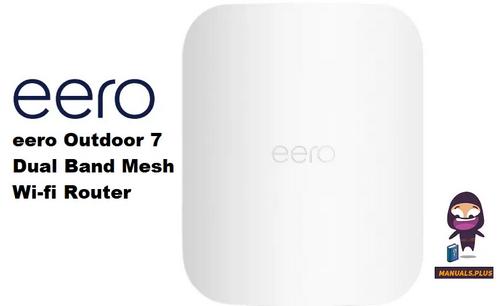
eero Outdoor 7 Dual Band Mesh Wi-fi Router Installation Guide


TP-Link Archer C86 AC1900 MU MIMO Wi-Fi Router Installation Guide

Adtran 854-(v)6 Service Delivery Gateway WiFi 6 2.5G Router User Guide

UBIQUITI NETWORKS 2.4GHz Air Router User Guide

Queclink WR100 Cellular Router User Manual

Hisense HBR6303M WiFi Router User Manual

ZYXEL SCR 50AXE Secure Cloud-Managed Router with AXE5400 Tri-Band Wifi 6E User Guide

LINOVISION IOT-R41 Mini 4G LTE Router User Manual

Zbtlink AX1800 Wi-Fi 6 4G LTE Router User Manual

Tenda AX1800 Wi-Fi 6 5G NR Router User Manual

ASUS RP-AX56 Dual Band Wireless Router User Guide