
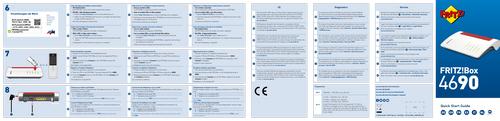
FRITZ 4690 Box Wi-Fi Router User Guide


Modem anschließen
1. Schließen Sie das LAN-Kabel an der Buchse WAN der
FRITZ!Box an.
Conectar un módem
1. Conecte el cable LAN al puerto WAN del FRITZ!Box.
Lieferumfang
1
2
3
4
5
2. Conecte el otro extremo del cable LAN al puerto LAN de su
módem.
Package Contents
Contenu du pack
Contenido del paquete
Contenuto
2. Schließen Sie das andere Ende des LAN-Kabels an der
LAN-Buchse Ihres Modems an.
Connect a Modem
1. Insert the LAN cable into the WAN socket on the FRITZ!Box.
Collegamento di un modem
1. Collegate il cavo LAN alla presa WAN del FRITZ!Box.
WAN
10G
Fon 1 Fon 2
LAN 1 LAN 2 LAN 3 LAN 4
Power
WAN
10G
Fon 1 Fon 2
LAN 1 LAN 2 LAN 3 LAN 4
Power
10G
2.5G
10G
2.5G
2. Insert the other end of the LAN cable into the LAN socket of your
modem.
2. Collegate l’altra estremità del cavo a LAN alla porta LAN del vostro
modem.
Pode utilizar o seguinte código
QR para abrir a versão em
português deste guia rápido no
seu smartphone ou tablet.
WAN
10G
Fon 1 Fon 2
LAN 1 LAN 2 LAN 3 LAN 4
Power
Omvang van de levering
10G
2.5G
Raccorder un modem
1. Branchez le câble Ethernet sur le port WAN de la FRITZ!Box.
Modem aansluiten
1. Sluit de LAN-kabel aan op de bus WAN van de FRITZ!Box.
Utilize o seu computador ou
notebook para abrir o guia
rápido em português na nossa
página de internet pt.avm.de/
servico/manual.
Notiz
2. Branchez l’autre extrémité du câble Ethernet sur le port LAN de
votre modem.
2. Sluit het andere uiteinde van de LAN-kabel aan op de LAN-bus van
uw modem.
Strom anschließen
Power/Internet
ꢀ
ꢀ
leuchtet bei Internetverbindung
Connect to Electrical Power
Raccorder au réseau électrique
Conectar a la red eléctrica
blinkt, wenn die Internetverbindung
unterbrochen ist
1
n
o
F
WLAN
ꢀ
ꢀ
drücken für WLAN an/aus
leuchtet, wenn WLAN an ist
Fon/DECT
•
ꢀ
ꢀ
drücken für Telefone wiederfinden
leuchtet bei einem Telefonat
blinkt bei Sprachnachrichten im Netz
Connect/WPS
ꢀ
ꢀ
drücken für WLAN- oder DECT-Gerät anmelden
blinkt während ein WLAN- oder DECT-Gerät
angemeldet wird
Info
ꢀ
ꢀ
Computer anschließen (LAN)
Connect to the Computer (LAN)
Connecter un ordinateur (LAN)
Conectar un ordenador (LAN)
blinkt bei Nachrichten auf dem Anrufbeantworter (einstellbar)
leuchtet rot bei wichtiger Nachricht auf http://fritz.box
WLAN-Verbindung herstellen (Smartphone)
1. Scannen Sie den QR-Code für das WLAN der FRITZ!Box mit der
Kamera Ihres Geräts oder mit einer App wie FRITZ!App WLAN.
Se connecter au Wi-Fi (smartphone)
Stabilire una connessione Wi-Fi (smartphone)
1. Effettuate la scansione del codice QR per la rete Wi-Fi del
FRITZ!Box con la fotocamera del vostro dispositivo o con una app
come FRITZ!App Wi-Fi.
Einstellungen ab Werk
Diese
1. Scannez le QR code pour le Wi-Fi de la FRITZ!Box à l’aide de la
caméra de votre appareil ou d’une application comme
FRITZ!App Wi-Fi.
Einstellungen
können in der
FRITZ!Box
geändert
Wi-Fi network (SSID)
FRITZ!Box 4690 WQ
Quick Start Guide
werden.
Wi-Fi password (WPA2)
3779 8981 1562 8981 0123
FRITZ!Box password
zigzag5481
ONLINE
Collegamento alla rete elettrica
Op het elektriciteitsnet aansluiten
2. Folgen Sie dem Dialog, den Sie von der Kamera oder der App
erhalten, und verbinden Sie Ihr WLAN-Gerät in wenigen Schritten
mit dem WLAN der FRITZ!Box.
2. Suivez les instructions que vous recevez de la caméra ou de l’ap-
plication et connectez votre appareil en quelques étapes au Wi-Fi
de la FRITZ!Box.
2. Seguite la finestra di dialogo che ricevete dalla fotocamera o dalla
App e connettete il vostro dispositivo wireless alla rete Wi-Fi del
FRITZ!Box in pochi passaggi.
Einstellungen ab Werk
Diese
Einstellungen
können in der
FRITZ!Box
geändert
Wi-Fi network (SSID)
FRITZ!Box 4690 WQ
Collegamento di un computer (LAN)
Computer aansluiten (LAN)
Establish Wi-Fi Connection (Smartphone)
1. Scan the QR code for the FRITZ!Box’s Wi-Fi using the camera on
your device or with an app like FRITZ!App Wi-Fi.
Establecer la conexión inalámbrica (smartphone)
1. Para acceder a la red inalámbrica escanee el código QR del
FRITZ!Box con la cámara de su dispositivo o con una aplicación
como nuestra aplicación “FRITZ!App Wi-Fi”.
Wi-Fi-verbinding tot stand brengen (smartphone)
1. Scan met de camera van uw apparaat of met een app zoals
FRITZ!App Wi-Fi de QR-code voor het Wi-Fi-netwerk van de
FRITZ!Box.
werden.
Wi-Fi password (WPA2)
3779 8981 1562 8981 0123
Indicazioni di sicurezza
• Non utilizzate il FRITZ!Box
durante un temporale.
Veiligheidsinstructies
• Gebruik de FRITZ!Box niet
tijdens onweer.
Sicherheitshinweise
• Betreiben Sie die FRITZ!Box nicht
bei Gewitter.
Safety Instructions
• Do not operate the FRITZ!Box
during an electrical storm.
Consignes de sécurité
• N‘utilisez pas votre FRITZ!Box
pendant un orage.
Advertencias de seguridad
• No utilice el FRITZ!Box durante
2. Follow the dialog shown by the camera or app to connect your
wireless device with your FRITZ!Box’s Wi-Fi network in a few easy
steps.
FRITZ!Box password
zigzag5481
2. Siga el diálogo que recibe de la cámara o de la aplicación y conec-
te su dispositivo Wi-Fi a la red inalámbrica del FRITZ!Box en pocos
pasos.
2. Volg de instructies van uw camera of de app en verbind uw
Wi-Fi-apparaat in slechts enkele stappen met het Wi-Fi-netwerk
van de FRITZ!Box.
tormentas eléctricas.
• Le fessure di ventilazione del
FRITZ!Box devono restare
sempre libere.
• De ventilatiesleuven van de
FRITZ!Box moeten altijd vrij
worden gehouden.
• Die Lüftungsschlitze der
FRITZ!Box müssen immer frei
sein.
• The ventilation slits of the
FRITZ!Box must never be
obstructed.
• Les grilles d’aération de votre
FRITZ!Box doivent être libres.
• No se debe bloquear la rejilla de
ventilación de su FRITZ!Box.
• Ne posez pas la FRITZ!Box sur
des surfaces sensibles à la
chaleur.
• No coloque su FRITZ!Box sobre
una superficie que no resista el
calor.
• Non collocate il FRITZ!Box su
superfici sensibili al calore.
• Plaats de FRITZ!Box niet op
warmtegevoelige oppervlakken.
• Stellen Sie die FRITZ!Box nicht
• Do not place the FRITZ!Box on
WLAN-Verbindung herstellen (Computer)
1. Klicken Sie auf das WLAN-Symbol Ihres Computers.
Se connecter au Wi-Fi (ordinateur)
1. Cliquez sur l’icône de réseau Wi-Fi de votre ordinateur.
Stabilire una connessione Wi-Fi (computer)
1. Cliccate sul simbolo Wi-Fi del vostro computer.
auf wärmeempfindliche Flächen.
overly heat-sensitive surfaces.
• Collegate il FRITZ!Box a una
presa di corrente facilmente
accessibile.
• Sluit de FRITZ!Box aan op een
goed bereikbaar stopcontact.
• Schließen Sie die FRITZ!Box
an eine leicht erreichbaren
Steckdose an.
• Connect the FRITZ!Box to an
easily accessible outlet.
• Branchez votre FRITZ!Box sur
une prise de courant facile
d’accès.
• Conecte su FRITZ!Box a una toma
eléctrica de fácil acceso.
oder
oder
auf Windows-Computern in der Taskleiste.
auf Apple-Computern in der Menüleiste.
ou
ou
dans la barre des tâches sur les ordinateurs Windows.
dans la barre des menus sur les ordinateurs Apple.
o
o
nella barra delle applicazioni sui computer Windows.
nella barra del menu sui computer Apple.
• De FRITZ!Box mag alleen
binnenshuis worden gebruikt.
• The FRITZ!Box is intended only
• Su FRITZ!Box únicamente debe
ser utilizado en interiores.
• Il FRITZ!Box va utilizzato
esclusivamente all’interno degli
edifici.
• Die FRITZ!Box darf nur innerhalb
for indoor operation.
• La FRITZ!Box est destinée à
un usage uniquement à
l‘intérieur.
Einstellungen ab Werk
2. Wählen Sie das WLAN Ihrer FRITZ!Box aus und stellen Sie die
Verbindung mit dem WLAN-Netzwerkschlüssel her.
2. Sélectionnez le Wi-Fi de votre FRITZ!Box et connectez-vous via la
clé de sécurité Wi-Fi de la FRITZ!Box.
2. Selezionate la rete Wi-Fi del vostro FRITZ!Box e stabilite la con-
nessione con la chiave di rete Wi-Fi.
von Gebäuden verwendet werden.
Diese
Neem ook de veiligheidsinstructies
in uw FRITZ!Box-handboek in acht.
See also the security instructions in
your FRITZ!Box manual.
¡Tenga en cuenta las
Einstellungen
können in der
FRITZ!Box
geändert
Beachten Sie auch die Sicher-
heitshinweise in Ihrem FRITZ!Box-
Handbuch.
recomendaciones de seguridad
que se encuentran en el manual de
usuario!
Wi-Fi network (SSID)
FRITZ!Box 4690 WQ
Osservate anche le indicazioni di
sicurezza riportate nel manuale del
FRITZ!Box.
Tenez également compte des consi-
gnes de sécurité fournies dans le
mode d‘emploi de votre FRITZ!Box.
Establish Wi-Fi Connection (Computer)
1. Click on the Wi-Fi icon on your computer screen.
Establecer una conexión Wi-Fi (ordenador)
1. Haga clic en el icono Wi-Fi de su ordenador.
Wi-Fi-verbinding tot stand brengen (computer)
1. Klik op het Wi-Fi-pictogram van uw computer.
werden.
Wi-Fi password (WPA2)
3779 8981 1562 8981 0123
or
or
in the task bar on Windows computers.
in the menu bar on Apple computers.
o
o
en ordenadores Windows en la barra de tareas.
en los ordenadores Apple en la barra de menús.
of
of
in de taakbalk bij Windows-computers.
in de menubalk bij Apple-computers.
FRITZ!Box password
zigzag5481
2. Select the Wi-Fi network of your FRITZ!Box, and use the Wi-Fi
network key to establish a Wi-Fi connection.
2. Seleccione la red inalámbrica de su FRITZ!Box y establezca la
conexión con la clave de red Wi-Fi.
2. Selecteer het Wi-Fi-netwerk van uw FRITZ!Box en breng de verbin-
ding tot stand met de Wi-Fi-netwerksleutel.

| General | Details |
|---|---|
| Name | FRITZ 4690 Box Wi-Fi Router User Guide |
| Make | FRITZ |
| Language | English |
| Filetype | PDF (Download) |
| File size | 0.85 MB |
 (1 votes, average: 5.00 out of 5)
 Loading...
If you have any questions regarding FRITZ 4690 Box Wi-Fi Router User Guide, please ask here and describe the problem in detail.

FRITZ!Box 6860 5G Outdoor Router User Guide

GL iNet GL-XE300 Puli 4G LTE Wireless Router User Manual

NEXXT SOLUTIONS NBL301P NebulaN301 Wireless-N Router Installation Guide

TP-Link Archer AX72 AX5400 Multi-Gigabit Wi-Fi 6 Router Installation Guide

TP-Link AX3000 WiFi 6 One Mesh Router Instruction Manual

NETGEAR R6700AX 4 Stream AX1800 Wi-Fi 6 Router Owner’s Manual

Ruijie RG-EW3000GX Reyee Wi-Fi Router Installation Guide

Maiyuan AX3000W Router Installation Guide

NEXTIVITY Shield Megafi Wireless Wan Router User Guide

airlive XG-XGS OLT MESH Router User Guide

EE D412C57 Smart 4G Hub Dual Band Router User Guide