
Home > JUNIPER NETWORKS > Juniper NETWORKS SSR1300 Router User Guide
Juniper NETWORKS SSR1300 Router User Guide


10
10. Click Add.
Your template has the WAN and LAN informaꢀon. Now, you need to tell the SSR1300 how to use the informaꢀon to
connect users to applicaꢀons. This is done using traffic steering and applicaꢀon policies.
Configure Traffic Steering Policy
To configure Traffic Steering policy:
1. Scroll to the Traffic Steering secꢀon of the template, and click Add Traffic Steering.
Video: Add Traffic Steering Policy
2. Enter a name for the steering policy, for example, local-breakout.
3. Click Add Paths to give your steering policy a path to send traffic.
4. Select WAN as the path type, and select your WAN interface. For applicaꢀons that use the policy, this indicates you
want the traffic to be sent directly out of the local WAN interface.
5. Click the ✓ buꢁon in the upper right corner of the Add Path panel, and then click Add at the boꢁom of the Add
Traffic Steering side panel.

| General | Details |
|---|---|
| Name | Juniper NETWORKS SSR1300 Router User Guide |
| Make | JUNIPER NETWORKS |
| Language | English |
| Filetype | PDF (Download) |
| File size | 0.18 MB |
 (1 votes, average: 5.00 out of 5)
 Loading...
If you have any questions regarding Juniper NETWORKS SSR1300 Router User Guide, please ask here and describe the problem in detail.

Juniper NETWORKS SSR120 Router User Guide

Juniper NETWORKS ACX Series Paragon Automation Router User Guide
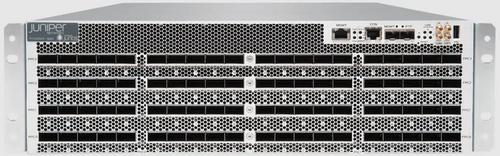
Juniper NETWORKS PTX10003 Fixed Packet Transport Router User Guide
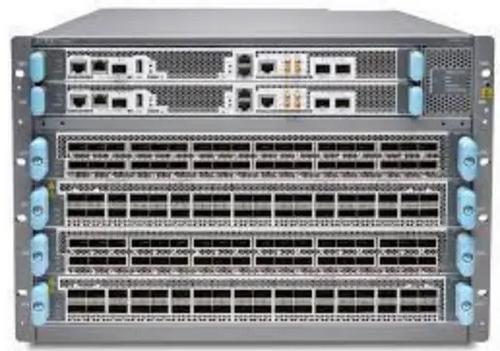
Juniper NETWORKS PTX10004 Ultra-Compact Modular Router User Guide

Juniper NETWORKS ACX710 Universal Metro Router User Guide

Juniper NETWORKS PTX10001-36MR Packet Transport Router User Guide
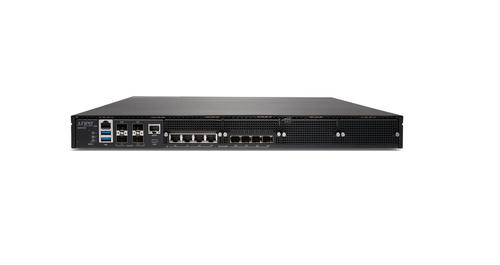
Juniper NETWORKS SSR1300 Smart Router User Guide

Juniper NETWORKS ACX7024 Cloud Metro Router User Guide

JUNIPER NETWORKS PTX10004 Packet Transport Router User Guide

Juniper NETWORKS ACX7509 Cloud Metro Router User Guide

Helmholz 700-875-LTE11, 700-875-LTE61 REX 100 Router User Guide

Tenda AC9 AC1200 Dual Band Gigabit WiFi Router Installation Guide

TP-Link T120100-2B1 Gigabit VPN Router Instructions

Tenda 5G03 Wi-Fi 6 5G NR Router Installation Guide

Cudy AX3000 Wi-Fi 6 Mesh Router Installation Guide

BIGXI AX1800 Wireless Router Installation Guide

TP-Link AX21 AX1800 Dual Band WiFi 6 Router Installation Guide

TP-Link TD-W8951ND Wireless DSL Modem Router Installation Guide

Cudy LT500 Outdoor Router Installation Guide

SNRMD2 Wi-Fi Router User Manual