
Home > JUNIPER NETWORKS > Juniper NETWORKS SSR1300 Router User Guide
Juniper NETWORKS SSR1300 Router User Guide


4
2. Select Organizaꢀon > Inventory from the menu on the leſt, then select the WAN Edges tab at the top.
3. Click Claim WAN Edges in the upper right porꢀon of the inventory screen.
4. Enter the SSR1300 Acꢀvaꢀon code or claim code and click Add.
5. Clear the Assign claimed WAN Edges to site check box to place the SSR1300 in the inventory. The SSR1300 is
assigned to a site later, see "Assign the SSR1300 to a Site" on page 11.
6. Click the Claim buꢁon to claim the SSR1300 into your inventory.
Video: Add the Claim Informaꢀon in Mist
Onboarding Complete!
Fantasꢀc, the SSR1300 is in your inventory! To provision the SSR1300, see "Step 2: Up and Running" on page 5.

| General | Details |
|---|---|
| Name | Juniper NETWORKS SSR1300 Router User Guide |
| Make | JUNIPER NETWORKS |
| Language | English |
| Filetype | PDF (Download) |
| File size | 0.18 MB |
 (1 votes, average: 5.00 out of 5)
 Loading...
If you have any questions regarding Juniper NETWORKS SSR1300 Router User Guide, please ask here and describe the problem in detail.

Juniper NETWORKS SSR120 Router User Guide

Juniper NETWORKS ACX Series Paragon Automation Router User Guide
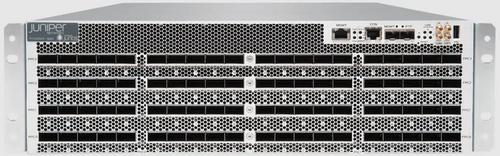
Juniper NETWORKS PTX10003 Fixed Packet Transport Router User Guide
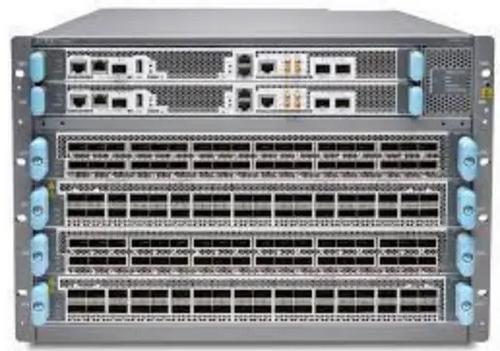
Juniper NETWORKS PTX10004 Ultra-Compact Modular Router User Guide

Juniper NETWORKS ACX710 Universal Metro Router User Guide

Juniper NETWORKS PTX10001-36MR Packet Transport Router User Guide
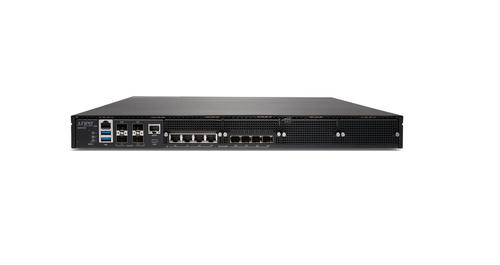
Juniper NETWORKS SSR1300 Smart Router User Guide

Juniper NETWORKS ACX7024 Cloud Metro Router User Guide

JUNIPER NETWORKS PTX10004 Packet Transport Router User Guide

Juniper NETWORKS ACX7509 Cloud Metro Router User Guide

D-Link DIR-X1860 AX1800 Mesh Wi-Fi 6 Router Installation Guide

MobileMark TX54-A106 LTE Advanced Cellular Router User Manual

AZORES AX3000 PRO WiFi-6 Wireless Router Instruction Manual

Shenzhen 802.11AX Wi-Fi 6 1800M Wireless Router Installation Guide

MERCUSYS MR90X Dual Band 8 Stream Wi-Fi 6 Router User Guide

COMFAST M0304517 Wireless Router Installation Guide

Cudy LT700 4G LTE CAT 6 Wi-Fi Router Installation Guide

TP-Link VR300 Archer Modem Router User Guide

TP-Link Archer BE800 BE19000 Tri-Band Wi-Fi 7 Router Installation Guide

Tenda N301 Wi-Fi 4 Router Installation Guide