
Kajeet 975 SmartSpot Network Router User Guide
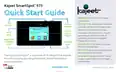


Accessing
Connect
Your Kajeet SmartSpot Wi-Fi Name & Password
To Your Kajeet SmartSpot
To access your Wi-Fi name and password
follow the steps below:
Once you have located your Kajeet SmartSpot
Wi-Fi name and password, you can now connect
to the Internet with these simple instructions:
1. Make sure the Kajeet SmartSpot is turned on.
1. Make sure the Kajeet SmartSpot is turned on.
2. If the screen is dark, press the lock button once to
wake the screen from sleep mode. Press and hold
the lock icon on the screen to unlock your device.
2. On your computer, tablet, mobile phone, or
other Wi-Fi enabled device, select the Kajeet
SmartSpot Wi-Fi name (ex. USCC-MF975U-####)
from the list of available wireless networks.
3. Your Wi-Fi name and password will be shown
towards the top of the SmartSpot screen. Please
refer to diagram on other side of card.
You will see it on the screen as:
3. When prompted, type your Wi-Fi password
and click OK.
Main Wi-Fi: USCC-MF975U-####
Password: ##########
4. Your device is now connected to the Internet.
To view your device’s status and data usage, visit kajeet.com/status.
For support with your device please contact your school or district technology department.

| General | Details |
|---|---|
| Name | Kajeet 975 SmartSpot Network Router User Guide |
| Make | Kajeet |
| Language | English |
| Filetype | PDF (Download) |
| File size | 0.09 MB |
 (1 votes, average: 5.00 out of 5)
 Loading...
If you have any questions regarding Kajeet 975 SmartSpot Network Router User Guide, please ask here and describe the problem in detail.


ASUS GT-AX6000 Dual-Band WiFi 6 Gaming Router User Guide

ZTE MF937 4G Mobile WiFi Router User Guide
ufiSpace S9600-72XC Router Installation Guide

vox FBA-RB952Ui-5ac2nD-TC Router Installation Guide

DrayTek Vigor2766 Series GFast Security Router User Guide

GL iNet GL-BE9300 Wi-Fi 7 Router User Manual

TELTONIKA OTD140 4G Outdoor Router User Guide

MERCUSYS BE3600 Dual-Band Wi-Fi 7 Router Installation Guide
Verizon GT784 Gateway Router User Guide

TP-Link AX1800 Wi-Fi Gigabit Dual Band Wireless Router Installation Guide