
Home > LINOVISION > LINOVISION IOT-R32W Rugged and Versatile Cellular Router Instructions
LINOVISION IOT-R32W Rugged and Versatile Cellular Router Instructions




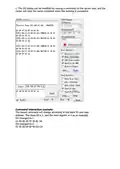


5.3 You can configure DO to be low by default and Duration: 1000*10ms. At
this time, the LED is off.
5.4 When DI-IN receives a switch signal, it will be linked to DO. After DO is
output, the LED will turn on for 10s, and then turn off.
Common problems and troubleshooting methods
The warning light is always off during the test
1. Check whether the warning light is on or not when the warning light is
connected to the power supply, make sure the warning light is working well.
2. Check whether the Modbus Slave function is enabled or not. If enabled, please
turn off these functions before testing.
3. After change the settings, please make sure click save and apply, or the
settings will not take effect.
4. Check whether the connected port is correct or not.
The light stays on during this test
1. Check whether there is a short circuit in the wiring.
2. Check whether the COM and OUT ports are connected reversely.
3. Check if Modbus Slave is closed.

| General | Details |
|---|---|
| Name | LINOVISION IOT-R32W Rugged and Versatile Cellular Router Instructions |
| Make | LINOVISION |
| Language | English |
| Filetype | PDF (Download) |
| File size | 0.43 MB |
 (1 votes, average: 5.00 out of 5)
 Loading...
If you have any questions regarding LINOVISION IOT-R32W Rugged and Versatile Cellular Router Instructions, please ask here and describe the problem in detail.

LINOVISION IOT-R32W 4G LTE Cat4 Cellular Router Owner’s Manual

LINOVISION IOT-R32W Versatile Cellular Router User Guide

LINOVISION IOT-R32 Wholesale Rugged and Versatile Cellular Router User Guide

LINOVISION IOT-R41 Mini 4G LTE Router User Manual

LINOVISION IoT-R32L Router User Guide
LINOVISION IOT-R32W Unlocked 4G LTE Router User Manual

LINOVISION IOT-R32W Cellular Router User Manual


ADVANTECH SL302 SmartStart LTE Router User Manual

WEWINS M46Q 5G Mobile Router User Manual

NIGHTHAWK RAX5 4 Stream AX1600 Dual Band WiFi 6 Router User Guide

D-Link DSL-G604T Wireless ADSL Router Instruction Manual

Heimgard Hub Pro 4G LTE Mobile Broadband Router User Guide

ELPRO 641M-X Iot Connectivity 4g-Lte Router User Manual

D-Link R95 BE9500 Wi-Fi 7 Router User Guide

airlive OLT-2XGS Wifi 6 MESH Router User Guide

NETGEAR MH3150 M3 Mobile Hotspot Router Owner’s Manual

trend T18S-DS 18V Cordless 1-4 Inch Router Instructions