
Home > LINOVISION > LINOVISION IOT-R32W Rugged and Versatile Cellular Router Instructions
LINOVISION IOT-R32W Rugged and Versatile Cellular Router Instructions






Chapter 6 Other ways to control DO port
6.1 Besides triggering the DO linkage by DI, you can also control DO
through SMS. At this time, the working mode needs to be selected as
Custom.
Message content: set do1 low,20 //20 means the time of DO output low level,
the unit is second; when the time is set to 0, it means it remains constant
When DO wants to stay low, send set do1 low,0
Send when DO is to be kept high: set do1 high,0
Query the current DO status: do information
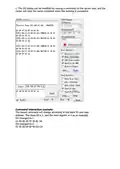
The following figure is an example of sending control SMS and router reply SMS
content:
6.2 Control via CLI
The DO port status can be controlled through the CLI command as shown in
the figure. After modification, you need to use no shutdown to enable.
ROUTER> en
ROUTER# conf t
ROUTER(config)# industrial-io-output 1 ROUTER(config-
output_io)# mode-out low

| General | Details |
|---|---|
| Name | LINOVISION IOT-R32W Rugged and Versatile Cellular Router Instructions |
| Make | LINOVISION |
| Language | English |
| Filetype | PDF (Download) |
| File size | 0.43 MB |
 (1 votes, average: 5.00 out of 5)
 Loading...
If you have any questions regarding LINOVISION IOT-R32W Rugged and Versatile Cellular Router Instructions, please ask here and describe the problem in detail.

LINOVISION IOT-R32W 4G LTE Cat4 Cellular Router Owner’s Manual

LINOVISION IOT-R32W Versatile Cellular Router User Guide

LINOVISION IOT-R32 Wholesale Rugged and Versatile Cellular Router User Guide

LINOVISION IOT-R41 Mini 4G LTE Router User Manual

LINOVISION IoT-R32L Router User Guide
LINOVISION IOT-R32W Unlocked 4G LTE Router User Manual

LINOVISION IOT-R32W Cellular Router User Manual


ASUS RT-AX89X Dual-band Wi-Fi Router Instruction Manual

DrayTek Vigor2763 Series VDSL2 Security Router User Guide

ASUS RT-BE96U BE19000 Tri Band WiFi Router User Guide

SWAGTEK M1C 4G LTE Mobile Router Installation Guide

NETGEAR RS280S Nighthawk WiFi 7 Tri-Band Router Owner’s Manual

NETGEAR AC2600 Wi-Fi Router User Guide

ARISTA AWE-5510 Wifi Router User Guide

D-Link G403C 4G LTE N300 Wi-Fi Router User Guide

RV Wi-Fi 2024v1 DishyDock Router User Guide

Cudy AC1200 4G LTE Wi-Fi Router Instruction Manual