
Home > LINOVISION > LINOVISION IOT-R32W Versatile Cellular Router User Guide
LINOVISION IOT-R32W Versatile Cellular Router User Guide




R32W Quick Start Guide
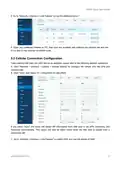
E. Go to “Network > Interface > Link Failover” to rise the WAN priority to 1.
F. Open your preferred browser on PC, then type any available web address into address bar and see
if it is able to visit Internet via R32W router.
5.2 Cellular Connection Configuration
Take inserting SIM card into SIM1 slot as an example; please refer to the following detailed operations.
A. Click “Network > Interface > Cellular > Cellular Setting” to configure the cellular info, like APN and
network type.
B. Click “Save” and “Apply” for configuration to take effect.
If you select “Auto”, the router will obtain ISP information from SIM card to set APN, Username, and
Password automatically. This option will only be taken effect when the SIM card is issued from a
well-known ISP.
C. Go to “Network > Interface > Link Failover” to enable SIM1 and rise link priority of SIM1.
13

| General | Details |
|---|---|
| Name | LINOVISION IOT-R32W Versatile Cellular Router User Guide |
| Make | LINOVISION |
| Language | English |
| Filetype | PDF (Download) |
| File size | 0.47 MB |
 (1 votes, average: 5.00 out of 5)
 Loading...
If you have any questions regarding LINOVISION IOT-R32W Versatile Cellular Router User Guide, please ask here and describe the problem in detail.

LINOVISION IOT-R32W 4G LTE Cat4 Cellular Router Owner’s Manual

LINOVISION IOT-R32 Wholesale Rugged and Versatile Cellular Router User Guide

LINOVISION IOT-R41 Mini 4G LTE Router User Manual

LINOVISION IoT-R32L Router User Guide
LINOVISION IOT-R32W Unlocked 4G LTE Router User Manual

LINOVISION IOT-R32W Rugged and Versatile Cellular Router Instructions

LINOVISION IOT-R32W Cellular Router User Manual


Antena Gear TX54 5G Cellular Router User Guide

EnGenius ESG620 Cloud Managed VPN Router User Guide

NRadio Technologies CC 4G LTE Router Installation Guide

peplink P1234 Wireless Router User Manual

Tenda 4G05 Wi-Fi 4G LTE Router Installation Guide

FALCON 1800 5G Ready Omni Directional Antenna Plus Router User Manual

levelone WGR-8031 AC1200 Dual Band Wireless Gigabit Router Owner’s Manual

TP-Link ER7212PC Omada Gigabit VPN Router with PoE+ Ports and Controller Ability Installation Guide

TELTONIKA Networks RUT955 Router Installation Guide

UTR-232 WiFi 6 Starlink Router Instruction Manual