
Home > LINOVISION > LINOVISION IOT-R32W Versatile Cellular Router User Guide
LINOVISION IOT-R32W Versatile Cellular Router User Guide


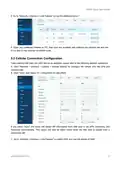


R32W Quick Start Guide
4. Log in the Web GUI of Router
4.1 PC Configuration
Please connect PC to LAN port of R32W router. PC can obtain an IP address, or you can
configure a static IP address manually. The following steps are based on Windows 10 operating
system for your reference.
(Note: As remote access is disabled by default, you can't access to the router's Web GUI if you connect
PC to WAN port of the router. But it will function properly if you enable it on Web GUI.)
② Click “Control Panel” to open it, and then click
① Click “Search Box” to search “Control Panel” on the
“View network status and tasks”.
Windows 10 taskbar.
9

| General | Details |
|---|---|
| Name | LINOVISION IOT-R32W Versatile Cellular Router User Guide |
| Make | LINOVISION |
| Language | English |
| Filetype | PDF (Download) |
| File size | 0.47 MB |
 (1 votes, average: 5.00 out of 5)
 Loading...
If you have any questions regarding LINOVISION IOT-R32W Versatile Cellular Router User Guide, please ask here and describe the problem in detail.

LINOVISION IOT-R32W 4G LTE Cat4 Cellular Router Owner’s Manual

LINOVISION IOT-R32 Wholesale Rugged and Versatile Cellular Router User Guide

LINOVISION IOT-R41 Mini 4G LTE Router User Manual

LINOVISION IoT-R32L Router User Guide
LINOVISION IOT-R32W Unlocked 4G LTE Router User Manual

LINOVISION IOT-R32W Rugged and Versatile Cellular Router Instructions

LINOVISION IOT-R32W Cellular Router User Manual


Ruijie RG-EW300T N300 Wireless 4G LTE Router User Guide

ASUS ROG Rapture GT-BE19000 Wi-Fi 7 Tri Band Gaming Router User Guide

FALCON MU5001 5G Router User Manual

ADTRAN 17600021F1 834-5 Service Delivery Gateway Wi-Fi 5 Gigabit Router User Guide

ZYXEL NR5103EV2 5G NR Router User Guide

TP-Link BE19000 Tri-Band Wi-Fi 7 Router Installation Guide

Cudy P5 5G AX3000 WiFi 6 CPE Router User Guide

CARRY CDA3-20 M4 Mesh Wi-Fi Router User Guide

MERCUSYS MW301R Wireless Router Installation Guide

cradlepoint AER1600 LTE Router User Guide