
LUXUL XWR-1750 Dual Band Wireless AC1750 Gigabit Router User Guide





User Guide
7. At the newly opened command interface enter the following command: ping
192.168.0.1 and press enter. If connected properly, the system should report back a
result as follows: packets sent=4, packets received=4, packets lost=0. This means the
device is connected with a valid IP address.
3 CONFIGURATION
This chapter introduces the configuration of the XWR-1750 Enterprise Multi-WAN
Router functions via the Web-based management interface.
Quick Setup
Status
Network
Wireless
Guest Network
Firewall/Security
QoS
VPN
Administration
Tools
3.1 Quick Setup
The Quick Setup page allows you to configure the Primary Internet / WAN connec-
tion settings and the Local Network / LAN settings. This page is intended to get your
Internet connection up and running as quick and painless as possible.
3.1.1 Connection Type DHCP
This Connection Type option will automatically pull the WAN IP, WAN Subnet Mask,
WAN Gateway, WAN Primary DNS and WAN Secondary DNS from your ISP’s Modem.
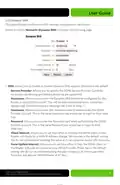
Select the Menu Quick Setup and Connection Type DHCP from the dropdown to view
the following page:
© 2015 Luxul. All Rights Reserved.
Other trademarks and registered trademarks are the property of their respective owners
9

| General | Details |
|---|---|
| Name | LUXUL XWR-1750 Dual Band Wireless AC1750 Gigabit Router User Guide |
| Make | LUXUL |
| Language | English |
| Filetype | PDF (Download) |
| File size | 0.51 MB |
 (1 votes, average: 5.00 out of 5)
 Loading...
If you have any questions regarding LUXUL XWR-1750 Dual Band Wireless AC1750 Gigabit Router User Guide, please ask here and describe the problem in detail.

LUXUL XBR-4500 Epic 4 Multi WAN Gigabit Router Installation Guide

LUXUL ABR-5000 Epic 5 Gigabit Router User Guide

robustel R3000 Lite Dual-SIM VPN Router User Manual

FALCON 450-V2 4G 450 Router User Manual

Heimgard Hub 4G LTE Mobile Broadband Router User Guide

SKYBOXE 5G Fixed Wireless Access Router User Guide

MikroTIK CCR2004-1G-12S+2XS Cloud Core Router User Manual

DrayTek Vigor2135 Gigabit Broadband Router User Guide

ASUS ExpertWiFi EBM68 AX7800 Tri Band WiFi Router User Guide

MobileMark TX54-A106 LTE Advanced Cellular Router User Manual

DrayTek 2620 Series LTE Router User Guide

LINOVISION IOT-R32W 4G LTE Cat4 Cellular Router Owner’s Manual