
LUXUL XWR-1750 Dual Band Wireless AC1750 Gigabit Router User Guide





XWR-1750
w
Upload Speed: Allows you to specify the Upload Speed in Megabits per second
allowed in the QoS Rules. 2Mbps is the default setting.
w
Save: This button is used to Save the configuration changes made on this page.
Once you have clicked Save you may move to other pages in the Router setup.
Most changes will require a Reboot to allow the changes to take effect.
w
Reboot: This button is used to Reboot the Router after making configuration
changes or can be used to Reboot the Router for any reason.
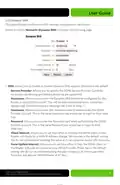
QoS Rules: Allows you to configure QoS Rules.
w
Service Level: Allows you to specify the QoS Service Level used for this Rule.
Normal is the default setting.
w
Source Host: Allows you to specify by IP Address to which Host(s) this Rule will
apply. All is the default setting. and applies this Rule to all packets transmitted to
the WAN Port.
w
Protocol: Allows you to specify what Protocol is targeted by this Rule: TCP, UDP or
All. All is the default setting.
w
Ports: Allows you to specify the Port(s) targeted by this Rule. All is the default set-
ting. You can specify multiple Ports in a single rule by separating the Port numbers
with a comma (i.e. 23,53,80,443).
w
Add: Click the Add button to add your QoS Rule to the QoS Table. This also
Saves the QoS Rule, allowing you to browse to another page in the Router before
rebooting to apply the changes.
QoS Rules Table: Displays the QoS Rules currently running on the Router.
w
Service Level: Displays the QoS Service Level used for this Rule. Normal is the
default setting.
w
Source Host: Displays the IP Address(es) to which this Rule will apply. All is the
default setting and applies this Rule to all packets transmitted to the WAN Port.
w
Protocol: Displays what Protocol is targeted by this Rule: TCP, UDP or All. All is the
default setting.
w
Ports: Displays the Port(s) targeted by this Rule. All is the default setting. You can
specify multiple Ports in a single rule by separating the Port numbers with a comma
(i.e. 23,53,80,443).
w
Del: This button allows you to Delete the selected QoS Rule and Saves the
changes, allowing you to browse to any other setup page. Most changes will
require a Reboot to allow the changes to take effect.
a: 14203 Minuteman Drive, Suite 201, Draper, UT 84020-1685 | luxul.com | 801-822-5450
LUX-UG-XWR-1750 Vers: 022515
38

| General | Details |
|---|---|
| Name | LUXUL XWR-1750 Dual Band Wireless AC1750 Gigabit Router User Guide |
| Make | LUXUL |
| Language | English |
| Filetype | PDF (Download) |
| File size | 0.51 MB |
 (1 votes, average: 5.00 out of 5)
 Loading...
If you have any questions regarding LUXUL XWR-1750 Dual Band Wireless AC1750 Gigabit Router User Guide, please ask here and describe the problem in detail.

LUXUL XBR-4500 Epic 4 Multi WAN Gigabit Router Installation Guide

LUXUL ABR-5000 Epic 5 Gigabit Router User Guide


TELTONIKA RUT300 Router User Guide

Tenda RX12V1.0 Wi-Fi 6 6E Router Installation Guide

advantech ICR-3831 RAILWAY 4G LTE ROUTER & GATEWAY User Guide

D-Link M60 AX6000 Wi-Fi 6 Mesh Router Installation Guide

AKYPACH A2 Wood Router Instruction Manual

DIGI EX50 5G Cellular Router Instruction Manual

ASUS ROG Rapture GT6 Router User Guide

Amlogic S905W Android 7.0 TV Box y WiFi Router User Guide

ZYXEL NR5309 5G NR Router User Guide

Tenda RX27 Pro AX5700 Tri Band Gigabit Wi-Fi 6E Router Installation Guide