
Tenda RX27 Pro AX5700 Tri Band Gigabit Wi-Fi 6E Router Installation Guide
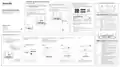
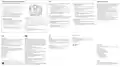


Scenario1: Set up the device as a router
I. Connect the router
II. Connect the router to the internet
LED indicators&Jack, ports and buttons
The "new router" and "router" in this guide refer to the router in the package.
Step 2: Connect the WAN port of the router
Method 1: Setup through Tenda WiFi App
Step 1: Import your PPPoE user name and password into
the new router (Optional)
1. Download the Tenda WiFi App onto your mobile device by scanning the QR
code or searching for Tenda WiFi in Google Play or App Store. Then install
the Tenda WiFi App.
Note
If you use the modem for internet access, please power off the modem first
before connecting the WAN port of the router to the LAN port of your modem.
LED
indicator
Tips
This function is only applicable when the connection type of the original router is
PPPoE, except for PPPoE of some special ISPs or PPPoE connection set up
manually with VLAN information.
1. Ensure that the router is powered on.
2. Connect the WAN port of the router to the LAN port of your modem or the
Ethernet jack using an Ethernet cable.
Quick Installation Guide
After the router is powered on for about 40 seconds, the system completes startup. The
status of the LED indicator is shown in the following table.
AX5700 Tri-Band Gigabit Wi-Fi 6E Router
RX27 Pro/TX27 Pro
1. Power on your original and new routers.
Tenda WiFi
2. Connect the WAN port of the original router to a LAN port (1, 2 or IPTV/3) of the
router using an Ethernet cable. After the LED indicator of the new router blinks
fast for 8 seconds, the PPPoE user name and password are imported to your
new router.
2. Connect the mobile phone to the WiFi network of the router. The SSID and
password can be found on the bottom label of the router.
LED indicator
Node Type
Description
Status
The system is starting up, or the router is already
connected to the internet.
Power source
3. Remove the original router.
Solid green
Settings
Made in China
WAN
Model: RX27 Pro
Blinking green
slowly
Internet
I
I
MAC
The router is not connected to the internet.
SSID:
Tenda_XXXXXX
.
POWER WPS Reset WAN
1
2
IPTV/3
Primary node
Tenda_XXXXXX
Modem
Blinking green
fast for 2
Tenda_XXXXXX
12345678
Power source
The router is pending for or performing WPS
negotiation or Mesh networking.
Pin No.
1
2
IPTV/3
minutes
Blinking red
slowly
The router failed to connect to the internet.
3. Run the Tenda WiFi App and follow the onscreen instructions to connect the
router to the internet. After the router is connected to the internet, its LED
indicator lights solid green.
POWER WS Reset WAN
1
2
IPTV/3
Power source
Solid green
Solid yellow
Solid red
Networking succeeds. Good connection quality.
Networking succeeds. Fair connection quality.
Networking succeeds. Poor connection quality.
New router
Ethernet cable
Or
Package contents
• Wireless router x 1
Done.
• To access the internet with:
WAN
Secondary
node
• Power adapter x 1
- Wired devices: Connect to the LAN port of your router.
- Wireless devices: Connect to your WiFi network using the WiFi name and
password you set.
Blinking green
fast
The router is networking with another node.
• Ethernet cable x 1
Original router
Blinking red
slowly
The router failed to connect the internet or network
with another node.
• Quick installation guide x 1
• If you want to manage the network remotely, tap on the App home page and use
your account to log in.
Please read this guide before you start with the quick setup upon the first use.
This guide instructs how to install and connect the device. For more information such as the
Ethernet cable
Ethernet jack
Method 2: Setup through web UI
POWER WPS Reset WAN
1
2
IPTV/3
Done.
1. Connect the client to the router.
2. Start a browser on the client (computer used as an example) and
enter tendawifi.com in the address bar to access the web UI.
Then, click Start Now.
3. The router detects your connection type automatically.
− If you have imported your PPPoE user name and password into
the router, click Next.
4. Set the WiFi name, WiFi password and login password for the
router. Click Next.
Method 1: Connect the wireless client such as a mobile phone to
the WiFi network of the router. The SSID and password
can be found on the bottom label of the device.
− If you did not import your PPPoE user name and password into
the router, select the ISP Type based on your region and ISP
and enter required parameters (if any). Then, click Next.
Jack/Port/
Button
Description
Method 2: Use an Ethernet cable to connect the computer to the
1, 2 or IPTV/3 port of the router.
Power jack.
POWER
Please use the included power adapter to connect this jack to a
power source for power supply.
WPS/Mesh button.
tendawifi.com
WiFi-enabled device
English
English
• WPS: When it is used as a WPS negotiation button, you can
connect to the WiFi network of the router without entering the
WiFi password.
4
Internet access is a few steps away!
Internet access is a few steps away!
SSID:
MAC
English
Tenda_XXXXXX
Detect Internet Internet Settings
Connection Type
WiFi Settings
Complete
Serial No.
Method: Short press the button (for about 1 second), and the
LED indicator blinks fast. Within 2 minutes, enable the WPS
function of the other WPS-supported device to establish a
WPS connection.
2
3
4
3
4
SSID
Tenda_XXXXXX
12345678
Setting
Pin No.
Detect Internet Internet Settings WiFi Settings
Connection Type
Complete
Detect Internet Internet Settings WiFi Settings
Complete
Connection Type
Ten da_ XXXXXX
Welcome to use Tenda router
WPS
• Mesh: When it is used as a Mesh networking button, you can
extend your network with another device that supports the
Mesh function.
Detection succeeded. Recommended internet connection type: PPPoE
Faster, Safer, Smoother, Smarter
Configuration completes. You can access the internet now
ISP Type Normal
WiFi Name Tenda_XXXXXX
Start Now
Current WiFi network is cut off. Please connect to the new WiFi network
Method: Press this button for about 3 seconds. The LED
indicator blinks green fast, which indicates the device is
searching for another device to form a network. Within 2
minutes, press the MESH/WPS button of another device for 1 to
3 seconds to negotiate with this device.
Internet Connection Type PPPoE
WiFi Password •••••••••
Not encrypted
WiFi Name
Tenda_XXXXXX
WiFi Password
Select this type if you access the internet using the PPPoE account and PPPoE password.
Set WiFi password to router login password
Scan to download Tenda WiFi
app
Manage your router easily
PPPoE Username Enter the user name from your ISP
Login Password
1
2
IPTV/3
Or
PPPoE Password Password from your ISP
Reset button.
Next
Complete
When the router is working normally, hold the button down using a
needle-like item (such as a pin) for about 8 seconds, and then release
it when the LED indicator blinks red fast. The router is reset.
Reset
Next
Previous
POWER WPS Reset WAN
1
2
IPTV/3
10/100/1000 Mbps auto-negotiation WAN port.
Used to connect to a modem or the Ethernet jack using an Ethernet
cable for internet access.
Wired device
WAN
1, 2
To access the internet with:
Tips
Tips
- Wired devices: Connect to the LAN port of your router.
- Wireless devices: Connect to your WiFi network using
the WiFi name and password you set.
The WiFi password is used to connect to the WiFi network,
while the login password is used to log in to the web UI of the
router.
If you cannot log in to the web UI, refer to Q1 in FAQ.
10/100/1000 Mbps auto-negotiation LAN port.
Ethernet cable
Ethernet cable
Used to connect to computers, switches or game machines, etc.
10/100/1000 Mbps auto-negotiation LAN/IPTV port.
It is a LAN port by default. When the IPTV function is enabled, it can
only serve as an IPTV port to connect to a set-top box.
IPTV/3


| General | Details |
|---|---|
| Name | Tenda RX27 Pro AX5700 Tri Band Gigabit Wi-Fi 6E Router Installation Guide |
| Make | Tenda |
| Language | English |
| Filetype | PDF (Download) |
| File size | 0.44 MB |
 (1 votes, average: 5.00 out of 5)
 Loading...
If you have any questions regarding Tenda RX27 Pro AX5700 Tri Band Gigabit Wi-Fi 6E Router Installation Guide, please ask here and describe the problem in detail.

Tenda AXE5700 Wi-Fi 6E Router User Manual

Tenda AX1800 Wi-Fi 6 5G NR Router User Manual

Tenda RX2LP Dual Band Gigabit Wi-Fi 6 Router Installation Guide

Tenda TX2L ProV1.0 WiFi 6 Router Installation Guide

Tenda RX12V1.0 Wi-Fi 6 6E Router Installation Guide

Tenda 4G09V1.0 Wifi Router User Manual

Tenda AC19 Dual Band Gigabit WiFi Router Installation Guide

Tenda 4G06V1.0 4G LTE and VoLTE Router User Guide

Tenda 4G03 N300 Wi-Fi 4G LTE Router Installation Guide

Tenda N300 WiFi VDSL/ADSL Modem Router V300 Installation Guide


ERICSSON R980 Series Ruggedized 5G Router User Guide

LINKSYS 750MR7500 Hydra Pro 6E Mesh Router User Guide

Cudy WR3000H AX3000 2.5G Mesh Wi-Fi 6 Router Installation Guide

TP-Link AC1200 Wireless Mu-Mimo Gigabit Router User Manual

msi RadiX AX6600 WiFi 6 Tri-Band Gaming Router User Guide

PROSCEND 850G-6PI 6 Port GbE Managed PoE Switch 5G Cellular Router Installation Guide

LANCOM SYSTEMS VPN 1900EF Router Instruction Manual

ASUS RT-AC67P Dual Band AC Wi-Fi Router User Guide

BELKIN F9K1001 N150 Wireless Router User Manual

ATEL RE600 5G CPE Router User Guide