
Tenda RX27 Pro AX5700 Tri Band Gigabit Wi-Fi 6E Router Installation Guide
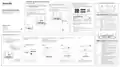


Scenario 2: Set up as an add-on node
FAQ
Safety Precautions
I Add the router to an existing network
Q1: I cannot log in to the web UI by visiting tendawifi.com, what should I do?
A1: Try the following solutions:
Q4: When I use the product as a router, I cannot access the internet after the
configuration. What should I do?
Before performing an operation, read the operation instructions and precautions to be
taken, and follow them to prevent accidents. The warning and danger items in other
documents do not cover all the safety precautions that must be followed. They are
only supplementary information, and the installation and maintenance personnel
need to understand the basic safety precautions to be taken.
• If you are using a wireless device, such as a smartphone:
− Ensure that it is connected to the WiFi network of the router.
− Ensure that the cellular network (mobile data) of the client is disabled.
• If you are using a wired device, such as a computer:
− Ensure that tendawifi.com is entered correctly in the address bar, rather than
the search bar of the web browser.
A4: Try the following solutions:
Tips
• Check whether the WAN port of the router is connected to a modem or Ethernet
jack properly.
• Please ensure that the router has never been used. If not, reset it first.
• Currently, RX27 Pro/TX27 Pro can be networked with the same model, Mesh6X,
Mesh12X, RX12 Pro, or TX12 Pro.
- The equipment is only suitable for mounting at heights ≤ 2 m.
- Do not use the device in a place where wireless devices are not allowed.
- Please use the included power adapter.
• Log in to the web UI of the router and navigate to the Internet Settings page.
Follow the instructions on the page to solve the problem.
If the problem persists, try the following solutions:
• For WiFi-enabled devices:
- Mains plug is used as the disconnect device, and shall remain readily operable.
- The power socket shall be installed near the device and easily accessible.
- Operating environment: Temperature: 0℃ – 40℃; Humidity: (10% – 90%) RH,
non-condensing; Storage environment: Temperature: -40℃ to +70℃; Humidity:
(5% – 90%) RH, non-condensing.
1. Place the router in an elevated and open position within 3 meters from your
existing node.
− Ensure that the computer is connected to the LAN port of the router properly
using an Ethernet cable.
− Check whether your WiFi-enabled devices are connected to the WiFi network
of the router.
2. Use the power adapter to connect the router to a power source, and wait until its
LED indicator blinks green slowly.
− Ensure that the computer is set to obtain an IP address automatically and
obtain DNS server address automatically.
Original node
Add-on node
− Visit tendawifi.com to log in to the web UI and change your WiFi name and
WiFi password on the WiFi Settings page. Then try again.
• For wired devices:
3. Press the WPS button of the router for about 3 seconds. The LED indicator
blinks green fast. Within 2 minutes, press the MESH/WPS button of the node
of the existing network for 3 seconds to negotiate with this router.
- Keep the device away from water, fire, high electric field, high magnetic field, and
inflammable and explosive items.
If the problem persists, please reset the router and try again.
- Unplug this device and disconnect all cables during lightning storms or when the
device is unused for long periods.
− Check whether your wired devices are connected to a LAN port properly.
− Check whether wired devices are set to obtain an IP address automatically
and obtain DNS server address automatically.
Q2: How to restore my device to factory settings?
When the LED indicator of the router lights solid green, the networking is
successful and the router becomes a secondary node in the network.
- Do not use the power adapter if its plug or cord is damaged.
A2: When your device is working properly, hold down the Reset button of your device
using a needle-like item (such as a pin) for about 8 seconds, and release it when
the LED indicator blinks red fast. When the LED indicator lights solid green, your
device is reset successfully.
- If such phenomena as smoke, abnormal sound or smell appear when you use the
device, immediately stop using it and disconnect its power supply, unplug all
connected cables, and contact the after-sales service personnel.
- Disassembling or modifying the device or its accessories without authorization
voids the warranty, and might cause safety hazards.
following colors:
Q5: I cannot find the 5 GHz/6 GHz WiFi network of the router on my WiFi-enabled
device. What should I do?
II Relocate the router
1. Refer to the following relocation tips to locate the router to a proper position:
• Ensure that the distance between any two nodes is less than 10 meters.
• Keep your nodes away from electronics with strong interference, such as
microwave ovens, induction cookers, and refrigerators.
Solid green
Networking succeeds. Excellent connection quality.
A5: Try the following solutions:
Q3: The device failed to be detected by the Tenda WiFi app upon my first time
using the device, what should I do?
− Check whether your WiFi-enabled device supports 5 GHz or 6 GHz WiFi network.
Only devices supporting 5 GHz/6 GHz network can find and connect to the 5 GHz/
6 GHz WiFi network.
Solid yellow
Solid red
Networking succeeds. Fair connection quality.
Networking succeeds. Poor connection quality.
A3: Try the following solutions:
• Place the nodes in a high position with few obstacles.
− Check whether you have enabled Unify 2.4 GHz & 5 GHz or Unify 2.4 GHz &
5 GHz & 6 GHz on the WiFi Settings page. If it is enabled, disable it and try again.
1. Ensure that your mobile phone is connected to the default WiFi network of the
device.
2. Power on the router again till the LED indicator blinks green slowly.
4. If the router's LED indicator blinks red slowly, relocate it by repeating the preceding
steps to get an optimal connection quality.
2. Ensure that the network permission of Tenda WiFi app is enabled, you can tap
Settings > Tenda WiFi to enable it.
Tips
If the problem persists, please reset the router and try again.
If the LED indicator of router keeps blinking green slowly for more than 3 minutes,
relocate the router and move it closer to the primary node.
Done.
To access the internet with:
- Wired devices: Connect to the LAN ports of your nodes.
- Wireless devices: Connect to your WiFi network using the WiFi name and password
of your existing WiFi network.
Caution:
Adapter Model:
BN026-A24012U/BN026-A24012E/BN026-A24012B/BN026-A24012P/
BN026-A24012A/BN026-A24012I
CE Mark Warning
FCC Statement
RECYCLING
This is a Class B product. In a domestic environment, this product may cause radio
interference, in which case the user may be required to take adequate measures.
Operations in the 5.15-5.25GHz band are restricted to indoor use only.
This equipment should be installed and operated with a minimum distance 20cm
between the device and your body.
This equipment has been tested and found to comply with the limits for a Class B
digital device, pursuant to Part 15 of the FCC Rules. These limits are designed to
provide reasonable protection against harmful interference in a residential installation.
This equipment generates, uses and can radiate radio frequency energy and, if not
installed and used in accordance with the instructions, may cause harmful interference
to radio communications. However, there is no guarantee that interference will not
occur in a particular installation. If this equipment does cause harmful interference to
radio or television reception, which can be determined by turning the equipment off
and on, the user is encouraged to try to correct the interference by one or more of the
following measures:
This product bears the selective sorting symbol for Waste electrical and electronic
equipment (WEEE). This means that this product must be handled pursuant to
European directive 2012/19/EU in order to be recycled or dismantled to minimize its
impact on the environment.
Manufacturer: SHENZHEN HEWEISHUN NETWORK TECHNOLOGY CO., LTD.
Input: 100-240V AC 50/60Hz 0.7A
Output: 12V DC, 2A
: DC Voltage
User has the choice to give his product to a competent recycling organization or to the
retailer when he buys a new electrical or electronic equipment.
The mains plug is used as disconnect device, the disconnect device shall remain
readily operable.
NOTE: (1) The manufacturer is not responsible for any radio or TV interference
caused by unauthorized modifications to this equipment. (2) To avoid unnecessary
radiation interference, it is recommended to use a shielded RJ45 cable.
Technical Support
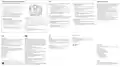
Wall Mounting
This router can be installed on the wall with two screws. The recommended wall
mounting tools are as follows:
Shenzhen Tenda Technology Co., Ltd.
Floor 6-8, Tower E3, No.1001, Zhongshanyuan Road, Nanshan District, Shenzhen, China.
518052
— Reorient or relocate the receiving antenna.
Declaration of Conformity
— Increase the separation between the equipment and receiver.
— Connect the equipment into an outlet on a circuit different from that to which the
receiver is connected.
[Expansion bolt] Outer diameter: 6.0 mm; Length: 26.4 mm
[Screws] PA3*14 mm; Head diameter: 5.2 mm; Head height: 1.8 mm
Hereby, SHENZHEN TENDA TECHNOLOGY CO., LTD. declares that the radio
equipment types RX27 Pro, TX27 Pro are in compliance with Directive 2014/53/EU.
The full text of the EU declaration of conformity is available at the following internet
Operating Frequency:
USA hotline: 1-800-570-5892
Toll Free: 7 x 24 hours
Canada hotline: 1-888-998-8966
Toll Free: Mon - Fri 9 am - 6 pm PST
Hong Kong hotline: 00852-81931998
United Kingdom hotline: +44 0800 041 8955
Global hotline: +86 755-2765 7180 (China Time Zone)
— Consult the dealer or an experienced radio/TV technician for help.
The device is for indoor usage only.
Operation is subject to the following two conditions: (1) this device may not cause
harmful interference, and (2) this device must accept any interference received,
including interference that may cause undesired operation.
2.4 GHz: EU/2412-2472 MHz
5 GHz: EU/5150-5350 MHz
6 GHz: EU/5925-6425 MHz
Radiation Exposure Statement
E-mail: support@tenda.com.cn
EIRP Power (Max.):
This device complies with FCC radiation exposure limits set forth for an uncontrolled
environment and it also complies with Part 15 of the FCC RF Rules.
This equipment should be installed and operated with minimum distance 20cm
between the device and your body.
support.de@tenda.cn (Deutsch)
2.4 GHz: < 20 dBm
support.fr@tenda.cn (Français)
5 GHz: < 23 dBm
support.es@tenda.cn (Español)
6 GHz: < 23 dBm
support.it@tenda.cn (Italiano)
Software Version: V16.03.28.X
support.uk@tenda.cn (United Kingdom)
Caution:
Any changes or modifications not expressly approved by the party responsible for
compliance could void the user's authority to operate this equipment.
This transmitter must not be co-located or operating in conjunction with any other
antenna or transmitter.
For EU/EFTA, this product can be used in the following countries:
Copyright
Operating frequency: 2412-2462 MHz,5150-5350 MHz,5470-5725
MHz,5725-5850MHz,5925-7125 MHz
© 2022 Shenzhen Tenda Technology Co., Ltd. All rights reserved.
Tenda is a registered trademark legally held by Shenzhen Tenda Technology Co., Ltd. Other
brand and product names mentioned herein are trademarks or registered trademarks of
their respective holders. Specifications are subject to change without notice.
NOTE: (1) The manufacturer is not responsible for any radio or TV interference caused
by unauthorized modifications to this equipment. (2) To avoid unnecessary radiation
interference, it is recommended to use a shielded RJ45 cable.
UK(NI)
V1.0 Keep for future reference.

| General | Details |
|---|---|
| Name | Tenda RX27 Pro AX5700 Tri Band Gigabit Wi-Fi 6E Router Installation Guide |
| Make | Tenda |
| Language | English |
| Filetype | PDF (Download) |
| File size | 0.44 MB |
 (1 votes, average: 5.00 out of 5)
 Loading...
If you have any questions regarding Tenda RX27 Pro AX5700 Tri Band Gigabit Wi-Fi 6E Router Installation Guide, please ask here and describe the problem in detail.

Tenda AXE5700 Wi-Fi 6E Router User Manual

Tenda AX1800 Wi-Fi 6 5G NR Router User Manual

Tenda RX2LP Dual Band Gigabit Wi-Fi 6 Router Installation Guide

Tenda TX2L ProV1.0 WiFi 6 Router Installation Guide

Tenda RX12V1.0 Wi-Fi 6 6E Router Installation Guide

Tenda 4G09V1.0 Wifi Router User Manual

Tenda AC19 Dual Band Gigabit WiFi Router Installation Guide

Tenda 4G06V1.0 4G LTE and VoLTE Router User Guide

Tenda 4G03 N300 Wi-Fi 4G LTE Router Installation Guide

Tenda AC8 Dual-band Gigabit Wireless Router Installation Guide


ADVANTECH ICR-2701 Engineering Portal Cellular Router User Guide

NETGEAR AX1800 WiFi 6 Router User Guide

Xiaomi AX3000T Wireless Router User Manual

cradlepoint PepWave MAX BR1 Pro 5G Mobile Router User Guide

NETGEAR NIGHTHAWK BE6500 Tri Band Wi-Fi 7 Router User Guide

WESTMANN GigaSpire BLAST U6 Router User Guide

MOXA TN-4908-WV-CT-T Tough Net Router Installation Guide

Gemma Group Flex L Copy Router User Guide

ASUS RT-AX82U AX5400 Dual Band WiFi Router User Guide

Red Fox 2 CNC Router Installation Guide