
NetComm CF40 Wi-Fi 6 Router User Guide
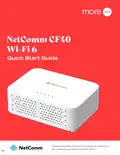


seting uu your
NetComm CF40 Wi-Fi 6
Step 1:Power on the NetComm CF40 Wi-Fi 6
•
•
•
Plug the device power adapter into a wall socket.
Press the power button on the NetComm CF40 Wi-Fi 6 and wait a few minutes for it to start up.
The power LED indicator will appear green on the top of the NetComm CF40 Wi-Fi 6 if it is on and
operating correctly.
Step 2:Connect your NetComm CF40 Wi-Fi 6
Depending on your nbn™ technology type, your NetComm CF40 Wi-Fi 6 will connect differently. If you are
unsure of your nbn™ technology type, it is listed in your nbn™ ordered email.
If your NBN connection is:
Instructions:
Connect the ethernet cable from the WAN port on the NetComm CF40
Wi-Fi 6 to the UNI-D port on your nbn™ connection box.
Hybrid Fibre Coaxial (HFC)
Fibre to the Premises (FTTP)
Note: Wait for the lights on the nbn™ connection box to turn blue (this
may take up to 15 minutes).
Fibre to the Curb (FTTC) or Fixed Wireless
Power Adapter
Power Outlet
NBNCo Network
Termination Device
WAN Port
DC In Point
Ethernet Cable
more.com.au
NetComm CF40 Wi-Fi 6 Quick Start Guide
5

| General | Details |
|---|---|
| Name | NetComm CF40 Wi-Fi 6 Router User Guide |
| Make | NetComm |
| Language | English |
| Filetype | PDF (Download) |
| File size | 0.29 MB |
 (1 votes, average: 5.00 out of 5)
 Loading...
If you have any questions regarding NetComm CF40 Wi-Fi 6 Router User Guide, please ask here and describe the problem in detail.

Netcomm NF18MESH Upgraded WiFi Router User Guide

NetComm NTC-500 5G IoT Router Instructions


UBIQUITI U-LTE-Backup Pro LTE Router Installation Guide
Cudy WR3000 AX3000 Wi-Fi 6 Mesh Router User Guide

Tenda AC8 Dual-band Gigabit Wireless Router Installation Guide

xiaomi BE3600-2.5G Router User Manual

ASUS BT6 Tri Band WiFi Router User Guide

zpe Nodegrid Virtual Services Router Owner’s Manual
UBIQUITI AFi-HD Amplifi 4-Ports Home Wi-Fi System AFI HD Wireless Router User Guide

inhandgo CR202 InHand Networks Portable 4G Router User Manual

D-Link DSR-250V2 5-Gigabit Port VPN Router Installation Guide

ASUS RT-AXE7800 Dual Band WiFi Router User Guide