
NETGEAR PR60X Pro 10G Multi Gigabit Dual WAN Pro Router Installation Guide
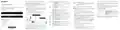


NETGEAR Insight remote management with the Cloud Portal or Insight app
7. After Insight verifies that the PR60X is a valid product, you can optionally change the
5. To add the PR60X to your network location, do one of the following:
3. Enter the admin password that you set earlier.
The admin password is case-sensitive.
Support and Community
device name of the PR60X, and then click Next.
•
If the PR60X is automatically detected and listed in the Insight Manageable
Devices section, tap the router icon, and then tap the ADD DEVICE button.
When the PR60X is successfully added to the portal, a page displays a confirmation
that setup is in progress.
Insight
cloud
The Dashboard page displays. This page displays various panes that let you see the
status of your PR60X at a glance. You can now configure and monitor the PR60X.
Visit netgear.com/support to get your questions answered and access the latest
downloads.
•
If the PR60X is not automatically detected, or you prefer to use another method
to add the PR60X, tap the + icon in the top bar, and do one of the following:
PR60X
NOTE: If the PR60X is online but Insight does not detect it, a firewall at the site where
the PR60X is located might be preventing communication with the Insight cloud. In
that situation, add port and DNS entries for outbound access to the firewall. For more
information, see kb.netgear.com/000062467.
We recommend that you register your router with your MyNETGEAR account to activate
your warranty. For more information, see kb.netgear.com/26904.
You can also check out our NETGEAR Community for helpful advice at
community.netgear.com.
2.5G
-
Tap the SCAN BARCODE OR QR CODE button, and then scan the PR60X’s
code.
Internet
Modem
WiFi clients with
Insight access
-
Tap the Enter Serial Number and MAC Address link, and then manually
enter the PR60X’s serial number and MAC address.
2.5G
PoE switch
The PR60X automatically updates to the latest firmware and Insight location
configuration. This might take up to 10 minutes, during which time the PR60X restarts.
Computer
with Insight
access
Regulatory and Legal
6. If prompted, name the PR60X and tap the Next button.
The Cloud LED lights solid blue, confirming that the PR60X is now an Insight-
managed device that is connected to the Insight cloud-based management platform.
The PR60X automatically updates to the latest firmware and Insight location
configuration. This might take up to 10 minutes, during which time the PR60X restarts.
2.5G
Si ce produit est vendu au Canada, vous pouvez accéder à ce document en français
canadien à netgear.com/support/download/. (If this product is sold in Canada, you
can access this document in Canadian French at netgear.com/support/download/.)
For regulatory compliance information including the EU Declaration of Conformity,
visit netgear.com/about/regulatory/. See the regulatory compliance document before
connecting the power supply. For NETGEAR’s Privacy Policy, visit netgear.com/about/
privacy-policy. By using this device, you are agreeing to NETGEAR’s Terms and Conditions
at netgear.com/about/terms-and-conditions. If you do not agree, return the device to your
place of purchase within your return period.
Server
2.5G
You can now use the Insight Cloud Portal or Insight app to configure and manage the
PR60X.
Access
point
Access
point
2.5G
The Cloud LED lights solid blue, confirming that the PR60X is now an Insight-
managed device that is connected to the Insight cloud-based management platform.
2.5G
You can now use the Insight Cloud Portal or Insight app to configure and manage the
PR60X.
B. Use the Insight app to add the PR60X to NETGEAR Insight
A. Use the Cloud Portal to add the PR60X to NETGEAR Insight
Your MyNETGEAR account is also your Insight account. Your MyNETGEAR account
credentials let you log in as an Insight Premium user, or if you upgrade to an Insight Pro
account, as an Insight Pro user.
Your MyNETGEAR account is also your Insight account. Your MyNETGEAR account
credentials let you log in as an Insight Premium user, or if you upgrade to an Insight Pro
account, as an Insight Pro user.
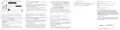
C. Configure the PR60X locally in a web browser
Do not use this device outdoors.
If you do not already have a MyNETGEAR or Insight account, you can create an account
now. For information about creating a NETGEAR Insight Premium account or upgrading to
an Insight Pro account, visit kb.netgear.com/000044343.
If you prefer to manage your router locally and do not require remote access, you can use
this setup method.
Applicable to 6 GHz devices only: Only use the device indoors. The operation of 6 GHz
devices is prohibited on oil platforms, cars, trains, boats, and aircraft, except that operation
of this device is permitted in large aircraft while flying above 10,000 feet. Operation of
transmitters in the 5.925-7.125 GHz band is prohibited for control of or communications
with unmanned aircraft systems.
If you do not already have a MyNETGEAR or Insight account, you can create an account
now. For information about creating a NETGEAR Insight Premium account or upgrading to
an Insight Pro account, visit kb.netgear.com/000044343.
1. Connect a computer with an Ethernet cable to a LAN port on the PR60X.
1. Connect your mobile device over WiFi to the same network as the PR60X.
You can use LAN port 1, 2, or 3. The computer must be configured as a DHCP client
so that it can receive an IP address from the PR60X. (For most computers, the DHCP
client is enabled by default.)
1. On a computer or tablet, visit insight.netgear.com/.
NOTE: If you configure a WiFi access point and connect it directly to a LAN port on
the PR60X, you can also use a WiFi connection to set up the PR60X. The PR60X itself
does not provide WiFi capability nor PoE so, in such a setup, you must use a power
supply or PoE switch to power the access point.
2. Enter the email address and password for your MyNETGEAR account and click the
NETGEAR Sign In button.
NOTE: If you configure a WiFi access point and connect it directly to a LAN port on
the PR60X, you can also use a WiFi connection to set up the PR60X. The PR60X itself
does not provide WiFi capability nor PoE so, in such a setup, you must use a power
supply or PoE switch to power the access point.
3. Only if you are an Insight Pro user, select the organization to which you want to add
the PR60X.
2. Open the NETGEAR Insight app.
4. Add a new network location where you want to add the PR60X, or select an existing
network location.
3. Enter the email address and password for your account and tap LOG IN.
4. Add a new network location where you want to add the PR60X by tapping the Next
NETGEAR, Inc.
350 East Plumeria Drive
San Jose, CA 95134, USA
NETGEAR INTERNATIONAL LTD
Floor 6, Penrose Two,
Penrose Dock, Cork,T23 YY09, Ireland
5. Click the + (Add Device) button.
button, and then tapping OK. You can also select an existing network location.
The Login page displays.
NOTE: If you are an Insight Pro user, you can either add a single device or you can
add multiple Insight managed devices by uploading a device list as a CSV file.
The device admin password that you entered for the new network location replaces
the existing admin password on all devices that you add to the network location.
Your browser might display a security warning because of the self-signed certificate
on the PR60X, which is expected behavior. You can proceed, or add an exception for
the security warning. For more information, see kb.netgear.com/000062980/.
6. In the Add New Device pop-up page, enter the PR60X’s serial number and MAC
In most situations, Insight detects the PR60X automatically, which can take several
minutes.
address, and then click Go.
© NETGEAR, Inc., NETGEAR and the NETGEAR Logo are trademarks of NETGEAR, Inc. Any
non-NETGEAR trademarks are used for reference purposes only.

| General | Details |
|---|---|
| Name | NETGEAR PR60X Pro 10G Multi Gigabit Dual WAN Pro Router Installation Guide |
| Make | NETGEAR |
| Language | English |
| Filetype | PDF (Download) |
| File size | 0.39 MB |
 (1 votes, average: 5.00 out of 5)
 Loading...
If you have any questions regarding NETGEAR PR60X Pro 10G Multi Gigabit Dual WAN Pro Router Installation Guide, please ask here and describe the problem in detail.

NETGEAR RAX40v2 Nighthawk AX4 4-Stream AX3000 WiFi Router User Manual

NETGEAR RAX10 AX1800 WiFi 6 Router User Guide

NETGEAR XR1000v2 Nighthawk WiFi 6 Pro Gaming Router User Guide

NETGEAR AC2600 Wi-Fi Router User Guide

NETGEAR AX6 Stream Wi-Fi Router User Manual

NETGEAR MR6110 M6 5G WiFi 6 Mobile Router User Manual

NETGEAR RBR20 Orbi Mesh WiFi Router User Guide

NETGEAR RS280S Nighthawk WiFi 7 Tri-Band Router Owner’s Manual

NETGEAR BE9200 WiFi 7 Router Instruction Manual

NETGEAR RS600 Tri Band WiFi 7 Router User Guide


DIGITAL DEEP SEA 5G Xtream 5G/4G Router Instruction Manual

TELTONIKA Networks RUT950 Cellular Router User Guide

TP-Link C201-V5 Wireless Dual Band Router User Guide

JENSEN Air:Link 3000DG Dual Band Router User Manual

TP-Link C5400X Wireless Router Installation Guide

TP-Link TL-WR841N Wireless N Router Installation Guide

LINOVISION IOT-R32W 4G LTE Cat4 Cellular Router Owner’s Manual

LANCOM SYSTEMS LANCOM OAP-830 Wireless Router User Guide

EE HH10E Smart 4G Hub 2 WiFi Router User Guide

Actiontec WF-815 Tri-Band Wi-Fi6E Router Owner’s Manual