
NINGBO LF300 4G Mifi Wireless Router User Guide
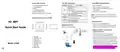


4. Connecting the WiFi via WPS function is also
available, please press the WPS button for more
than 3 seconds to enable it.
3. Enter username and the password, and
click “login”. The administrator has the right to
check and modify configuration permission.
factory defaults that come with the MiFi to
reconfigure the device Wi-Fi setting.
2. The MiFi product shall only be connected using
a USB interface of version USB2.0.
3. User’s adapter shall be installed near the
equipment and shall be easily accessible.
4. The maximum operating temperature of
Log into Device Management Website to
restore to factory default settings.
Note: The default password is admin.
Charging your MiFi
Note: How to change the SSID &
Password
Press and hold “Reset” button for 5 seconds,
and the MiFi will be activated again and
restored to factory settings.
the MiFi is 40
℃.
5. This equipment is in compliance with
the essential requirements and other relevant
provisions of directive 1999/5/EC.
label) and enter the management page.
1st method: Charging by power adapter
1. Use compatible power adapter (5V,
1000mA).
Note: Reset button will delete all the device’s
user-defined Wi-Fi settings and restore Admin
setting and Wi-Fi Setting to factory defaults.
2. Select Device Settings > Wi-Fi Settings > SSID
Settings, then you will see “Network Name (SSID)”
and “Pass Phrase”, Make sure you delete the old
name and password and enter the new name and
password as you require.
2. Power adapter is a selective accessory.
2nd method: Charging by connecting to
computer or laptop. Please use the proper cable
to connect the MiFi to the computer or laptop.
Trouble Shooting:
3. Select “Apply” button, then log out.
If you are having trouble with the MiFi, here are a
few things you can do to get it to function
properly:
4. Wait for the computer or laptop screen to
display the Wi-Fi icon. This means the wireless
network connection has been successful.
Note: If the MiFi hasn’t been used for a long
1. If the MiFi is not responsive, reboot it by
pressing the ‘Reset’ button for about 5 seconds.
2. Restore factory settings
time, please charge the battery before using.
III.Connecting to the Internet
USB Storage
If the Wi-Fi function is turned on, your device
should connect to the internet automatically.
Connect the MiFi to the computer using a data
cable. Once the computer reads the inserted SD
card of the MiFi, it will start to function as USB
storage.
Note: All figures above are for reference
only.
IV.Logging into the Device
Management website
Note!
1. Caution: Risk of explosion if battery is
replaced with an incorrect or unapproved type.
Used batteries must be disposed according to
the manufacturer's instructions.
1. Make sure the end-user device is connected
to the MiFi.
Restore Factory Settings
If you are uncertain of which Wi-Fi settings you
have configured or changed, you can restore the
2. Open the browser, enter http://192.168.0.1
(refer to the device label) in the address box.

| General | Details |
|---|---|
| Name | NINGBO LF300 4G Mifi Wireless Router User Guide |
| Make | Ningbo |
| Language | English |
| Filetype | PDF (Download) |
| File size | 0.26 MB |
 (1 votes, average: 5.00 out of 5)
 Loading...
If you have any questions regarding NINGBO LF300 4G Mifi Wireless Router User Guide, please ask here and describe the problem in detail.


QiXiang QX520 Dual SIM Router User Guide

TP-Link BE450 Dual Band Wi-Fi 7 Router Installation Guide

TP-Link AX1800 Wi-Fi Gigabit Dual Band Wireless Router Installation Guide

cradlepoint S5A245A Router User Guide
AT T MF985 Velocity 2 WiFi Hotspot Router Instruction Manual

unifi DPN-FX3060V Optical Network Router User Manual

QiXiang Technology QX210 Cellular Router Owner’s Manual

xiaomi AX3200 Wifi 6 Dual Band Router User Manual

TP-Link AX1800 Wireless Router User Manual

ZTE MC888 Pro 5G CPE Router User Guide