
REYEE RG-E4 Networking Router Installation Guide


1
Connect Your Router
·
If you use a modem for Internet access, power off your
modem and remove the backup battery if it has one.
If you do not have a modem, you can connect the Ethernet
port in the wall directly to the WAN port of your router. Once
connected, proceed to follow steps 3 and 4.
Modem
Unplug the power
Connect the modem to the WAN port on the
router using an Ethernet cable.
Verify the LED on the top of the router until
it turns solid red or green.
1
4
RG-E4 Router
Quick Installation Guide
For any inquiries, suggestions, or product-related assistance,
please email us at techsupport@ireyee.com.
For comprehensive technical support, user manuals, and other
Connect the power adapter to the router.
2
3
Power on the modem and wait for it to restart.
2
3
Set Up Your Router
Add a Reyee Unit
Method 1: Via a Web Browser
first router
Second router
1. Connect your smartphone or computer to the
router using a wired or wireless connection.
SSID:@Reyee-sXXXX
SSID
:@Reyee-sXXXX
For the wired connection, use an Ethernet cable to
connect your computer's Ethernet port to any LAN
port on the router.
Internet
Mesh Button
Mesh LED
For the wireless connection, open Wi-Fi settings on
your smartphone, and connect to the Wi-Fi network
that starts with @Reyee. You can find the specific
Wi-Fi name on the label at the bottom of the router
indicated by SSID.
3. Connect the second router to a power source.
After the second router has initialized success-
fully, press the Mesh button on the first router.
After the Mesh LED on the second router turns
from blinking to solid on, the mesh connection
between the two routers is established success-
fully.
1. Set up the first reyee router using Method 1
or Method 2.
2. If possible, connect the WAN port of the
second router to a LAN port of the first router
using an Ethernet cable. (Follow Steps 3)
2. Follow the instructions on the displayed
setup page to complete the setup. If the setup
page is not displayed, open a web browser, enter
192.168.110.1 in the address bar.
If not, place the second router within 2 meters
(78.74 in.) of the first router. (Follow Steps 3
and 4)
4. Power off the second router, relocate it to the
desired location and power it on. Make sure that
there are no more than two walls between two
routers.
192.168.110.1
If you are still unable to access the setup page, see
Q1 in FAQ for further assistance.
·
After the mesh network setup is successful, the Wi-Fi name and password of the second router will
Method 2: Via an App
be the same as those of the first router.
Download up-to-date Reyee Router App. Follow
app instructions to complete setup.
· Before creating a mesh network, make sure that the second router has not been configured before.
If you are uncertain, restore the second router to factory defaults by pressing the Reset button for
more than 10 seconds.
or
Reyee Router app


| General | Details |
|---|---|
| Name | REYEE RG-E4 Networking Router Installation Guide |
| Make | REYEE |
| Language | English |
| Filetype | PDF (Download) |
| File size | 0.35 MB |
 (1 votes, average: 5.00 out of 5)
 Loading...
If you have any questions regarding REYEE RG-E4 Networking Router Installation Guide, please ask here and describe the problem in detail.
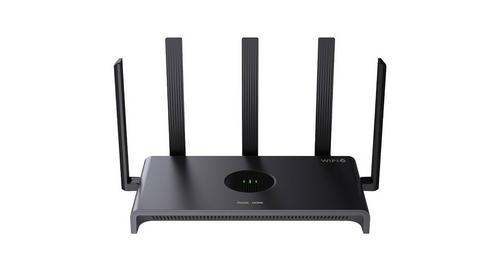
REYEE AX3000 Home Wi-Fi Router Instruction Manual

REYEE RG-R4 Mesh Router User Manual

REYEE RG-EG209GS 9-Port Gigabit Cloud Managed SFP Router User Manual

REYEE RG-R4 1800M Gigabit Dual-Band Wi-Fi 6 Wireless Router User Manual

REYEE RG-E6 WiFi 6 Router Installation Guide

Cudy WR3000SE AX3000 Gigabit Mesh Wi-Fi 6 Router Owner’s Manual

DIGITAL DEEP SEA 5G Xtream 5G/4G Router Instruction Manual

STARLINK Standard Gen 3 Router User Guide

Harvilon MT6833 5G Portable Wi-Fi Hotspot Esim Router User Guide

robustel R1510 4G LTE Router User Manual

MERCURY 6220 Wireless Dual-Band Router Instructions

TP-Link X50-5G Whole Home Mesh Wi-Fi 6 Router User Guide
WALLYS DR5018 Router Board User Manual

BELKIN F9K1001 N150 Wireless Router User Manual

ASUS RT-BE96U BE19000 Tri Band WiFi Router User Guide