5. Power On The Device First, Waiting Bonding For 2~5 Minutes.(Ip Address Will Be Seen After Successful Bonding. → Please Check The Sim Card Installation And Whether The Sim Card Runs Out Of Credits. → Ethernet Port: Connect To Network Via Network Cable And Be Bonding. → Please Check Whether The Cable Connection Is Normal. → Battery Level (once Optional Battery Installed))
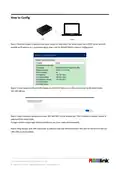
6. How To Config(Step 1: Directly Connect A Laptop To The Bond Router Via Lan Cable. The Bond Router Has A Dhcp Server And Will Provide An Ip Address To A Connected Laptop That Is Set For Default (dhcp) Network Configuration. → Step 2: Check Network Settings In The Laptop To Confirm Ip Address Is In The Same Subnet As The Bond Router - 192.168.100.xxx. → Step 3: Open A Browser Window And Enter 192.168.100.1 In The Address Bar. This Ip Address Is Default, Preset Ip Address Of The Bond Router. → To Login Use The Unique Login Details Provided To You (user Name And Password). → Step 4: Plug Dongles With Sim Card Inside To Usb Port And Then Directly Connect Tao 1pro To The Bond Router Via Lan Cable As Shown Below.)
9. How To Apply(Connect Tao 1pro To The Router Via Lan Port → Plug A Dongle With Sim Card Inside To Usb Port → Directly Connect Tao 1pro To The Bond Router Via Lan Cable → Check Network Settings In The Lcd Screen To Confirm Ip Address)
If you have any questions regarding RGBlink 202304030620516871 Bond 6 Bonding Network Router User Guide, please ask here and describe the problem in detail.









 Loading...


