
Home > rock space > rock space RSD0616 AX1800 Wi-Fi 6 WiFi Router Installation Guide
rock space RSD0616 AX1800 Wi-Fi 6 WiFi Router Installation Guide


In the Password ꢀeld, type the user name(admin)and password(admin)to log into the manage-
ment interface.
II. Connect your devices to the new router
Method 1: Connect your WiFi-enabled device (such as a smart phone) to the new router’s WiFi
network using the SSID(WiFi name) labeled on the bottom of the router. There is no WiFi
password by default.
rockspace-WiFi6-2.4g
Note: Both the user name and password is “admin”. The password you entered in this step is
NOT the password for your extended network, it is the password for the extender's manage-
ment interface. If you cannot log in to the web UI of the router, refer to Q1 in FAQ.
Method 2: Connect your wired device (such as a computer) to a LAN port of the router using an
Ethernet cable. The LAN LED indicator lights up.
Power
Step 2: Set up the time zone.
Please select your region and time zone. Then click “Next”.
Ethernet cable
III. Set up the new router for internet access
Step 1: Enter the IP address.
After the connection with your client device is established, the setup page will automatically pop
up.
If the setup page doesn't pop up automatically, open your browser on your device and enter
192.168.1.1 in the address bar and press “Start” on the start page.
2

| General | Details |
|---|---|
| Name | rock space RSD0616 AX1800 Wi-Fi 6 WiFi Router Installation Guide |
| Make | rock space |
| Language | English |
| Filetype | PDF (Download) |
| File size | 5.94 MB |
 (1 votes, average: 5.00 out of 5)
 Loading...
If you have any questions regarding rock space RSD0616 AX1800 Wi-Fi 6 WiFi Router Installation Guide, please ask here and describe the problem in detail.

rock space RSD0616 AX1800 Wi-Fi6 WiFi Router Installation Guide

rock space RSD0616 AX1800 Wi-Fi 6 Smart WiFi Router Installation Guide


WM Systems DIN Rail Router User Guide

TP-Link AC1900 Archer AC1900 MU-MIMO Wi-Fi Router User Guide

BEC AirConnect 8112 5G Enterprise Router User Guide
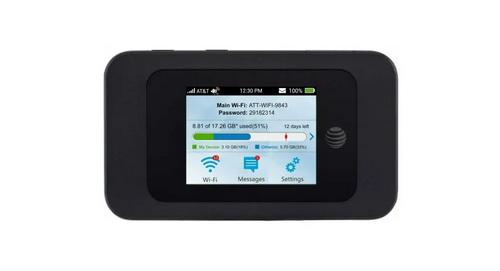
AT T MF985 Velocity 2 WiFi Hotspot Router Instruction Manual

TP-Link Archer AXE300 Quad-Band Wi-Fi 6E Router Installation Guide

TP-Link Archer BE550 Pro Tri-Band Wi-Fi 7 Router Instructions

SUNVOT GC600 5G CPE WiFi Router User Guide

LINOVISION IoT-R32L Router User Guide

GOST VG5-CG Multi Carrier Select Router User Guide

NEXXT NCM-X3000 Bolt AX3000 Router User Guide