×
- 1. Rv Wi-fi Dishydock Installation Guide (Setup → Configuration → User Manual)
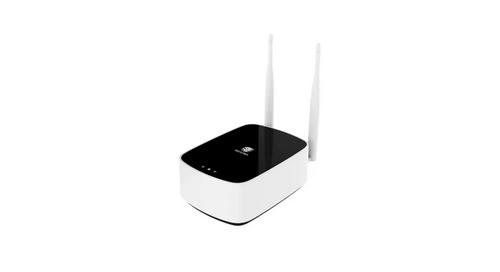
- 2. What Makes Up Your Rv Wi-fi Dishydock 4g (Rv Wifi 4g Router → G/5g Stick Antennas → Mounting Bracket → Wi-fi Stick Antennas → Volt Power Cable → Testra Starter Sim)
- 3. External 4 In 1 Antenna (optional) (External 4 In 1 Antenna Bracket (optional))
- 4. How To Activate The Telstra Pre Paid Sim (Activate Your Telstra Sim Card → For Providers Other Than Telstra Please Look On Their Packaging For Instructions To Activate → You Must Use A Full Sized Sim Card In The Router → Warranty Registration)
- 5. Inserting Your Sim Card Into The Rv Wifi 4g (Using A Sim Pin, Depress The Sim Open Button In The Control Panel. → Remove The Sim Tray And Place A Full Sized Sim In The Tray, Aligning The Cut Outs Together. → Insert The Sim Tray Into The Sim Card Slot With The Sim Facing Towards The Rear Of The Router. → Turn On The Power And Wait 3 Minutes For The Router To Boot Up. → You May Decide Not To Use The Included Telstra Sim Card. → If So, You Will Need To Make An Adjustment To The Software By Changing The Apn During Your Setup Phase.)
- 6. Installing Your Rv Wi-fi 4g (Installing Your Rv Wi-fi 4g Using The External Antenna (optional) → Set Up For Use With External Antenna)
- 7. Gexternalantenna (Wi-fiexternalantenna → Wi-fiinternalantenna)
- 8. Installing Your Rv Wi-fi 4g Without The External Antenna (Set Up For Use With No External Antenna → Choose A Position For Rv Wi-fi 4g Router Adjacent To A Single 12v Power Point → Turning On Your Rv Wi-fi 4g Router)
- 9. Connecting Your Device Via Wi-fi To Your Rv Wi-fi 4g (Click On: Settings Or Equivalent Page On Your Device → Click On: Wi-fi And Choose The Rv Wi-fi Network → Click On The 5.8 Option If Available → You Will Need To Set Passwords For Both Versions If Available → Type In: Rvwifi1234 (all Lower Case, No Gaps) → Click The: Connect Automatically Box)
- 10. Setting Your Wi-fi 4g Password (Instructions On Setting Your Wi-fi Password → Open The Web/internet Browser → Enter The Address Http://10.0.1.1 → Rv Wi-fi Home Page Will Appear → Username Is Prepopulated With Root → You Must Enter The Username Root And The Password Admin)
- 11. Network (Wireless → Choose The 5.8 Option → Edit Box)
- 12. Setting Your Wi-fi 4g Password (Go To The Interface Configuration Section → Click On The Wireless Security Tab → Next To The Key Drop Down Box, Click On The Astrix)
- 13. Delete The Password (Type Your New Wi-fi Password → Save And Apply Button → Configuration To Apply)
- 14. Setting Your Wi-fi 4g Password
- 15. On Your Device (laptop/ipad/phone). (Go To: Settings, → Click On: Wi-fi, → Wait For Rv Wi-fi To Come Up On The List. Click On This, → Type In The New Wi-fi/security Key Password That You Have Just Set, → Remember That It Is Case Sensitive And Some Devices Will Automatically Capitalise The First Letter. → You Are Now Ready To Access The Internet Through Your Rv Wi-fi 5g.)
- 16. Using A Different Provider Than Telstra (Change To The Apn (access Point Name) → Follow The Steps Below To Enable This → From The Home Page, Click On: Network → Click On: Interfaces → Click On: Edit)
- 17. Apn (Save & Apply → Provider)
- 18. Sim Cards (Resetting → Can I Upgrade To 5g → Operational Issues → What Is An Ssid? → Why Are There Two Ssids?)
- 19. What Do I Do If I Cant Connect To The Wi-fi? (Can I Change The Root Username? → My Wi-fi Password Is Not Being Accepted → Can I Change My Ssid/name Of Your Router?)
- 20. Going To The Home Page Of Http://10.0.1.1. (Click On: Wireless → Scroll Down To Interface Configuration And The Heading Essid. → Type In The New Ssid/name Of Your Router And Click On: Save And Apply. → Follow Steps For Changing Your Wi-fi Password To Complete. → Antenna 4 In 1 (optional) → What Coverage Can I Expect To Get?)
- 21. Specifications (Installation Guidelines → Router Placement → Device Compatibility → Electrical Requirements → Wi-fi Standards → Antenna Connection)
- 22. Internal Wifi Antenna (External 4g/5g/wifi Antenna)
- 23. The Provided Html Code Does Not Contain Any Subheadings Related To Installation/setup/configuration. Therefore, I Will Take The First Senten… ('need Help For Help With Your Rv Wi-fi Unit Please Go To: Info@rvwifi.com.au And A Service Agent Will Be In Touch.')
×
RV WI-FI 2024 V3 DishyDock Router User Manual
| General | Details |
|---|---|
| Name | RV WI-FI 2024 V3 DishyDock Router User Manual |
| Make | RV Wi-Fi |
| Language | English |
| Filetype | PDF (Download) |
| File size | 0.51 MB |
If you have any questions regarding RV WI-FI 2024 V3 DishyDock Router User Manual, please ask here and describe the problem in detail.

RV Wi-Fi 2024v1 DishyDock Router User Guide


intelbras GX 1001 LT 5G WiFi 6 Router Installation Guide

STARLINK Standard Gen 3 Router User Guide

NIGHTHAWK RAX5 4 Stream AX1600 Dual Band WiFi 6 Router User Guide
SECU365 SS-1 Router User Guide

AKYPACH 15PCS Wood Router Instruction Manual

LINOVISION IOT-R32W 4G LTE Cat4 Cellular Router Owner’s Manual

ASUS DSL-AX82U Dual Band WiFi 6 Extendable xDSL Modem Gaming Router Instructions

ASUS ExpertWiFi EBR63 Wireless AX3000 Dual-Band Router User Guide

Beijer ELECTRONICS MAEN327 Cloud VPN Router User Guide

PIX-LINK LV-WR09 Wireless-N Repeater AP Router Installation Guide
Table of Contents
- 1. Rv Wi-fi Dishydock Installation Guide - Setup →
- 2. What Makes Up Your Rv Wi-fi Dishydock 4g - Rv Wifi 4g Router →
- 3. External 4 In 1 Antenna (optional) - External 4 In 1 Antenna... →
- 4. How To Activate The Telstra Pre Paid Sim - Activate Your Tel... →
- 5. Inserting Your Sim Card Into The Rv Wifi 4g - Using A Sim Pi... →
- 6. Installing Your Rv Wi-fi 4g - Installing Your Rv Wi-fi 4g Us... →
- 7. Gexternalantenna - Wi-fiexternalantenna →
- 8. Installing Your Rv Wi-fi 4g Without The External Antenna - S... →
- 9. Connecting Your Device Via Wi-fi To Your Rv Wi-fi 4g - Click... →
- 10. Setting Your Wi-fi 4g Password - Instructions On Setting You... →
- 11. Network - Wireless →
- 12. Setting Your Wi-fi 4g Password - Go To The Interface Configu... →
- 13. Delete The Password - Type Your New Wi-fi Password →
- 14. Setting Your Wi-fi 4g Password →
- 15. On Your Device (laptop/ipad/phone). - Go To: Settings, →
- 16. Using A Different Provider Than Telstra - Change To The Apn ... →
- 17. Apn - Save & Apply →
- 18. Sim Cards - Resetting →
- 19. What Do I Do If I Cant Connect To The Wi-fi? - Can I Change ... →
- 20. Going To The Home Page Of Http://10.0.1.1. - Click On: Wirel... →
- 21. Specifications - Installation Guidelines →
- 22. Internal Wifi Antenna - External 4g/5g/wifi Antenna →
- 23. The Provided Html Code Does Not Contain Any Subheadings Rela... →


