
Siretta UPnP NAT-PMP Router Instructions


4. Click save settings and wait for the changes to take place.
5. The settings on the camera are now complete.
Testing the UPnP device on the network
1. Navigate to the Network Browser on the local PC connected to the network.
2. You will see the device (DCS-932L) listed with the other devices on network.
3. Users can access the device by clicking on the network device icon.
4. You can access the device locally by using the IP address assigned to the camera and the
UPnP port address
NOTE: In this example the IP address is '192.168.1.51:8080'
5. You can access the device remotely by configuring your router with a public fixed IP SIM
card. You can then login to the UPnP device on the remote network using the fixed IP address
of the SIM card and the UPnP port address.
NOTE: Using this setup would allow you to install a remote camera in the required location and
access it from your web browser using the fixed IP address of the SIM card in the Router and
the UPnP port address of the camera.
Siretta Limited - Enabling Industrial IoT

| General | Details |
|---|---|
| Name | Siretta UPnP NAT-PMP Router Instructions |
| Make | Siretta |
| Language | English |
| Filetype | PDF (Download) |
| File size | 0.1 MB |
 (1 votes, average: 5.00 out of 5)
 Loading...
If you have any questions regarding Siretta UPnP NAT-PMP Router Instructions, please ask here and describe the problem in detail.

Siretta QUARTZ-ONYX 5G NR Router User Guide

Siretta GPS 5G NR Router User Guide


TP-Link ER706W4G Gigabit VPN Router Installation Guide

HABITECH Vigor 2865 Series WiFi Router User Guide
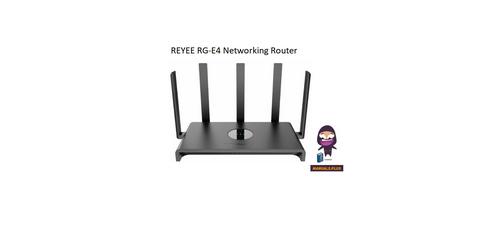
REYEE RG-E4 Networking Router Installation Guide

BILLION MX-220-UT-5G Advanced 5G Router Installation Guide

DrayTek Vigor2927 Dual WAN Security Router User Guide

ASUS TUF-AX5400 TUF Gaming Wi-Fi 6 Router User Guide

AZORES AX6600 WiFi-6 Wireless Router Instruction Manual

Cudy WR1300 Gigabit Mesh Wi-Fi Router Installation Guide

inseego 5G Router FG2000 User Guide

HORIZON HZ51 5G Wi-Fi 6 Router User Guide