
SKYBOXE 5G Fixed Wireless Access Router User Guide


FCC Statement
7. Configuring Your Router’s Software
8. Change Your Router’s Password
9. Configuring Wi-Fi
10. Save Your Configuration Settings
11. Troubleshooting
FCC Compliance Information
This equipment has been tested and found to comply with the limits
for a Class B digital device, pursuant to part 15 of the FCC Rules.
These limits are designed to provide reasonable protection against
harmful interference in a residential installation.
This equipment generates, uses and can radiate radio frequency
energy and, if not installed and used in accordance with the
instructions, may cause harmful interference to radio communica-
tions. However, there is no guarantee that interference will not
occur in a particular installation. If this equipment does cause
harmful interference to radio or television reception, which can be
determined by turning the equipment off and on, the user is
encouraged to try to correct the interference by one or more of the
following measures:
This device complies with Part 15 of the FCC Rules. Operation is
subject to the following two conditions:
(1) this device may not cause harmful interference, and
(2) this device must accept any interference received, including
interference that may cause undesired operation.
This device must be installed at least 8 inches from typical person
locations per FCC RF exposure guidelines.
This product has reached the standard of shipment inspection.
Caution!
The POWER indicator does not turn on.
Make sure the proper power cable is connected
properly and compatible with the router.
Do not make any modifications to this device. Doing so may void
your authority to operate it.
Any changes or modifications not expressly approved by the party
responsible for compliance could void the user's authority to
operate the equipment.
This device has been tested and found to comply with the limits for
a Class B digital device, pursuant to Part 15 of the FCC Rules. These
limits provide reasonable protection against harmful interference in
a residential installation. This equipment generates, uses and can
radiate radio frequency energy and, if not installed and used in
accordance with the instructions, may cause harmful interference to
radio communications. However, there is no guarantee that interfer-
ence will not occur in a particular installation. If this equipment
does cause harmful interference to radio or television reception,
which can be determined by turning the equipment off and on, the
user is encouraged to try to correct the interference by one or more
of the following measures: 1) increase the separation between
device and receiver, 2) connect the device into an outlet on a
circuit different from that to which the receiver is connected, 3)
consult the dealer or experienced radio/TV technician for help.
Failure to log in to web management page.
Make sure the router is turned on and correctly con-
nected to the computer via Wi-Fi or network cable.
• With your computer or mobile device connected to
the router via wired or wireless (see step 5), launch
your web browser (Chrome, Safari, Edge, etc.) to
access the web management page to configure
your router. Input http://192.168.1.1 in the address
bar and press Enter.
—Reorient or relocate the receiving antenna.
—Increase the separation between the equipment and receiver.
—Connect the equipment into an outlet on a circuit different from
that to which the receiver is connected.
—Consult the dealer or an experienced radio/TV technician for
help.
The router fails to locate a wireless network.
Ensure that the router is placed in an open area and
away from obstructions and electrical appliances that
generate strong electromagnetic fields, such as
microwave ovens and refrigerators.
• From within the management website, select:
Advanced Settings ĺ Wi-Fi ĺ WLAN Settings.
FCC Radiation Exposure Statement
To ensure data security, it is highly recommended
that you change your router’s default Wi-Fi
password when you log in to the configuration tool
for the first time.
Note: When you log in to the web management
page, you will see an un-safe notice next to the URL
bar. This behavior is normal and can be ignored.
• From within the management website, select:
Advanced Settings ĺ System ĺ Maintenance.
Warranty, safety, regulatory, legal and support information
The router’s power adapter has overheated.
Ensure that the router is properly ventilated and
shielded from direct sunlight.
This device complies with FCC radiation exposure limits set forth
for an uncontrolled environment and it also complies with Part 15 of
the FCC RF Rules. This equipment must be installed and operated
in accordance with provided instructions and the antenna(s) used
for this transmitter must be installed to provide a separation
distance of at least 20 cm from all persons and must not be
co-located or operating in conjunction with any other antenna or
transmitter.
• In the General Settings list, set Wi-Fi enable, or
enable Wi-Fi by pressing the Wi-Fi button.
Cancer and reproductive harm information can be found at
• Under Backup Configuration File, click the
Download button, then save the file in a location
where you can access it later.
Some features of this product and its accessories described herein
rely on the software installed, capacities, and settings of the local
network, and may not be activated or may be limited by local
network operators or network service providers. Thus, the descrip-
tions herein may not exactly match the product or its accessories.
• Enter the username and password, then click Login.
The default username and password are both
admin.
• From within the management website, select:
Advanced Settings ĺ System ĺ Account.
• In the Configuration list, change the SSID to any
name you desire, such as: SKYBOXE-5G. You can
also select any password to secure your network.
Previously set settings are restored to default values.
If the router is powered off unexpectedly while being
configured, the parameters may reset to their default
settings. Download and save the configuration file to
quickly restore your router to the desired settings.
SKYBOXE, 15 Paradise Plaza, Suite 299, Sarasota FL 34239 USA
© 2022 SKYBOXE. All rights reserved.
• To restore your settings, under Restore Configura-
tion File, select your backup file using the Select
File button, then click the Upload button.
SKYBOXE and the SKYBOXE logo are registered trademarks of
Applied Digital Research Corporation. All other trademarks
mentioned are the property of their respective owners.
• Input the current password and your new desired
password, then click the Save button.
• Once the password is verified, you will be taken to
the web management page.
We reserve the right to modify any information or specifications
contained in this manual without prior notice or obligation.
• Click the Submit button to save your settings.

| General | Details |
|---|---|
| Name | SKYBOXE 5G Fixed Wireless Access Router User Guide |
| Make | SKYBOXE |
| Language | English |
| Filetype | PDF (Download) |
| File size | 0.32 MB |
 (1 votes, average: 5.00 out of 5)
 Loading...
If you have any questions regarding SKYBOXE 5G Fixed Wireless Access Router User Guide, please ask here and describe the problem in detail.


Tenda RX2LP Dual Band Gigabit Wi-Fi 6 Router Installation Guide

eSunFi SHFiEL40 4G LTE WiFi Mobile Hotspot Router User Manual

TELTONIKA RUT361 Cellular Router Instruction Manual

Adtran SDG-8610 Service Delivery Gateway WiFi 6 Gigabit Router Instruction Manual

TechPowerUp Openwrt ONE Wi-Fi 6 Router User Manual
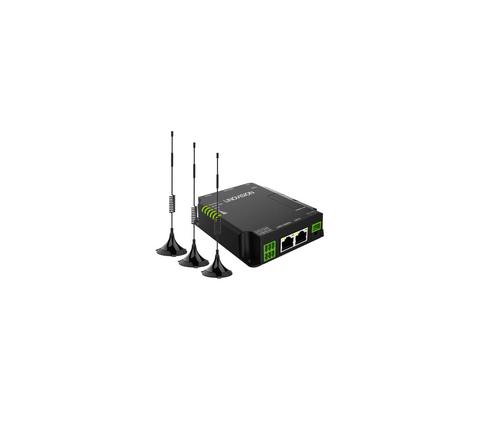
LINOVISION IOT-R32W Unlocked 4G LTE Router User Manual

TP-Link BE450 Dual Band Wi-Fi 7 Router Installation Guide

eero SN10001 Outdoor 7 PoE Mesh Wi-Fi Router Installation Guide

ADVANTECH ICR-2531 LTE Router User Manual

neptronic RPB11 RPB BACnet Router Instruction Manual