
SMAWAVE SRP620-B 5G IP67 Ruggedized Router User Guide
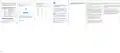


Once the router’ s radio module is configured for the SIM card,
it begins the activation/provisioning process and attempts to
connect to the mobile network. This process typically takes
several minutes. A successful connection is indicated by a
solid green NET LED. And the strength of the RF signal can be
indicated by the Signal LEDs in different quantity.
The router does not support SIM card hot-plug,
please confirm that the device is powered off when
the SIM card is inserted or removed.
Labeling requirements.This device complies with part 15 of the FCC
Rules. Operation is subject to the following two conditions: (1) This
device may not cause harmful interference, and (2) this device must
accept any interference received, including interference that may
cause undesired operation.
The portable device is designed to meet the requirements for expo-
sure to radio waves established by the Federal Communications
Commission (USA).
Choose Network > Radio Settings.
Step1
Step2
tion of 5G NR network.
FAQs
On Radio Settings page, you can set the configura-
Step2 Enter the username and password, and click Login.
This device complies with Part 15 of the FCC Rules. Operation is
subject to the following two conditions: (1) this device may not
cause harmful interference, and (2) this device must accept any
interference received, including interference that may cause unde-
sired operation.
The POWER indicator does not turn on.
Make sure that the power cable is connected properly
and the router is powered on.
Make sure that the power supply is compatible with the
router.
After the password is verified, you can login to the
Step3
web management page.
In the 5G Status list, you can view the 5G NR status,
such as Frequency, RSSI, RSRP, RSRQ,CINR, SINR, Cell ID
Step3
Changes or modification warning.Any Changes or modifications not
expressly approved by the party responsible for compliance could
void the user's authority to operate the equipment.
and etc.
Indicator
PWR
Status
Green
Description
Power on
This equipment has been tested and found to comply with the limits
for a Class B digital device, pursuant to Part 15 of the FCC Rules.
These limits are designed to provide reasonable protection against
harmful interference in a residential installation. This equipment
generates, uses and can radiate radio frequency energy and, if not
installed and used in accordance with the instructions, may cause
harmful interference to radio communications. However, there is no
guarantee that interference will not occur in a particular installation.
This device complies with FCC radiation exposure limits set forth for
an uncontrolled environment and it also complies with Part 15 of the
FCC RF Rules.
This equipment must be installed and operated in accordance with
provided instructions and the antenna(s) used for this transmitter
must be installed to provide a separation distance of at least 20 cm
from all persons and must not be co-located or operating in
conjunction with any other antenna or transmitter. End-users and
installers must be provided with antenna installation instructions and
consider removing the no-collocation statement.
Fails to Login the web management page.
Make sure that the router is powered on.
Off
No power supply
Verify that the router is correctly connected to the com-
puter through Wi-Fi or a network cable.
If the problem persists, please contact the authorized
local service suppliers.
Green
Off
Registered to network
Not register to network
NET
Blinking
Green
Searching network
Signal strong
The router fails to search for the wireless
Yellow
Red
Signal good
Signal weak
If this equipment does cause harmful interference to radio or televi-
sion reception, which can be determined by turning the equipment
off and on, the user is encouraged to try to correct the interference
by one or more of the following measures:⑨
network.
RSSI
Check if the power supply is connected properly.
Check if the router is placed in an open area that is far
away from obstructions, such as concrete or wooden walls.
If the problem persists, please contact the authorized
local service suppliers.
Off
No signal
The default username and password are both admin. If you
want to view or configure the router, you should use the super
account to login to the web management page. The default
super username is superadmin, and the password is
admin.
Red Blinking
No SIM or SIM error
-Reorient or relocate the receiving antenna.
⑨ -Increase the separation between the equipment and receiver.
⑨ -Connect the equipment into an outlet on a circuit different from
that to which the receiver is connected.
⑨ -Consult the dealer or an experienced radio/TV technician
help.
The parameters are restored to default
Software Configuration
values.
If the router is powered off unexpectedly while being
configured, the parameters may be restored to the default
settings.
This equipment complies with FCC radiation exposure limits set
forth for an uncontrolled environment. End user must follow the
specific operating instructions for satisfying RF exposure compli-
ance. This transmitter must not be colocated or operating in
conjunction with any other antenna or transmitter.
Radio Settings
Login to the Web Management Page
After configure the parameters, download the configura-
tion file and restore the desired settings quickly.
Step1
the address bar, and press Enter.
7
8
9
10
11


| General | Details |
|---|---|
| Name | SMAWAVE SRP620-B 5G IP67 Ruggedized Router User Guide |
| Make | Smawave |
| Language | English |
| Filetype | PDF (Download) |
| File size | 0.08 MB |
 (1 votes, average: 5.00 out of 5)
 Loading...
If you have any questions regarding SMAWAVE SRP620-B 5G IP67 Ruggedized Router User Guide, please ask here and describe the problem in detail.

Smawave SRG821 Ruggedized Router User Guide

SMAWAVE SRE410 LTE CPE Router User Guide


TCL LINKHUB HH40L2 Wi-Fi Router User Manual

caravansplus RV WI-FI Dishydock Router User Guide
NETGEAR Nighthawk AXE11000 Tri-Band WiFi 6E Router RAXE500 User Manual

TP-Link Archer MR400 4G LTE 300 Mbps Router Installation Guide

STRONG 4G+ROUTER1200UK 4G+ LTE Router 1200 UK Instruction Manual

Cudy WR3000SE AX3000 Gigabit Mesh Wi-Fi 6 Router Owner’s Manual

KEENETIC KN-1310 Wireless Router User Guide

Scribd HDA802B 6.5A Variable Speed Compact Router User Manual

ASUS RT-BE86U Wireless Router User Guide

Quwireless Digi IX10 5G Antenna for Router Installation Guide