
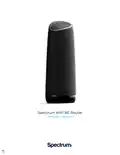
Spectrum 20240729 WiFi 6E Router User Guide

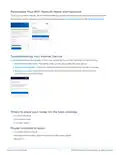


Personalize Your WiFi Network Name and Password
To secure your home network, we recommend creating a unique network name and a password containing letters
and numbers. You can change your network name and password on Spectrum.net or in the My Spectrum App.
Troubleshooting Your Internet Service
If you’re experiencing slow speeds or if you lose connection to your WiFi network, try the following:
1. Move closer to the router: The farther away you are, the weaker the signal will be.
2. Adjust router location: Your router should be placed in a central location for the best coverage.
3. Restart your router: Restarting your router solves most problems, whether you have a slow
connection or no internet at all.
Where to place your router for the best coverage
• In a central location
• On a raised surface
• In an open space
Router locations to avoid
• In a media center or closet
• Near devices like cordless phones that emit wireless radio signals
• Behind a TV
Spectrum WiFi 6E Router
3
© 2023 Charter Communications, all rights reserved.

| General | Details |
|---|---|
| Name | Spectrum 20240729 WiFi 6E Router User Guide |
| Make | SPECTRUM |
| Language | English |
| Filetype | PDF (Download) |
| File size | 0.43 MB |
 (1 votes, average: 5.00 out of 5)
 Loading...
If you have any questions regarding Spectrum 20240729 WiFi 6E Router User Guide, please ask here and describe the problem in detail.

SAX1V1R Spectrum WiFi 6 Router User Guide: Troubleshoot & Personalize
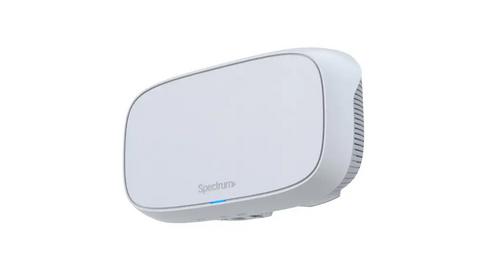
Spectrum MAX2V1K WiFi 6E MDU Router User Guide

Spectrum WiFi 6 Router: User Guide & Troubleshooting Tips

Spectrum IP6442B WiFi 6E Router User Manual

Spectrum 20230810 WiFi 6E Wall Mounted Router User Guide

Spectrum RAC2V1S WiFi 5 Wave 2 Router User Guide


HiKOKI M12VE Variable Speed Router Instruction Manual

TP-Link MR505 Wireless 4G LTE Router Installation Guide

ALTIUS Machine 4G Wireless Router User Manual

TP-Link T120200-2B1 Gigabit VPN Router Instructions

ASKEY NCM2000B2-D299 5G Home Router User Guide

TELTONIKA RUTX11 CAT6 Cellular IoT Router User Guide

CaptionCall CR3 Pcs Modem And Router User Manual

TP-Link 7106511948 Outdoor Router Installation Guide

westermo Merlin 4700 Series Cellular Router User Guide

Montersi ATE-G1CH 4G Router User Manual