
Tenda AC3 Wireless AC750 Router Installation Guide
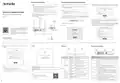


Connect the Router
Connect the Router to the Internet
1. Connect your wireless client such as a smartphone to the Wi-Fi network of the
(2) Scenario 1: Your internet access is available without further configuration
Tips
router.
(for example, PPPoE connection through an optical modem is completed).
• If you use the modem for internet access, power off the modem first before connecting the WAN port
of the router to the LAN port of your modem and power it on after the connection.
• Refer to the following relocation tips to locate the router to a proper position:
− Place the router in a high position with few obstacles.
The Wi-Fi name can be found on the label of the router’s body, and there is no
Wi-Fi password by default.
Please select your connection type.
As detected, your connection type may be: Dynamic IP
− Unfold the antenna of the router vertically.
Address
− Keep your router away from electronics with strong interference, such as microwave ovens,
induction cookers, and refrigerators.
Tips
ISP Type:
− If Unsecured Network prompts on the page, ignore it.
− To ensure your privacy and security, set your login password and Wi-Fi password promptly after
logging in to the web UI.
− Keep your router away from metal barriers, such as weak current boxes, and metal frames.
Normal
Quick Installation Guide
Connection Type:
Dynamic IP Address
1. Connect the WAN port of the router to the LAN port of your modem or the
Ethernet jack using an Ethernet cable.
Wireless AC750 Easy Setup Router
AC3
Next
Skip
2. The page will automatically redirect to the web UI of the router. If not, disable
your mobile data traffic, start a web browser and visit tendawifi.com in the
address bar to access the router's web UI.
2.Power on the router.
Power source
Scenario 2: The PPPoE user name and password are required for internet access.
− If you have already imported the PPPoE user name and password from the
original router, tap Next.
tendawifi.com
Internet
− Otherwise, you need to enter the PPPoE user name and password, and tap Next.
If you forgot the PPPoE user name and password, you can obtain the PPPoE
user name and password from your ISP and manually enter them.
3. Perform operations as prompted.
Gigabit
port
(1) Tap Start.
Please select your connection type.
installation videos, technical specifications, user
guides, Symbols on Products and Materials and
more information.
WAN
As detected, your connection type may be: PPPoE
ISP Type:
Normal
Modem (such as
optical modem)
LAN
WAN
3
2
1
PWR WPS/RST
Connection Type:
PPPoE
You can see the product name and model on the
product label. The label can be found on the back
Welcome
ISP User Name:
Video and More Info
Ethernet cable
Quick Setup Wizard
Or
Enter the user name from your ISP.
of the device.
ISP Password:
Enter the password from your ISP.
Import PPPoE user name and password from the original router. Not
Applocable to Malaysia
Start
Package Contents
Next
Ethernet jack
• Wireless router x 1 • Power adapter x 1 • Ethernet cable x 1 • Quick installation guide
(3) Set Wi-Fi name, Wi-Fi password and login password of the router, and
Done.
Indicator
Buttons/Ports/Jacks
tap Next.
WiFi Settings
@Tenda_XXXXXX
WAN
3
2
1
PWR WPS/RST
WiFi password of 8-32 characters
LED indicator
You’re all set! You can now connect to
Set the WiFi password as the login password of the
admin account.
Button/port/
jack
@Tenda_XXXXXX
Description
Indicator Scenario
Status
Description
Login password of 5-32 characters
or @Tenda_XXXXXX_5G
WAN
Used to connect to a modem or the Ethernet jack for internet access.
Start up
Solid Green
Solid Green
Starting up
LAN port.
Connected to the internet
3, 2
Used to connect to wired devices as computers, switches and game
machines.
Next
Blinking green
slowly
Not configured and the router is not
connected to the internet
LAN/IPTV port.
Internet
It is a LAN port by default. When the IPTV function is enabled, it can
only serve as an IPTV port to connect to a set-top box.
1
Blinking red
slowly
Configured but the router failed to
connect to the internet
connection
To access the internet with:
Tips
• Wi-Fi-enabled devices: Connect to the Wi-Fi network using the Wi-Fi name
Use the included power adapter to connect this jack to a power
source for the power supply.
− Wi-Fi password: Used to connect to the Wi-Fi network.
− Login password: Used to log in to the web UI of the router.
− You can also check the option "Set the WiFi password as the login password of the admin
account." making them the same.
PWR
Indicator
and password you set.
Blinking orange Configured but not connected to an
slowly
Ethernet port
• Wired devices: Connect to a LAN port (3, 2, 1) of the router using an Ethernet
Used to start the WPS negotiation process, or to reset the router.
− WPS: Hold down the button of the router for 1 to 3 seconds, and
the LED indicator blinks green fast. Within 2 minutes, enable the
WPS function of the other WPS-supported device to establish a
WPS connection.
cable.
Blinking green
fast
WPS
Performing WPS negotiation
WPS/RST
Blinking green
fast for 3
A device is connected to or disconnected
from an Ethernet port of the router
Ethernet cable
connection
Tips
− Reset: For the reset method, see Q3 in FAQ.
If you want to manage the router anytime, anywhere,
scan the QR code to download the Tenda WiFi App,
register and log in.
seconds
On the bottom of the router. Used to fix the router to the wall.
Wall-mounting materials are self-prepared (2 screws and 2 plastic
anchors). Recommended specifications:
Blinking orange
fast
Resetting
Resetting
Wall-mounting
slot
− Screws: thread diameter: 3 mm, length: 14 mm; head diameter: 5.2 mm
− Plastic anchors: inner diameter: 2.4 mm; length: 26.4 mm


| General | Details |
|---|---|
| Name | Tenda AC3 Wireless AC750 Router Installation Guide |
| Make | Tenda |
| Language | English |
| Filetype | PDF (Download) |
| File size | 0.22 MB |
 (1 votes, average: 5.00 out of 5)
 Loading...
If you have any questions regarding Tenda AC3 Wireless AC750 Router Installation Guide, please ask here and describe the problem in detail.

Tenda AXE5700 Wi-Fi 6E Router User Manual

Tenda AX1800 Wi-Fi 6 5G NR Router User Manual

Tenda RX2LP Dual Band Gigabit Wi-Fi 6 Router Installation Guide

Tenda TX2L ProV1.0 WiFi 6 Router Installation Guide

Tenda RX12V1.0 Wi-Fi 6 6E Router Installation Guide

Tenda 4G09V1.0 Wifi Router User Manual

Tenda AC19 Dual Band Gigabit WiFi Router Installation Guide

Tenda 4G06V1.0 4G LTE and VoLTE Router User Guide

Tenda 4G03 N300 Wi-Fi 4G LTE Router Installation Guide

Tenda N300 WiFi VDSL/ADSL Modem Router V300 Installation Guide


robustel R2010 Dual SIM VPN IoT Router Instruction Manual

AirLive Wireless Series Wi-Fi AP Router User Manual

Taiko Audio TAP011 Extreme Router User Manual

peplink P1234 Wireless Router User Manual

ZLWL ZR2720N Router User Guide

Wi-Tek WI-R3 1200Mbps Dual-Band Wireless Mesh Router with PoE Passthrough Installation Guide

WIND telecom Surf-i TD-LTE 4G Wireless Router User Manual

orbi RBR860 WiFi 6 Tri-Band Mesh Router User Guide

inseego FX3100 Wavemaker 5G Router User Guide

ZTE U30 Air 5g Portable WiFi Mobile WiFi Router User Guide