
TOTOLINK X2000R AX1500 Wireless Dual Band Gigabit Router Installation Guide
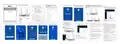


The coming page is the summary information for your setting.
Please remember your Wi-Fi name and password, then click
Done. Then your router will restart automatically. This time your
phone will be disconnected from the router. Please back to the
WLAN list of your phone to choose the new Wi-Fi name and
1
Hardware Installation
IPTV mode, choose Disabled, Bridge or Custom, then
2 Configure the Router
7
8
3 EasyMesh Networking Function
click Next.(P7)
LEDs
Status
Description
(choose one way from phone or computer
X2000R has EasyMesh networking function, with the EasyMesh networking function, the network units can work together
to form a unified network with a single network name. When you move around the house, the device will automatically switch
between the two to get the fastest possible speed. The specific operation steps of networking function setting are as follows.
on Phone to configure)
On
Enabled WPS/MESH function
Build Master Device Environment
2
Connect the Wi-Fi of the router with your Phone. Find "TTOTOLINK_
X2000R" or "TOTOLINK_X2000R_5G" from the WLAN list on your
Phone, and choose one of them to connect.(P1)
Off
System is not running or don't boot
System is running normally
System
Make sure your router is connected to Internet before installation. Connect your
bar, and log in to the web management interface. Then select EasyMesh setttings,
choose Mesh Settings, click “On/Off” and setting basic information, then click
“Apply”. Wait until the router restart finished as master device.
input the correct password. Now, you could enjoy the Wi-Fi.(P8)
Installation Diagram
Blinking
slowly
1
Master Device: Networked
Blinking
quickly
The factory default setting is enabled
Quick Installation Guide
On
Off
WAN port connected
AX1500 Wireless Dual Band Gigabit Router
WAN
LAN
http://itotolink.net
WAN port disconnected
Blinking
On
WAN port is transmitting data
Apply to: X2000R, X2000RU
(Take X2000R as an Example)
Corresponding LAN port connected
Corresponding LAN port disconnected
LAN port is transmitting data
Off
Blinking
Internet
Ports and Buttons Description
TOTOLINK_test
TOTOLINK_X2000R
Within 1 meter
Connect to the Power Source.
TOTOLINK_X2000R_5G
TOTOLINK_X2000R
DC In
TOTOLINK_test_5G
Control the power supply to the router.
Connect to the Internet.
Power Button
WAN Port
Connect to the computers.
TOTOLINK_X2000R_5G
LAN1-LAN4 Ports
USB Port
(Only for X2000RU)
Connect to the USB storage or other USB devices
WPS/MESH: Press and hold for 1-3 seconds to
activate the WPS/MESH function.
Build Slave Device Environment
3
Default Wi-Fi Name:
TOTOLINK_X2000R
TOTOLINK_X2000R_5G
Make sure slave device is powered on, and in factory setting. If you already
changed setup, please reset the router. (You can find how to restore the router
in FAQs)
RST/WPS Button
Reset: Press and hold the button for more than
5 seconds until the System indicator blinking to
reset the router
Information in this document is subject to change without prior notice.
P7
Slave Device: Factory State
Slave Device: Factory State
P8
Connection
Type
P1
Description
Input the IP address, Subnet Mask, Default
Gateway, DNS from your ISP.
Static IP
No information required. Please confirm with your
ISP if Dynamic IP is supported.
Dynamic IP
FCC Statement
2. If I forget the router’s login password, how to reset to the
factory settings?
(2)After the mesh connection is successful, use the browser to enter
Open your phone browser, and enter
http://itotolink.net in the address bar. Then
Choose operation mode, take Gateway mode as
Internet Setting. Choose a suitable connection type from
the list and fill in the information required, then click Next.
Wireless Settings. Create passwords for 2.4G Wi-Fi
and 5G Wi-Fi (Here users could also revise the
Click Quick Setup on the coming page.(P3)
2
4
5
6
3
This equipment has been tested and found to comply with the limits for a
Class B digital device, pursuant to part 15 of the FCC Rules. These limits are
designed to provide reasonable protection against harmful interference in a
residential installation. This equipment generates, uses and can radiate radio
frequency energy and, if not installed and used in accordance with the
instructions, may cause harmful interference to radio communications.
However, there is no guarantee that interference will not occur in a particular
installation. If this equipment does cause harmful interference to radio
ortelevision reception, which can be determined by turning the equipment off
and on, the user is encouraged to try to correct the interference by one or
more of the following measures:
Input User Name and Password from your ISP.
PPPoE
PPTP
an example, then click Next.(P4)
Input Server Address, User Name and Password
from your ISP.
enter admin for the password, then click LOGIN.(P2)
Keep the router powered on, then press and hold the RST/WPS button for 5-8
seconds until system indicator becomes blinking quickly. The router will restart
automatically, wait for a while, the password would be resumed to admin.
(P5/P9)
default Wi-Fi name) and then click Next.(P6)
status of the mesh connection.
Input Server Address, User Name and Password
from your ISP.
L2TP
P9
http://itotolink.net
3.After the slave device is powered off, do I need to reorganize
the network?
EasyMesh Networking Pairing
4
(1)EasyMesh:Press MESH button on master device first, then press
MESH button on slave device, it will pairing successfully within two
minutes. If you want to pair multiple devices, repeat the step above.
No, just turn on the power again.
29%
0%
—Reorient or relocate the receiving antenna.
4.If I want to add a new slave device to the existing Wi-Fi
networking system, do I need to reorganize the network for all
routers?
—Increase the separation between the equipment and receiver.
—Connect the equipment into an outlet on a circuit different from that to
which the receiver is connected.
No, as long as the slave device is within 1 meter of the Wi-Fi of the master
device,and connected to the power.Then the slave device environment can
be set up according to the manual of EasyMesh Networking Function
introduction.
TOTOLINK_X2000R
—Consult the dealer or an experienced radio/TV technician for help.
This device complies with part 15 of the FCC Rules. Operation is subject to
the following two conditions: (1) This device may not cause harmful
interference, and (2) this device must accept any interference received,
including interference that may cause undesired operation.
5.Why is my EasyMesh network unsuccessful all the time?
First: Must be matched within 1 meter of the master device.
Next: The master device needs to set up the Internet according to the second
step of the manual, and the master device needs to remain connected to the
network when the slave device is planned to network.
Caution
2
Any changes or modifications not expressly approved by the party responsible
for compliance could void the user's authority to operate the equipment.
X2000R
Radiation Exposure Statement
4 FAQs
Please check if your Phone has connected to the Wi-Fi of the router and make
This equipment complies with FCC radiation exposure limits set forth for an
uncontrolled environment.
TOTOLINK_X2000R_5G
Finally: The software version is unified to the latest version, please go to
1. Unable to log in the router’s web page on Phone?
This transmitter must not be co-located or operating in conjunction with any
other antenna or transmitter.
This equipment should be installed and operated with minimum distance
20cm between the radiator& your body.
6.Why is there no wireless setting in the advanced settings after
EasyMesh is turned on?
This function can be set on the EasyMesh page.
Manufacturer: ZIONCOM ELECTRONICS (SHENZHEN) LTD.
Address: Room 702, Unit D, 4 Building Shenzhen Software Industry Base, Xuefu Road,
Nanshan District, Shenzhen, Guangdong, China
P2
P3
P4
P5
P6


| General | Details |
|---|---|
| Name | TOTOLINK X2000R AX1500 Wireless Dual Band Gigabit Router Installation Guide |
| Make | TOTOLINK |
| Language | English |
| Filetype | PDF (Download) |
| File size | 0.8 MB |
 (1 votes, average: 5.00 out of 5)
 Loading...
If you have any questions regarding TOTOLINK X2000R AX1500 Wireless Dual Band Gigabit Router Installation Guide, please ask here and describe the problem in detail.

TOTOLINK LR350 4G LTE Router Installation Guide


TP-Link Archer AX20 Dual-Band Wi-Fi 6 Gaming Router Installation Guide

TP-Link C5400X Wireless Router Installation Guide

DBIT AC1200 Dual Band WiFi Router Instructions

D-Link DPN-BE7212GR Wi-Fi 7 Router Instruction Manual

MetaBlox Roam MBMAX60 Wi-Fi 6 Active AC Router User Guide

Cudy LT500-OUTDOOR Outdoor 4G Cat 4 AC1200 Wi-Fi Router Installation Guide

TUBBUTEC TRS Bridge 4×4 TRS Midi Router User Guide

TP-Link AX6000 8-Stream Wi-Fi 6 Router Installation Guide

HQ TELECOM HQ-3232B Call Re Router Instructions

Cudy LT400 Outdoor 4G Wi-Fi Outdoor Router Installation Guide