
TP-Link AX6000 8-Stream Wi-Fi 6 Router Installation Guide


1
2
3
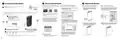
Connect the Hardware
Set Up the Network
Mount the Router
Method ONE: Via TP-Link Tether App
Option ONE: Desktop Mounting
Method TWO: Via a Web Browser
Option TWO: Wall Mounting
Unplug the power to turn off your modem, if any, and remove
the backup battery if it has one.
Unplug the power
1. Attach the router on the bracket as
shown below, and slide to lock into
the bracket.
1. Mount the bracket on the wall in the correct
direction with two screws (not provided).
1. Download the Tether app.
1. Connect your device to the router wirelessly
or with an Ethernet cable.
Note: The length of the screw needs to be at least 20 mm to
withstand the weight of the product.
The default wireless network names (SSIDs) and password
are printed on the label at the bottom of the router.
Modem
or
Screw Specifications:
If your internet comes from an Ethernet outlet instead of a DSL / Cable / Satellite modem, connect the
router’s 2.5 Gbps WAN/LAN port to it, then follow steps 3 and 4 to complete the hardware connection.
Scan for Tether
Tether
2. Open the Tether app and log in with your
TP-Link ID.
*Image may differ from actual product.
Connect the powered-off
Note: If you don’t have an account, create one first.
1
Wireless Password/PIN:XXXXXXXX
SSID:TP-Link_XXXX
UP
SSID:TP-Link_XXXX_5G
modem to the router’s 2.5
Gbps WAN/LAN port with an
3. Tap the button in the Tether app and
select Wireless Router > Standard
Routers. Follow the steps to complete
the setup and connect to the internet.
Ethernet cable.
U P
4.67mm<D<8mm
d<4mm
Note: If you want to use the 1 Gbps WAN/LAN
port as the WAN port instead, please refer to
Q1 of Need Help? in this guide.
2. Launch a web browser, and enter
the address bar. Create a password to log in.
H<3mm
Internet
Note: If the login window does not appear, please refer to Q1 of
2. Place the router vertically on a flat
surface (such as a desktop or shelf)
that is out of children’s reach.
2. Attach the router on the bracket as shown
below, and slide to lock into the bracket.
Need Help? in this guide.
Choose Your Device Type
Wireless Router
New Password:
Confirm Password:
Gaming Router
Range Extender
Power on the modem, and then wait
Connect the power adapter to
the router, press the On/Off
button to turn on the router.
2
4
3
Let’s Get Started
about 2 minutes for it to restart.
Verify that the hardware connection is correct by checking the following LEDs.
3. Follow the step-by-step instructions to
set up the internet connection and
register for the TP-Link Cloud service.
Power
On
2.4GHz
On
5GHz
On
Internet
On
Note: If the 2.4GHz LED and 5GHz LED are off, press and hold the LED/Wi-Fi button on the back for more than
2 seconds. Both the LEDs should turn solid on.
To enjoy a more complete service from TP-Link,
bind your TP-Link ID to the router.


| General | Details |
|---|---|
| Name | TP-Link AX6000 8-Stream Wi-Fi 6 Router Installation Guide |
| Make | TP-Link |
| Language | English |
| Filetype | PDF (Download) |
| File size | 0.62 MB |
 (1 votes, average: 5.00 out of 5)
 Loading...
If you have any questions regarding TP-Link AX6000 8-Stream Wi-Fi 6 Router Installation Guide, please ask here and describe the problem in detail.

TP-Link VR300 Archer Modem Router User Guide

TP-Link T150500-2-DT WiFi Router Instruction Manual

TP-Link Archer AX55 Wi-Fi 6 Router Installation Guide

TP-Link Omada ER8411 VPN Router Instructions

TP-Link Configure VDSL Router User Guide

TP-Link Archer BE805 BE19000 Tri-Band Wi-Fi 7 Router User Manual

TP-Link VR600 Wireless DSL Modem Router Installation Guide

TP-Link AX58 Dual Band Gigabit Wi-Fi 6 Router Installation Guide

TP-Link AC750 Wireless Dual Band Router Owner’s Manual

TP-Link TD-W9970 300Mbps Wireless N VDSL ADSL Modem Router User Guide


AIR DVW-642 WiFi Router User Guide

D-Link DSL-X1852E Modem Router Instructions

Tenda TX2L ProV1.0 WiFi 6 Router Installation Guide

ASUS RT-BE86U Wireless Router User Guide

NEXXT AX18DO Dual Band Mesh Router Instruction Manual

ASUS BT6 Tri Band WiFi Router User Guide

Juniper NETWORKS ACX710 Universal Metro Router User Guide

UniFi WiFi 6 Router User Manual

Bytelogistic SR600 Mesh Wifi Router User Manual

TP-Link AX53 Internet Router User Guide