
TP-Link AX6000 8-Stream Wi-Fi 6 Router Installation Guide
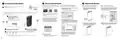


TP-Link HomeShield
Need Help?
TP-Link HomeShield premium security services keep your home network safe with cutting-edge features for
Q1. What should I do if I want to use 1 Gbps WAN/LAN port for internet service?
network. Download the Tether app to enjoy HomeShield features.
ꢀ
Connect to the 1 Gbps WAN/LAN port with an Ethernet cable. During the quick network setup, select the 1
Gbps WAN/LAN port as the Internet port. Or after the network setup, you can go to Tools > Internet Connection
> Internet Port (Tether app) or Internet > Internet Port (web management page) to change it.
Quick Installation Guide
Parental Controls
Network Protection
Manage online time and block
inappropriate content to keep
families healthy online.
Detect cyber threats to keep
your privacy and connected
devices well protected.
Q2. What should I do if I can’t access the web management page?
ꢀ
ꢀ
ꢀ
Reboot your router and try again.
If the computer is set to a static IP, change its settings to obtain an IP address automatically.
Verify that http://tplinkwifi.net is correctly entered in the web browser. Alternatively, enter http://192.168.0.1 or
http://192.168.1.1 in the web browser.
Comprehensive Reports
Quality of Service (QoS)
Gain full statistics and insights
to help you know your home
network better.
Prioritize your bandwidth
needs to get a better
networking experience.
ꢀ
ꢀ
Use another web browser and try again.
Disable and enable the network adapter in use.
Q3. What should I do if I can’t access the internet?
ꢀ
ꢀ
ꢀ
Power off your modem for about 5 minutes, then power it on and check the internet. If your modem has more
than one Ethernet port, keep other ports unconnected.
Check if the internet is working normally by connecting a computer directly to the modem via an Ethernet cable.
If it is not, contact your internet service provider.
USB Applications
L
og in to the web management page, and go to the Network Map page to check whether the internet IP address is
With the USB port, it’s easy to share files and media with multiple devices. Visit https://www.tp-link.com/app/usb to
valid or not. If it’s valid, go to Advanced > Network > Internet, click Advanced Settings, select Use the Following
DNS Addresses, set the primary DNS to 8.8.8.8, and set the secondary DNS to 8.8.4.4. If it is not, check the
hardware connection or contact your internet service provider.
For cable modem users, log in to the web management page of the router and go to Advanced > Network >
Internet > MAC Clone. Select Clone Current Device MAC and click SAVE. Then reboot both the modem and
the router.
learn more about the USB applications.
ꢀ
ꢀ
ꢀ
Local Storage Sharing: Share files from the USB drive with devices on your home network
Media Server: Play media from the USB drive on your computer and smart devices
Remote Access: Access the USB drive when you are away from home
ꢀ
Q4. What should I do if I forget my wireless password?
ꢀ If you have not changed the default wireless password, it can be found on the label at the bottom of the router.
ꢀ Connect a computer directly to the router using an Ethernet cable. Log in to the router’s web management page at
Button Explanation
ꢀ LED/Wi-Fi Button
.
LED: Press the button for 1 second to turn on/off the LEDs.
Wi-Fi: Press and hold the button for more than 2 seconds, then release the button to turn on or off the wireless
· Keep the device away from water, fire, humidity or hot environments.
· Do not attempt to disassemble, repair, or modify the device. If you need service, please contact us.
· Do not use any other chargers than those recommended.
function of your router.
ꢀ Reset Button
AX6000 8-Stream Wi-Fi 6 Router
· Do not use damaged charger or USB cable to charge the device.
Press and hold the button for about 6 seconds until the Power LED blinks to reset the router to its factory default
settings.
· Do not use the device where wireless devices are not allowed.
· Adapter shall be installed near the equipment and shall be easily accessible.
ꢀ WPS Button
For technical support, replacement services, user guides, and other information, please visit
Press the button for 1 second, and immediately press the WPS button on your client to start the WPS process.
©2022 TP-Link 7106509805 REV1.0.0

| General | Details |
|---|---|
| Name | TP-Link AX6000 8-Stream Wi-Fi 6 Router Installation Guide |
| Make | TP-Link |
| Language | English |
| Filetype | PDF (Download) |
| File size | 0.62 MB |
 (1 votes, average: 5.00 out of 5)
 Loading...
If you have any questions regarding TP-Link AX6000 8-Stream Wi-Fi 6 Router Installation Guide, please ask here and describe the problem in detail.

TP-Link VR300 Archer Modem Router User Guide

TP-Link T150500-2-DT WiFi Router Instruction Manual

TP-Link Archer AX55 Wi-Fi 6 Router Installation Guide

TP-Link Omada ER8411 VPN Router Instructions

TP-Link Configure VDSL Router User Guide

TP-Link Archer BE805 BE19000 Tri-Band Wi-Fi 7 Router User Manual

TP-Link VR600 Wireless DSL Modem Router Installation Guide

TP-Link AX58 Dual Band Gigabit Wi-Fi 6 Router Installation Guide

TP-Link AC750 Wireless Dual Band Router Owner’s Manual

TP-Link TD-W9970 300Mbps Wireless N VDSL ADSL Modem Router User Guide


Cudy TR3000 AX3000 2.5G Wi-Fi 6 Mini VPN Router Installation Guide

D-Link R95 BE9500 Wi-Fi 7 Router User Guide

neptronic RPB11 BACnet Router Installation Guide

Quwireless RUT976 Series Red Cap 5G Router Installation Guide

TP-Link BE450 Dual Band Wi-Fi 7 Router Installation Guide

prolink DL-7306 4G LTE Wireless Router Installation Guide

STARLINK Standard Gen 3 Router User Guide

Tenda AC9 AC1200 Dual Band Gigabit WiFi Router Installation Guide

CASTLENET EBM522U Mesh WiFi Router Installation Guide

Urant UNT8 Wireless Router Installation Guide