
TP-Link AX23 AX1800 Dual Band WiFi 6 Router User Manual

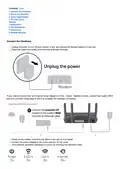


Note: If the 2.4GHz LED and 5GHz LED are off, press and hold the WPS/Wi-Fi button on the back for more than 2
seconds, then release the button. Both the LEDs should turn solid on.
Set Up the Network
Method ONE: Via TP-Link Tether App
1. Download the Tether app.
2. Open the Tether app and log in with your TP-Link ID.
Note: If you don’t have an account, create one first.
3. Tap the + button in the Tether app and select Router > Wireless Router. Follow the steps to complete the setup
and connect to the internet.
Enjoy the internet
To enjoy a more complete service from TP-Link, bind your TP-Link ID to the router.
Method TWO: Via a Web Browser
1. Connect your device to the router wirelessly or with an Ethernet cable.
The default wireless network names (SSIDs) and passwords are printed on the label at the bottom of the router.

| General | Details |
|---|---|
| Name | TP-Link AX23 AX1800 Dual Band WiFi 6 Router User Manual |
| Make | TP-Link |
| Language | English |
| Filetype | PDF (Download) |
| File size | 0.9 MB |
 (1 votes, average: 5.00 out of 5)
 Loading...
If you have any questions regarding TP-Link AX23 AX1800 Dual Band WiFi 6 Router User Manual, please ask here and describe the problem in detail.

TP-Link VR300 Archer Modem Router User Guide

TP-Link T150500-2-DT WiFi Router Instruction Manual

TP-Link Archer AX55 Wi-Fi 6 Router Installation Guide

TP-Link Omada ER8411 VPN Router Instructions

TP-Link Configure VDSL Router User Guide

TP-Link Archer BE805 BE19000 Tri-Band Wi-Fi 7 Router User Manual

TP-Link VR600 Wireless DSL Modem Router Installation Guide

TP-Link AX58 Dual Band Gigabit Wi-Fi 6 Router Installation Guide

TP-Link AC750 Wireless Dual Band Router Owner’s Manual

TP-Link AX6000 8-Stream Wi-Fi 6 Router Installation Guide


QiXiang Technology QX210 Cellular Router Owner’s Manual

MikroTik hAP ax³ Wireless Network Router User Manual

TP-Link Deco X20 Router Installation Guide

CEDARouter C3 5G Aggregation Router User Guide

TCL HH512LV Linkhub 5G WLAN Router User Guide

motorola G11 Cable Modem Router User Guide
Quamtum HS2 HotSpot Wireless Portable Router User Manual

D-Link DIR-X1860 AX1800 Wifi 6 Router Installation Guide

Tenda AC9 AC1200 Dual Band Gigabit WiFi Router Installation Guide

ASUS RT-AC67P Dual Band AC Wi-Fi Router User Guide