
vox FBA-RB952Ui-5ac2nD-TC Router Installation Guide


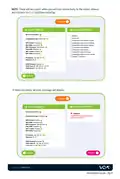


The first screen you will see is the
Customer log in screen.
Click on the “Customer Log In” button
Mikrotik
AutoProvisioning
Platform
Customer Log In
NB: IF THE WI-FI NETWORK DISPLAYED IS ANYTHING ELSE BUT “MikroTik” E.G.: HAS
NUMBERS AT THE END (MikroTik123*** ) PLEASE DISCONTINUE THE SET UP AND CALL
OUR SUPPORT CENTRE ON 087 805 0530 FOR FURTHER ASSISTANCE
START THE INSTALLATION
3
This will connect to the router and display your specific details – click the Proceed button
1
2
3
4
General Info
Installation Info Custom Settings Configuration
General Info (A6470AF88A7A)
Welcome!
YAY, you are just a few simple steps away from enjoying your new Fibre to the Home service. Follow the
instructions below to complete the set up of your Wi-Fi router. If you happen to run into any trouble during the
setup process, please call our friendly support team on +27 (0)87 805 0530 for assistance.
The Serial Number of the router is A6470AF88A7A
To proceed to the next page you can either scroll down and click on the Proceed button or you can click HERE
Proceed
Visit us at vox.co.za
Installation Guide - Pg 1

| General | Details |
|---|---|
| Name | vox FBA-RB952Ui-5ac2nD-TC Router Installation Guide |
| Make | VOX |
| Language | English |
| Filetype | PDF (Download) |
| File size | 0.29 MB |
 (1 votes, average: 5.00 out of 5)
 Loading...
If you have any questions regarding vox FBA-RB952Ui-5ac2nD-TC Router Installation Guide, please ask here and describe the problem in detail.

VOX FTTB Mikrotik Router Installation Guide


eero 609R010111 6+ Dual-Band Mesh Wi-Fi 6 Router User Guide

HUAWEI Router User Guide

NETGEAR XR1000v2 Nighthawk WiFi 6 Pro Gaming Router User Guide

NETGEAR R6300 WiFi Router Instruction Manual

Heimgard Hub 4G LTE Mobile Broadband Router User Guide

DIGITAL DEEP SEA 5G Xtream 5G/4G Router Instruction Manual
Ubiquiti UMR-Ultra Mobile Router Installation Guide

ASUS RT-AC1300G PLUS Wireless AC1300 Dual Band Gigabit Router User Guide

peplink MAX BR1 Pro 5G Pepwave Router User Manual

neptronic RPB11 RPB BACnet Router Instruction Manual