
vox FBA-RB952Ui-5ac2nD-TC Router Installation Guide


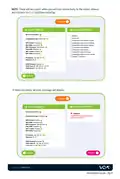


The rest can be left as default, just click the Proceed button
OR If you are technically minded you can make some changes in the Advanced Settings
Advance Settings
Wi-Fi Enabled
2Ghz Active
Hide SSID
5Ghz Active
Router IP Address
Netmask
192.168.101.1
/24
DHCP Enabled
DHCP Pool Start
DHCP Pool Start
192.168.101.100
192.168.101.254
Reset Settings
Go Back
Proceed
CONFIGURATION
6
Click the Configure button and the router will auto-magically provision and show the
Installation complete screen.
4
General Info
Installation Info Custom Settings Configuration
Configuration (A6470AF88A7A)
Configuring the Router
During the configuration process all of the needed settings will be setup to the device. Any changes to the default
settings on the previous pages will be included.
Please note if you are connecting to the router via Wi-Fi from your laptop or mobile device you will lose
connectivity during the installation. This is due that the new Wi-Fi settings (SSID, password, etc) will be configured
to the router. You will thus need to reconnect to the new Wi-Fi configured.
Confirm by pressing the Configure button it will start the installation process.
If there are any issues / errors during the installation please fell free to call the Vox Call Centre on 087 805 0530
and refer to the routers serial number: A6470AF88A7A
Configure
Go Back
Visit us at vox.co.za
Installation Guide - Pg 3

| General | Details |
|---|---|
| Name | vox FBA-RB952Ui-5ac2nD-TC Router Installation Guide |
| Make | VOX |
| Language | English |
| Filetype | PDF (Download) |
| File size | 0.29 MB |
 (1 votes, average: 5.00 out of 5)
 Loading...
If you have any questions regarding vox FBA-RB952Ui-5ac2nD-TC Router Installation Guide, please ask here and describe the problem in detail.

VOX FTTB Mikrotik Router Installation Guide


Westermo Merlin 4100 Series Cellular Router User Guide

westermo Merlin 4700 Series VDSL Cellular Router User Guide

ASUS RT-AX57 Dual Band WiFi Router User Guide

ASUS GS-AX3000 Dual Band Gaming Router User Guide

ERICSSON R980-5GD Mobile Router User Manual

Shenzhen 802.11AX Wi-Fi 6 1800M Wireless Router Installation Guide

HIRSCHMANN NB2810 NetModule Router User Manual

STRONG 5GROUTERAX3000 5G Router Instructions

more BYO Router Installation Guide

Harvilon MT6833 5G Portable Wi-Fi Hotspot Esim Router User Guide