
westermo MRD-405 4G LTE Router User Guide


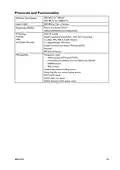


Enable the Wireless Connection
To complete the configuration of the wireless connection, set the ”Connection state” to
”Always connect” and click the ”Update” button to save the changes. Once the changes
have been set, the MRD will initiate a connection. Normally it will take up to 30 seconds
to esablish a connection. Figure 8 shows the completed wireless configuration.
Figure 8
Checking the Status of the Connection
To check the status of the connection select ”Status” from the top level menu and then
select ”Wireless” from the second level menu. The Wireless status page will be displayed
which will look similar to the one shown in Figure 9. The status of the connection
will change as the router connects to the network, first it will report ”Checking” then
”Connecting” and finally ”Connected”. To see the value changing the page will need to be
reloaded.
Figure 9
6623-2212
23

| General | Details |
|---|---|
| Name | westermo MRD-405 4G LTE Router User Guide |
| Make | westermo |
| Language | English |
| Filetype | PDF (Download) |
| File size | 0.42 MB |
 (1 votes, average: 5.00 out of 5)
 Loading...
If you have any questions regarding westermo MRD-405 4G LTE Router User Guide, please ask here and describe the problem in detail.

westermo Merlin 4700 Series VDSL Cellular Router User Guide

westermo MRD-455-NA Cellular Router User Guide

Westermo Merlin 4100 Series Cellular Router User Guide

westermo Merlin 4700 Series Cellular Router User Guide
westermo 4400 Cellular Router User Guide


GearUp HYPEREV WH01 Wireless Router User Guide

Cudy LT500 Outdoor Router Installation Guide

Tenda RX12V1.0 Wi-Fi 6 6E Router Installation Guide

cradlepoint AER1600 LTE Router User Guide

verizon xc46be224t Internet Gateway Router Instruction Manual

ZTE MC801A 5G WiFi CPE Router User Manual
Cudy WR3000 AX3000 Wi-Fi 6 Mesh Router User Guide

TP-Link BE5000 Outdoor/ Mesh Wi-Fi 7 Router User Guide

TP-Link Archer GE650, GE550 Wi-Fi 7 Gaming Router User Guide

HUAWEI WiFi Mesh 7 Tri-Band Router User Guide