
ZTE MC801A 5G WiFi CPE Router User Manual


Bridge Mode
Cable Broadband Mode
Your device supports the bridge mode and you can use this service from your
service provider to access the Internet.
Your device supports the cable broadband mode and you can use this service
from your service provider to access the Internet.
1. Ensure that your device can connect to the Internet by using your nano-SIM
card automatically.
1. Connect either of the two LAN ports and the broadband service network port
with a network cable.
2. Log in to the 5G CPE configuration web page.
2. Log in to the 5G CPE configuration web page.
3. Change the operation mode to Bridge Modeand select the WAN connection
network port. The device will be restarted automatically.
3. Change the operation mode to Cable Broadband Mode.
NOTE:
NOTE:
Please disconnect from the Internet first and then you can change the mode.
4. Set the detailedparametersgiven by your service provider.
5. Use your clients to access the Internet.
Please disconnect from the Internet first and then you can change the
mmode.
4. Connect the computer or other cable-connected client to the LAN port you
selected and the client can obtain the IP address from the WAN DHCP host
and connect to the Internet directly.
NOTE:
The cable-connected client connected to the other LAN port or the Wi-Fi connected clients cannoot visit the
Internet, but they can communicate with each other. If you want to change the operation mode, you can use
this client to log in to the configuration page to change the mode.
9
10
Telephone
WPS
Your device supports the telephone function. Before using the telephone
function, connect the telephone and insert the nano-SIM card.
To make a call:
Your device supports the WPS function. You can use this function to connect a
client to your device.
1. Press the WPS button on your device to activate the WPS function. The
WIFI indicator is blinking.
1. Pick up the handset.
2. Dial the telephone number.
2. Enable the WPS function on your client.
3. Wait for the call to be connected.
3. Follow the system prompts on your client to establish the connection.
11
12

| General | Details |
|---|---|
| Name | ZTE MC801A 5G WiFi CPE Router User Manual |
| Make | ZTE |
| Language | English |
| Filetype | PDF (Download) |
| File size | 0.28 MB |
 (1 votes, average: 5.00 out of 5)
 Loading...
If you have any questions regarding ZTE MC801A 5G WiFi CPE Router User Manual, please ask here and describe the problem in detail.

ZTE MF937 4G Mobile WiFi Router User Guide

ZTE E3330 WiFi 6 Wireless Router User Manual

ZTE MF920U 4G LTE Wireless Router User Guide

ZTE E1320 WiFi 6 Wireless Router User Manual

ZTE MF296C WiFi Router User Manual

ZTE MF920U 4G MiFi Modem Router User Guide

ZTE MC888 Pro 5G CPE Router User Guide

ZTE MC888 Ultra 5G Router Instruction Manual

ZTE U30 Air 5g Portable WiFi Mobile WiFi Router User Guide


levelone WGR-8031 AC1200 Dual Band Wireless Gigabit Router Owner’s Manual

EAE Technology IPR200 KNX IP Router User Guide

HFCL Weave Home Mesh Router User Guide

ASUS RT-AX82U Dual Band Wi-Fi Router User Guide

TP-Link TL-WR846N 300Mbps Wireless Router Instruction Manual

NETGEAR Nighthawk Tri-Band WiFi 6 Router RAX200 User Guide
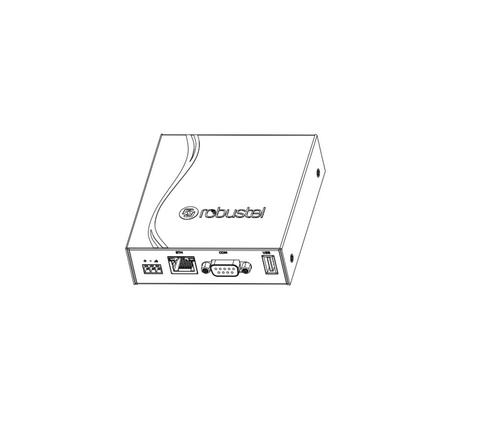
robustel R3000 Lite Dual-SIM VPN Router User Manual

HQTelecom HQ-3232B-911 Call Re Router Instruction Manual

Shenzhen 802.11AX Wi-Fi 6 1800M Wireless Router Installation Guide

TP-Link BE19000 Tri-Band Wi-Fi 7 Router Installation Guide