
ZTE MF937 4G Mobile WiFi Router User Guide


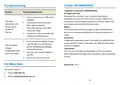


4. Access the Internet
5. Change Your Device Settings
y
Wi-Fi: Get the default SSID and password on the label and
connect to the Wi-Fi network with your mobile device, and
then access the Internet.
You can change the device settings by logging in to the 4G
Mobile Hotspot configuration web page.
1. View the label on your device to get the default device
manager Website IP address and Password.
2. Launch the Internet browser and enter the device manager
Website IP address in the address bar.
Wi-Fi
Model:MF937
IMEI:
3. Input the password and then click Login.
WiFi SSID:
XXXXXXXX
WiFi Key:
Device Manager Website:
Password:
Made in China by ZTE
4. After the 4G Mobile Hotspot configuration web page is
opened, you can change the Wi-Fi SSID, password or other
settings.
y
micro-USB cable: Connect with the computer via USB port
and then access the Internet.
NOTE:
If the operating system does not automatically launch
installation, you can double-click the device installation icon in
the virtual CD-ROM to install the software.
5
6

| General | Details |
|---|---|
| Name | ZTE MF937 4G Mobile WiFi Router User Guide |
| Make | ZTE |
| Language | English |
| Filetype | PDF (Download) |
| File size | 0.2 MB |
 (1 votes, average: 5.00 out of 5)
 Loading...
If you have any questions regarding ZTE MF937 4G Mobile WiFi Router User Guide, please ask here and describe the problem in detail.

ZTE E3330 WiFi 6 Wireless Router User Manual

ZTE MF920U 4G LTE Wireless Router User Guide

ZTE MC801A 5G WiFi CPE Router User Manual

ZTE E1320 WiFi 6 Wireless Router User Manual

ZTE MF296C WiFi Router User Manual

ZTE MF920U 4G MiFi Modem Router User Guide

ZTE MC888 Pro 5G CPE Router User Guide

ZTE MC888 Ultra 5G Router Instruction Manual

ZTE U30 Air 5g Portable WiFi Mobile WiFi Router User Guide


xunison D50-5G 5G-LTE Wi-Fi 6 Home Router User Guide

ASUS ROG Rapture GT-BE98 Pro BE30000 Quad Band Gaming Router User Guide

D-Link BE7200 Wi-Fi 7 Router User Manual

altice UBN2309 XGS-PON Labs Delivers Router Instruction Manual

Wistron NeWeb XIONEWN Router User Manual

TP-Link G36 Gigabit VPN Router Installation Guide

Cisco Router RV345/RV345P User Guide

TP-Link BE19000 Tri-Band Wi-Fi 7 Router Installation Guide

intelbras GX 1001 LT 5G WiFi 6 Router Installation Guide

Doonink FW70 WIFI Router User Manual