
3onedata IRT5300L-5T2D-2P12_36 4G Wireless Router Installation Guide
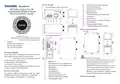
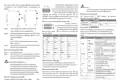
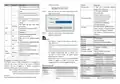
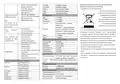


computer browser.
IO port
Reserved
LED
Indicate
Description
SIM card slot
2
SIM slots, redundancy backup,
One indicator is on. It means the
LTE signal of the opposite end is
weak
support Micro SIM card
2 LTE antenna interfaces,
SMA-K(Female)
Master antenna is used for
sending/receiving information
Slave antenna is used for
receiving information
Step 3
Enter the device’s username and password in the
login window below.
Two indicators are on. It means
the LTE signal of the opposite end
is normal
All indicators are on. It means the
LTE signal of the opposite end is
strong
Antenna interface
Indicator
2 WIFI antenna interfaces,
RP-SMA-K(Female)
The serial port has data being
transmitted
Blinking
OFF
Running indicator, WLAN indicator,
power indicator, LTE signal strength
indicator, 4G indicator, LAN/WAN
port indicator, COM indicator and IO
indicator
COM
IO
No serial port connection or no
data transfer
Reserved
LAN port has established valid
network connection
Step 4
Click the “Login” button to log in to the WEB
interface of the device.
—
ON
WIFI Transmission Rate
LAN port is in network active
status
LAN port hasn't established a valid
network connection
6.5~300Mbps
802.11n
802.11b
802.11g
Note:
1-4
Blinking
OFF
11/5.5/2/1Mbps
The default IP address of the device’s LAN port is
“192.168.1.254”.
The default user name and password of the device are
“admin”.
If the user name or password is lost, user can restore it
to factory settings via restoring factory setting button;
all modified configurations will be cleared after
restoring to factory settings, so please backup
configuration file in advance.
Please refer to user manual for specific configuration
method of logging in to WEB interface and other
configurations about network management function.
54/48/36/24/18/12/9/6Mbps
WIFI RF
Channel
WAN port has established valid
network connection
2.412GHz~2.4835GHz
20dBm
ON
RF power output
Modulation scheme
WAN port is in network active
status
WAN
(Green)
DBPSK, DQPSK, CCK, OFDM,
16-QAM, 64-QAM
Blinking
OFF
WAN port hasn't established valid
network connection
WIFI Receiving Sensitivity
-82dBm@MCS0, -64dBm@MCS7
802.11n_HT40
802.11n_HT20
802.11g
-85dBm@MCS0, -67dBm@MCS7
-91dBm@6Mbps, -72dBm@54Mbps
-93dBm@1Mbps, -87dBm@11Mbps
Logging in to WEB Interface
This device supports WEB management and configuration.
Computer can access LAN port of the device via Ethernet
interface. The way of logging in to device’s configuration
interface via IE browser is shown as below:
802.11b
Specification
WIFI Transmission Power
802.11n_HT40
802.11n_HT20
802.11g
20dBm@MCS0, 20dBm@MCS7
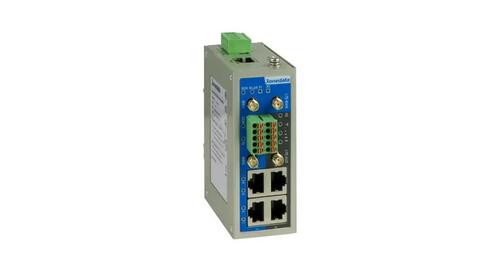
Panel
20dBm@MCS0, 20dBm@MCS7
20dBm@6Mbps, 20dBm@54Mbps
23dBm@1Mbps, 20dBm@11Mbps
Step 1 Configure the IP addresses of computer and the
device’s LAN port to the same network segment,
and the network between them can be mutually
accessed
WAN port
LAN port
Serial port
1 10/100Base-T(X) RJ45 port
4 10/100Base-T(X) RJ45 ports
RS-232/485/422, with 2x5-pin
3.81mm pitch terminal (occupies 6
pins)
802.11b
LTE Operating Frequency Band
Chinese version TDD-LTE: Band 38/39/40/41
Step 2 Enter device’s IP address in the address bar of the

| General | Details |
|---|---|
| Name | 3onedata IRT5300L-5T2D-2P12_36 4G Wireless Router Installation Guide |
| Make | 3onedata |
| Language | English |
| Filetype | PDF (Download) |
| File size | 11.5 MB |
 (1 votes, average: 5.00 out of 5)
 Loading...
If you have any questions regarding 3onedata IRT5300L-5T2D-2P12_36 4G Wireless Router Installation Guide, please ask here and describe the problem in detail.

ASUS RTBE7900 BE3600 Dual-band Wi-Fi Router User Guide

xunison Hub Q50 Mesh High Performance Router User Guide

ExpressVPN AXG1800 Wi-Fi 6 VPN Router User Manual

TELTONIKA RUTX12 Dual Cat 6 Cellular Router Owner’s Manual

TP-Link Archer AX55 Pro AX3000 Multi-Gigabit Wi-Fi 6 Router Installation Guide

Cudy WR1200 Dual Band Smart Wi-Fi Router Installation Guide

ASUS RT-AX86U Pro Wireless-AX5700 Dual-Band Gigabit Router User Guide

mine media M4 4g LTE Bonding Router User Manual

Adtran 834-5 SDG PlumeOS Dual-Band Wi-Fi 5 Plume Enabled Ethernet Router User Manual

ASUS RT-AX92U Wireless AX6100 Tri band Gigabit Router User Guide