
Acer 954318 Wave 7 Wi-Fi Mesh Router User Manual




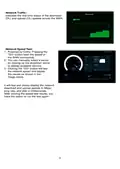



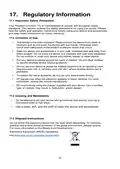


Wi-Fi Status: displays the number of
wireless client devices connected to the
2.4GHz, 5GHz, and 6GHz bands. By
enabling band steering, the router
monitors and manages the frequency
band allocation within the Wi-Fi network.
LAN Status:
quickly indicates the status of LAN
ports. The Acer Wave 7 has one
WAN port, one Game port, and one LAN
port. The “icon” on the far right represents
the number of devices connected to the
Wave 7 router. Clicking on this icon will
display the table shown below.
System Uptime: display the system
Uptime since the last reboot.
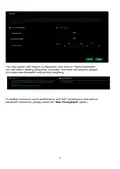
Connected Devices: displays the number of
client devices connected to your Wave 7 via
Wi-Fi or LAN. You can modify a device's
name by clicking on the pencil icon.
This tab shows the client device name, IP
address assigned by the router, MAC
address, connection mode (Ethernet or Wi-
Fi), and the duration of the device's
connection to the router. You can also block
a device from accessing the Internet by
clicking the "block" button..
8

| General | Details |
|---|---|
| Name | Acer 954318 Wave 7 Wi-Fi Mesh Router User Manual |
| Make | Acer |
| Language | English |
| Filetype | PDF (Download) |
| File size | 0.74 MB |
 (1 votes, average: 5.00 out of 5)
 Loading...
If you have any questions regarding Acer 954318 Wave 7 Wi-Fi Mesh Router User Manual, please ask here and describe the problem in detail.
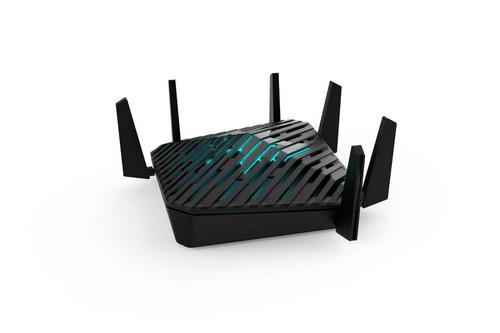
acer WA-36W12FU-AKAA 6E Predator Connect W6 Wi-Fi Router User Manual

acer W6M W-Fi 6E Mesh Router User Manual

acer W6M Vero Wi-Fi Router User Manual

acer 952483 WAVE 7 Wi-Fi Mesh Router User Guide

Acer W6 Predator Connect W6x Dual Band Wi-Fi 6 Router User Manual

acer W6X PREDATOR Connect Wi-Fi 6 Router Instructions

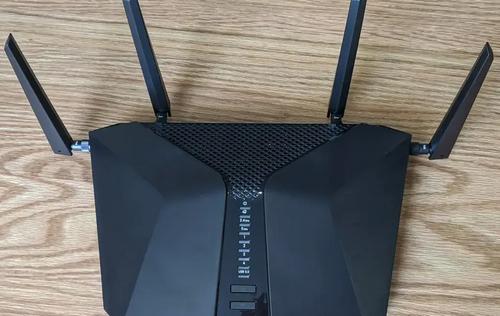
NETGEAR Nighthawk 6-Stream AX5200 WiFi Router RAX48 User Guide

Chosen Selective EL988 CS Dual Band Global Mifi Router User Manual

TP-Link TL-WR1502X AX1500 WiFi 6 Travel Router Installation Guide

D-Link DWR-960 Wi-Fi Router Instruction Manual

Thumbnail TN1000 Master Router Instruction Manual
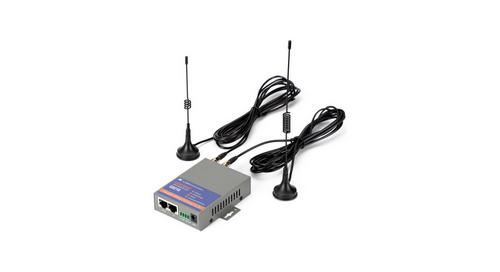
keennew QX210-NW2 4G LTE WiFi Router Owner’s Manual

TP-Link Configure VDSL Router User Guide

Cudy X6 AX1800 Dual Band Gigabit Wi-Fi 6 Mesh Router Installation Guide

AKYPACH 15PCS Wood Router Instruction Manual

TP-Link AX1800 Wireless Router User Manual