
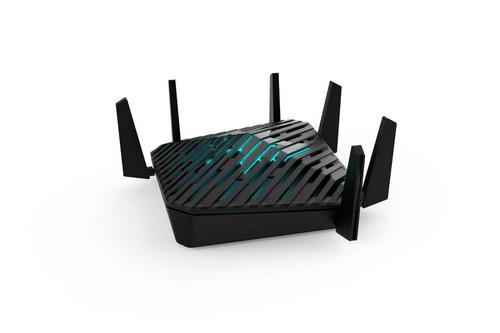
acer WA-36W12FU-AKAA 6E Predator Connect W6 Wi-Fi Router User Manual


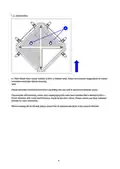
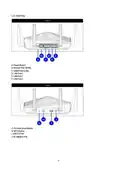









Ensure your Predator Connect W6 Wi-Fi 6E Router is switched on and connected to the network.
The Internet LED should be blue.
To connect your personal device to the internet
A. Connect your computer or device to Predator Connect W6 via WiFi:
1. Search Predator Connect W6 wireless network name (SSID) on your device.
2.4GHz wireless network name: PredatorW6-XXXX-2.4GHz
5GHz wireless network name: PredatorW6-XXXX-5GHz
6GHz wireless network name: PredatorW6-XXXX-6GHz
2. Connect to your preferred PredatorW6 Wi-Fi network.
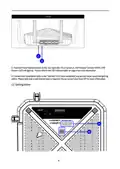
3. Enter your Wi-Fi password which is located on the label at the bottom of the
device. You may use the Acer Connect URL to get the Web UI Home Page, or
B. If you are using the mobile APP, scan to QR code to bind the device credentials to log into
the APP’s control panel.
3. Device setup
3.1 Web UserInterface(UI)
The Web User Interface is compatible with the following browsers:
• Google Chrome
• Mozilla Firefox
• Internet Explorer
• Safari
• Microsoft Edge
3.1.1 How to log in to the Web UI
1. Open your web browser.
2. Type http://acerconnect.com:8080 or http://192.168.76.1:8080 into the address bar and press enter.
The Home page will then load, as shown in the screenshot below.
9

| General | Details |
|---|---|
| Name | acer WA-36W12FU-AKAA 6E Predator Connect W6 Wi-Fi Router User Manual |
| Make | Acer |
| Language | English |
| Filetype | PDF (Download) |
| File size | 0.64 MB |
 (1 votes, average: 5.00 out of 5)
 Loading...
If you have any questions regarding acer WA-36W12FU-AKAA 6E Predator Connect W6 Wi-Fi Router User Manual, please ask here and describe the problem in detail.

acer W6M Vero Wi-Fi Router User Manual

acer W6M W-Fi 6E Mesh Router User Manual

acer 952483 WAVE 7 Wi-Fi Mesh Router User Guide

Acer 954318 Wave 7 Wi-Fi Mesh Router User Manual

Acer W6 Predator Connect W6x Dual Band Wi-Fi 6 Router User Manual

acer W6X PREDATOR Connect Wi-Fi 6 Router Instructions

NETGEAR R6300 WiFi Router Instruction Manual

AIRSONICS 4960R Mesh WiFi Router Installation Guide

Tenda RX2 Pro, TX2 Pro Dual Band Gigabit WiFi 6 Router Installation Guide

HABITECH Vigor 2865 Series WiFi Router User Guide

ASUS ZenWiFi XD4S AX1800 Dual Band WiFi Router User Guide

ZYXEL LTE5388-M804 4G LTE-A Pro Router User Guide

MEIG SLT866 4G LTE CPE Router User Guide

D-Link R3 AX3000 MU-MIMO WiFi Gigabit Router Installation Guide

LINKSYS E1000 Wireless N Router Instruction Manual

Starlink Mesh Nodes wifi router User Guide